Solution

AI Expand

Reformat, reframe, and expand any photo with TouchRetouch's AI image extender on iOS and Android
Touch Retouch Available in TouchRetouch
TouchRetouch - AI Expand
AI Image Extender

Stop Cropping Your Best Shots

Some of your best photos arrive a little too tight — the subject’s head hugs the top edge, or the format is wrong for the platform you’re posting on. AI Expand fixes that. Open the photo, drag the edges outward, or change aspect ratio without cropping using a built-in preset. Our AI image extender fills the new area with content that blends with the original’s lighting and texture, so you can reframe in seconds and walk away with a wider, taller, or differently shaped version of the same shot.
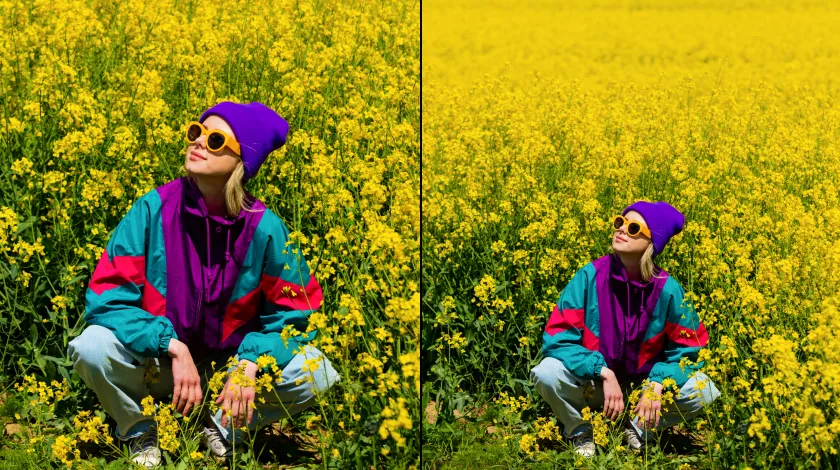
AI Image Extender
Variants

Enhance Every Photo for Every Purpose

Business & E-commerce
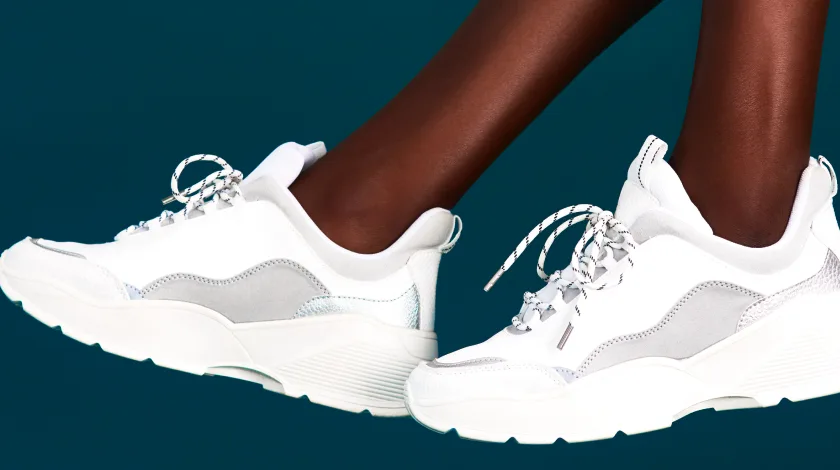
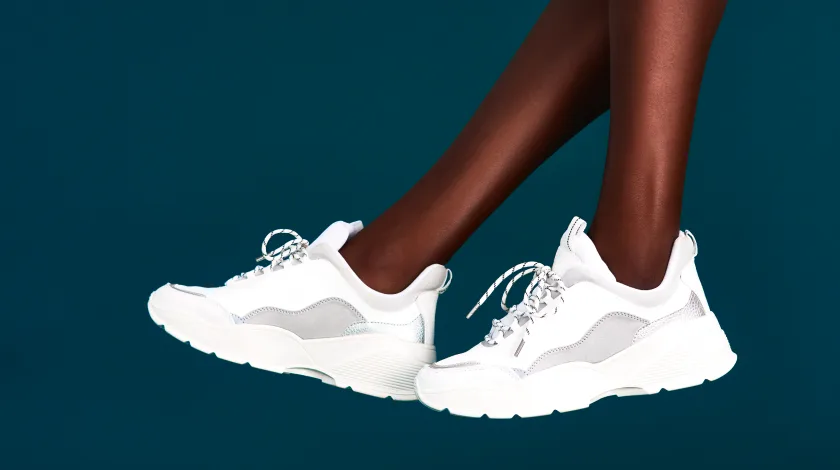
Reformat one product shot into every banner slot you need — site hero, marketplace tile, paid-social creative — without losing the product to a tight crop. AI Expand lets you extend photo background around a packshot, hit the exact aspect ratio each placement demands, and keep the item perfectly framed. Marketplace sellers and in-house designers save the hours that used to go to re-shoots or rebuilding canvases by hand in desktop software.
AI Expand – For Business & E-commerce

Social Media & Personal Photos

That tight vertical phone snap doesn't have to stay locked to one platform. Use AI Expand to make portrait photo into landscape, fit a square grid post, or fill a horizontal cover. Need vertical for Stories? You can expand photo for Instagram Reels with the same source image. Reframe family shots so heads aren't clipped at the top, or add breathing room around subject for a cleaner composition.
AI Expand – Social Media & Personal Photos

Professionals & Creatives
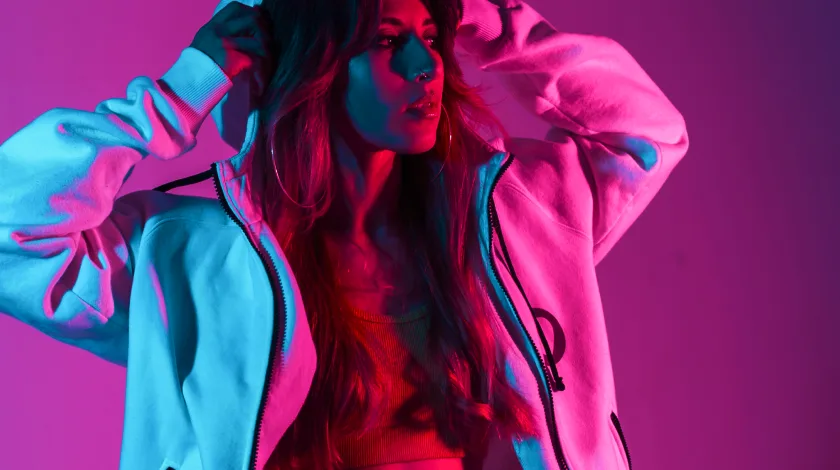
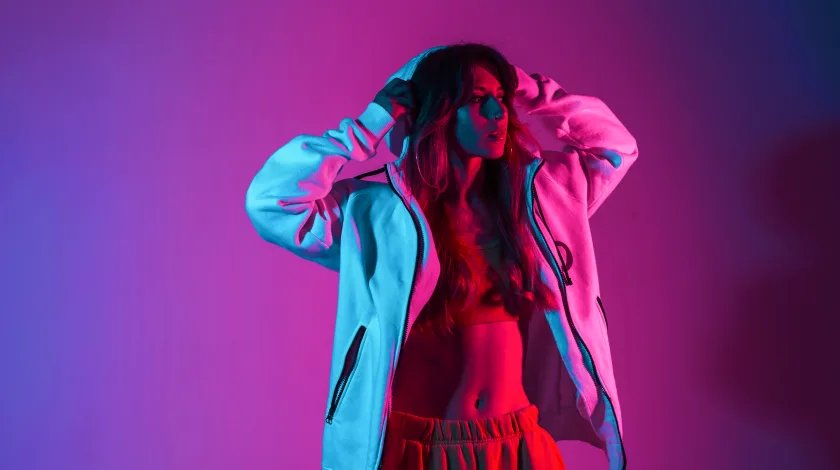
Photographers, designers, and art directors all hit the same problem: the final composition needs a different shape than the shot you have. With AI Expand, you can uncrop photo edges to open up space above the subject's head. Or expand image with AI when one hero shot has to live as a 16:9 banner, a 1:1 tile, and a 9:16 vertical. Extend photo beyond borders without firing up a desktop editor.
AI Expand – Professionals & Creatives
Instructions

How It Works

01

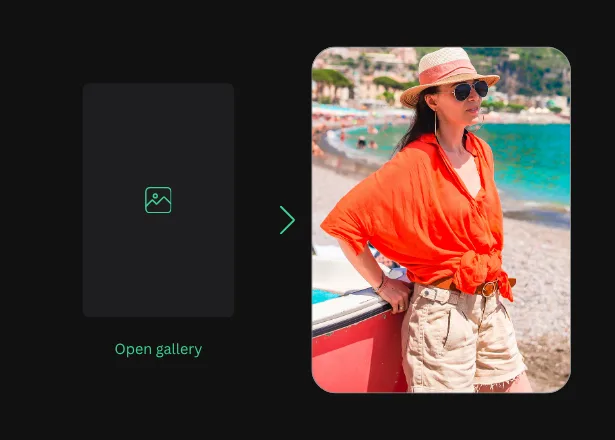
Open your photo

Launch TouchRetouch on iOS or Android, tap AI Expand, and import any JPG, PNG, HEIC, or TIFF straight from your camera roll
Open your photo
02

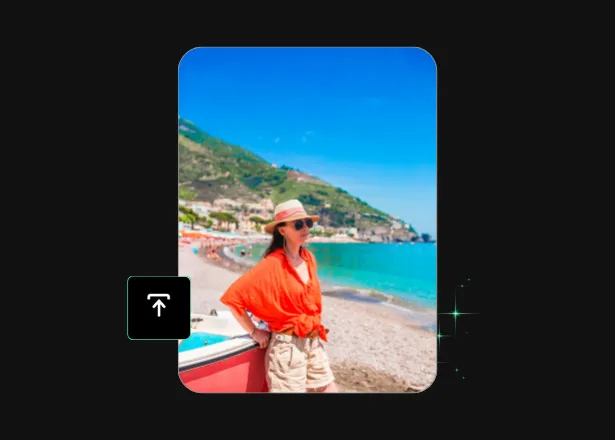
Drag the edges or pick an aspect ratio
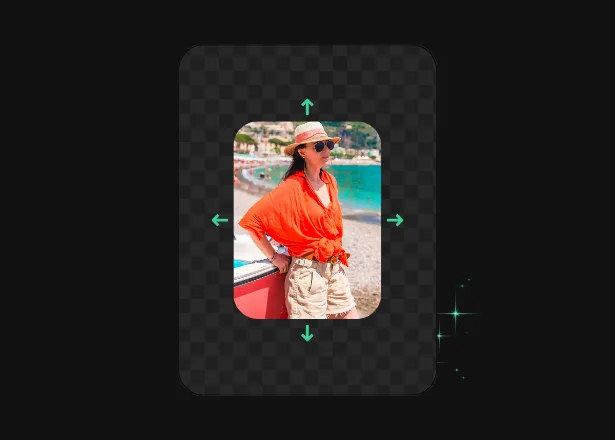
Pull the canvas outward in any direction, or pick a preset like 9:16, 16:9, 1:1, or 4:3 to reformat without losing your subject
Drag the edges or pick an aspect ratio
03

Save and share in high quality

Tap to generate, let AI fill the new area, then export in full resolution and share to any platform in seconds
Save and share in high quality
Opportunities

More Than a Photo Editor

01

Advanced AI Technology

AI Expand uses advanced AI models to perform generative expand on your photo. The app reads the colors, shapes, and lighting at the edges of the frame, then fills the new canvas area so it blends with the rest of the image. No prompt writing required.

02

Multiple Solutions in One App

One app, dozens of edits. Pair AI Expand with Remove Object for clutter, Background Remover to isolate subjects, Photo Enhancer to sharpen detail, Blur Background for depth, and Photo Resizer to scale existing pixels up or down without adding new canvas area.

03

Mobile-First Experience

Built for phones from day one. TouchRetouch runs entirely on iOS and Android, with a tap-and-drag interface designed for one-handed editing on the train or in a café. No desktop, no plugin, no learning curve — your edits ship as fast as you can think them up.

04

Studio-Quality Results

Outputs match the lighting, color, and texture of your source so AI outpainting blends naturally into the scene. The expanded area is AI-generated plausible content, not a recovery of what was outside the frame at capture — ideal for creative reframing.

Features

More Solutions

Add Person

Add Person

Explore
Insert person into photo on your phone — let AI place them with matching light and perspective in seconds
Explore
AI Photo Filter

AI Photo Filter

Explore
Pick a preset, tap once, and watch your photo take on a whole new mood, lighting, and character
Explore
Face Fix

Face Fix

Explore
Fix facial expression mishaps — a blink, a sneeze, a glance away — and save the shot in seconds on your phone
Explore
Restore Photo

Restore Photo

Explore
Bring fragile family memories back into focus with AI photo restoration — gentle, fast, and built for heirlooms
Explore
AI Edit

AI Edit

Explore
TouchRetouch's AI photo editor with text prompt lets you describe a change and apply it on your phone in seconds
Explore
AI Photo Editor

AI Photo Editor

Explore
Enjoy full and comprehensive photo editing with AI tools
Explore
Remove Glare

Remove Glare

Explore
Eliminate any unwanted light reflections and glare in your photos
Explore
Lines Remover

Lines Remover

Explore
Remove lines from your photos while maintaining a realistic look
Explore
360 Photo Editor

360 Photo Editor

Explore
Edit panoramic photos easily with user-friendly 360 tools
Explore
Add Shadow

Add Shadow

Explore
Add depth to your photos with realistic shadows for objects
Explore
AI Photo Editor

AI Photo Editor

Explore
Enjoy full and comprehensive photo editing with AI tools
Explore
Blemish Remover

Blemish Remover

Explore
Remove any blemishes, minor imperfections, or acne on the skin
Explore
Photo Resizer

Photo Resizer

Explore
Easily and effortlessly change the size and resolution of your photos
Explore
Blur Background

Blur Background

Explore
Add an artistic touch to your photos by blurring the background
Explore
Photo Enhancer

Photo Enhancer

Explore
Enhance photos with brightness, clarity, and contrast adjustments
Explore
Background Remover

Background Remover

Explore
Remove the background, leaving only the object you need in the photo
Explore
Face Retouch

Face Retouch

Explore
Eliminate imperfections and smooth your skin for a flawless look
Explore
Remove Unwanted Objects

Remove Unwanted Objects

Explore
Instantly remove unwanted objects, items, and people from your photos
Explore
Reviews

What Our Users Say

Real feedback from photographers, sellers, and everyday shooters using AI Expand on iPhone and Android
Touch Retouch has been a reliable App for erasing unwanted objects or even photo bombers from an otherwise good picture. But now it has a host of other features and I believe this app will continue to be a go-to App for photographers, hobbyists and even Moms and Dads worldwide. Rainbow Unicorn Sparkles, Philippines, 2026-02-23
TouchRetouch has been my go-to app for years… The only feature I wished for was [more capability] without needing multiple apps. Well, Adva Soft has made that wish a reality! The latest update introduces an incredible [new] feature… Thunderchildcars, UK, 2026-04-01
FAQ

AI Expand Frequently Asked Questions

What does AI Expand do, and how does it work?

AI Expand uses AI-powered canvas extension to grow your photo’s borders beyond what the camera captured. Open a shot, drag the edges outward or pick a new aspect ratio, and the app fills the new space with content that matches the colors, lighting, and texture of the surrounding scene. It’s the simplest way to expand image with AI from your phone — no prompts to write, no desktop software, and no specialist skill required.

How is TouchRetouch different from a standard photo editor?

Standard photo editors mostly let you crop, color-correct, retouch, or remove objects from what’s already inside the frame. AI Expand goes the other direction — it adds canvas around your existing image and fills the newly created area. You’re not trimming pixels away; you’re adding new ones that fit the existing scene. That makes it especially useful when the composition itself is the problem, not what’s inside it.

What image formats and aspect ratios does AI Expand support?

AI Expand works with the formats most phones produce: JPG, PNG, HEIC, and TIFF. You can drag the canvas to any custom size, or use common social presets including 9:16 for Stories and Reels, 16:9 for landscape, 1:1 for square feed posts, and 4:3 for classic framing. You can also expand on only one side if you just need to fix a tight edge.

Can I try TouchRetouch for free?

Yes, you can try a 3-day free trial with all premium features unlocked.

Is AI Expand the same as uncropping a photo?

Not exactly. When you uncrop photo edges in AI Expand, the app generates plausible new content beyond the original borders — it doesn’t recover what was actually outside the frame when the shot was taken. Treat the expanded area as a creative addition, not photographic restoration of the original scene. For that reason, AI Expand is a great fit for creative, social, and marketing work; we don’t recommend it where photo authenticity is critical.

How realistic do the expanded areas look?

In most photos, the result looks very natural — AI outpainting matches the lighting and texture of the original so the new area blends with the scene. Results tend to work best on landscapes, interiors, skies, and uniform backgrounds. Complex foreground subjects, unusual lighting, or scenes with sharp diagonal lines can sometimes show visible seams, so it’s worth previewing the result before sharing.

Ready to give your photos the canvas they deserve? TouchRetouch Download Now

Install TouchRetouch on your smartphone and become a pro in photo editing
Smart tools to clean up photos with ease
Smart tools to clean up photos with ease TouchRetouch Smart tools to clean up photos with ease Start 3-day free trial