The Snapseed Healing tool is often the first thing people try when they want to remove an unwanted object from a photo on mobile. If you have a dust spot, a small sign in the background, or a tiny blemish, it can do a solid job without making you leave a general-purpose editor.
Snapseed is a free photo editor for iPhone and Android, and object removal happens through its Healing tool rather than a separate AI remover. That makes it simple to access, but it also means the workflow is fairly basic compared with apps built specifically for photo cleanup.
Quick verdict: Snapseed is a practical choice for small blemishes, dust spots, and minor background distractions. It becomes less reliable for large objects, people, power lines, or scenes that need more precise control.
That difference matters when you are choosing between a broad editor and a specialist cleanup app. If most of your edits are quick touch-ups, Snapseed may be enough. If you regularly remove unwanted objects from travel photos, family shots, or street scenes, a dedicated remover is usually easier to work with.
One strong specialist option is TouchRetouch, developed by ADVA Soft GmbH in Berlin, Germany. It is free to download; its premium AI tools (Erase AI, Blur, Backgrounds, Smart Scenes, Natural FaceRetouch and Person Removal) need a subscription. Check the App Store or Google Play for current pricing in your region.
When Snapseed works well
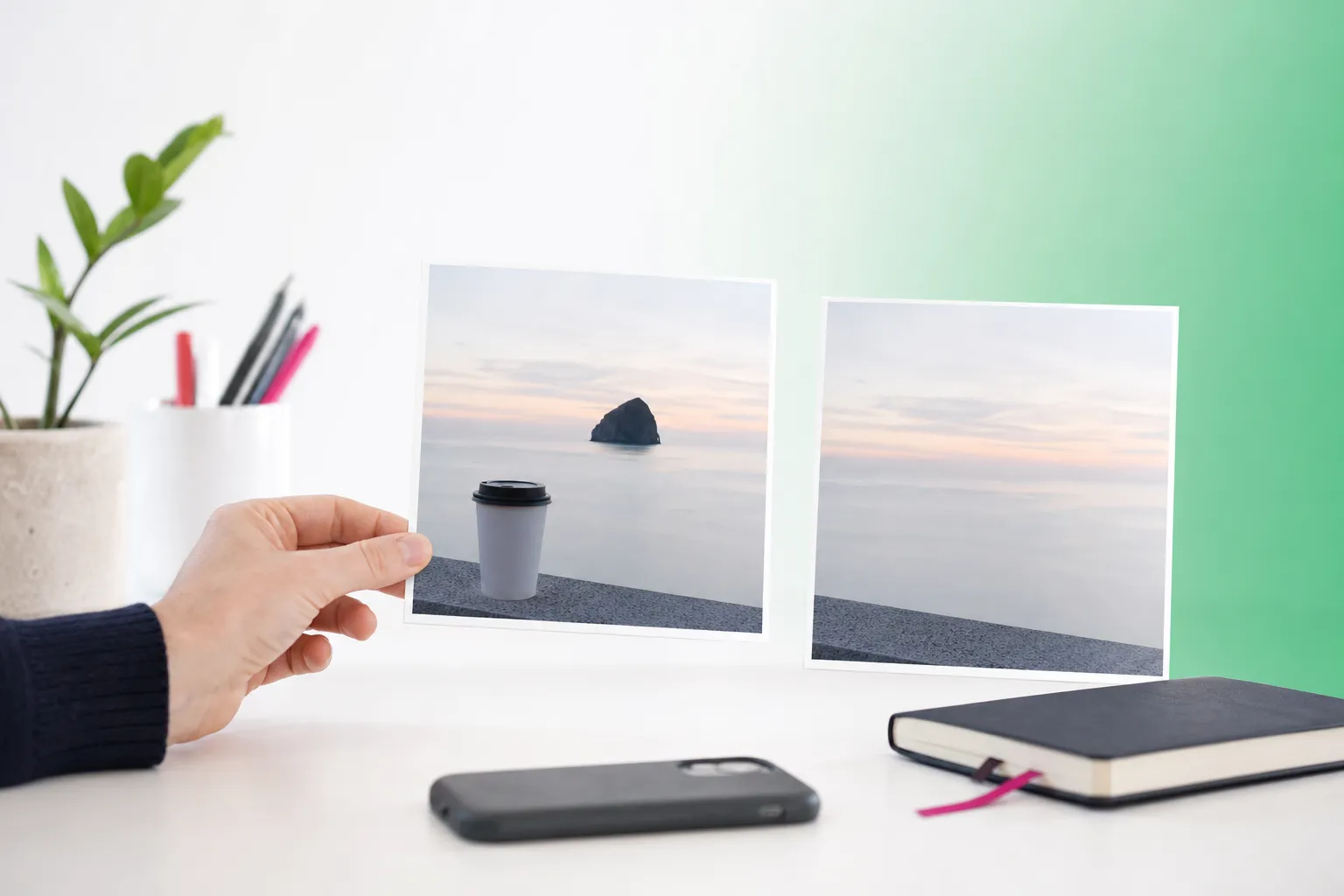
Snapseed works best when the thing you want to erase is small and the surrounding area is simple. Good examples include a skin blemish on a portrait, a tiny piece of litter on pavement, a sensor dust spot in the sky, or a small object against grass or sand.
In those cases, the app only has to rebuild a little bit of nearby texture. The result often looks natural enough for social sharing, casual printing, or everyday edits.
Where a dedicated remover makes more sense
Larger removals ask more from the software. A photobomber on a beach, wires across a skyline, or a bin in front of patterned brickwork leaves a bigger gap to rebuild, and errors become easier to notice.
That is where a specialist app becomes useful (our guide to object remover apps compares several). Tools designed for people, lines, meshes, and manual refinement give you more control over difficult edits than a single healing brush.
How to remove objects in Snapseed
Open the Healing tool and zoom in first
The basic Snapseed workflow is short. Open your photo, tap Tools, choose Healing, and zoom in before you start painting over anything.
Zooming in matters more than many people expect. A small distraction that looks easy at full view often overlaps edges, shadows, or texture changes when you inspect it closely.
- Open Snapseed and load the photo you want to edit.
- Tap Tools.
- Select Healing.
- Pinch to zoom in on the unwanted object.
- Brush over the distraction.
- Review the filled area.
- Undo and try again if the result looks off.
- Export the finished image.
Brush over the distraction in short strokes
The best technique is to use short, controlled strokes instead of one large swipe. When you mark a huge area at once, the app has to invent too much missing detail, and the fill often becomes blurry or repetitive.
For example, if you are removing a small sign from a wall, paint over one part of the sign first, then another. If you are cleaning a face, remove one blemish at a time rather than brushing across a whole cheek.
It also helps to work from the edges inward. That gives the editor a clearer reference for nearby texture and reduces the chance of dragging in the wrong pattern from another part of the image.
Undo and retry when the fill looks unnatural
Many people assume the first fill is final. It is not. If the repaired area smears, repeats texture, or bends a straight edge, undo the stroke and try a smaller selection.
This is especially useful near windows, rooflines, faces, and text. Healing can work well on simple surfaces, but it struggles when the missing area crosses clear structure or repeated detail.
Expected results are straightforward: small distractions can disappear cleanly, while medium-size edits may need several retries. If you still see a patchy area after a few careful attempts, the image is probably pushing beyond what this tool handles comfortably.
Best photo types for small cleanup jobs
The Snapseed workflow is strongest on small cleanup tasks. Think dust spots in the sky, tiny signs in the distance, skin blemishes, crumbs on a table, or a stray leaf on a path.
It is less dependable on patterned floors, busy crowds, detailed architecture, or anything that overlaps hair, faces, and strong edges. The reason is simple: the app has to reconstruct the background from nearby pixels, and some scenes do not give it enough clean material to copy.
If your edits are mostly quick fixes inside a free editor, Snapseed remains a convenient option. If your typical job is broader cleanup work, a dedicated app will usually feel more predictable; our photo cleaner guide covers the options.
What the Healing tool struggles with
Large objects that cover important background detail
A common frustration is trying to erase something large from the frame. Once the object covers a meaningful part of the background, the app has to rebuild too much information, and the repaired area can look soft, warped, or obviously repeated.
Picture a parked scooter in front of a tiled wall or a trash bin blocking part of a doorway. Those scenes contain structure, lines, and repeating patterns that are hard to reconstruct with a single brush-based healing workflow.
People in crowded scenes
Removing a full person is one of the hardest jobs for any general editor. In a beach photo, street scene, or tourist landmark shot, the background behind the person often includes shadows, footprints, railings, or other people.
That is why erasing a photobomber with the Healing tool can leave visible artifacts. You may end up with smeared sand, broken paving lines, or a strange patch in the crowd where the person used to be.
Wires, poles, and other long thin elements
Long, thin distractions are another weak point. Power lines, cables, railings, and poles often cross large parts of the image and pass over skies, trees, or buildings with changing texture underneath.
Even when the line itself is narrow, the cleanup challenge is not small. The app has to keep the sky smooth, preserve roof edges, and avoid bending nearby shapes, which is why wire removal often takes repeated trial and error.
Portrait edits beyond simple spot cleanup
For portraits, the Healing tool is useful for small blemishes and tiny distractions in the background. Subtle smoothing, eye brightening or wrinkle reduction is a different job that needs face retouching controls rather than a spot-healing brush.
If your main goal is occasional spot cleanup, Snapseed can still help. If you want broader portrait polish in the same workflow, a specialist app with dedicated retouch tools makes more sense for family photos, headshots, and travel portraits.
Snapseed vs TouchRetouch at a glance
Comparison table
| App | Platforms | Cost model | Object removal | People removal | Wire/line removal | Face retouch | Key requirement |
|---|---|---|---|---|---|---|---|
| Snapseed | iOS and Android | Free with no subscriptions, in-app purchases, ads, or watermarks | Healing tool | — | — | — | — |
| TouchRetouch | iOS, iPad, Apple Silicon Mac compatibility, Apple Vision, Android | Free to download; premium AI features require a paid subscription | Remove Objects with Brush and Lasso | Person Removal | Line Removal | Natural FaceRetouch | Some AI-powered features require internet connection |
A dash means the feature isn’t documented on the official pages we checked (November 2026).
What each app is designed to do
The main difference between the two apps is focus. Snapseed is a broad mobile editor with a simple healing workflow inside a larger editing app.
TouchRetouch is a specialist photo cleanup app built around removing distractions from pictures. Its tools are separated by task, so everyday object removal, people cleanup, line removal, mesh removal, and manual refinement each have their own workflow.
That matters in real use. A tiny dust spot and a person in the background are both “removal” jobs, but they are not the same kind of edit. One needs a quick brush fix; the other often needs smarter selection and more control over the rebuilt area.
For readers comparing a free general editor with a specialist remover, the choice comes down to the kind of cleanup you do most often. If your edits are occasional and small, Snapseed stays attractive. If you repeatedly clean travel photos, family pictures, or skyline shots, a dedicated cleanup app is easier to use across different scenes.
When TouchRetouch is the better fit—and when it isn’t
Choose it for dedicated cleanup tasks
TouchRetouch is the stronger choice when your main goal is to remove unwanted objects from photos regularly rather than occasionally. The app includes Remove Objects for everyday distractions, Erase AI for automatic background people and clutter detection, Person Removal for group photos, Line Removal for wires and cables, Mesh Removal for fences, and Clone Stamp for manual refinement.
Those tools map well to common real-life edits. You can clean utility wires from a skyline, erase a sign or bin from a street scene, remove a photobomber from a travel shot, or refine a textured area manually when the automatic fill needs help.
Portrait users also get Natural FaceRetouch for subtle skin smoothing, eye brightening, smile enhancement, wrinkle reduction, and evening skin tone while keeping features natural. That makes the app useful when a photo needs both scene cleanup and gentle portrait retouching.
For readers who often remove people from photos on mobile, this dedicated setup is easier to work with than trying to force one healing brush to solve every kind of problem.
Cases where Snapseed may be enough
Snapseed may still be enough if you only do tiny spot fixes from time to time. If your usual edit is removing a small blemish, a dust mark in the sky, or a minor distraction against a simple background, a free general editor is often all you need.
That is especially true if you already use Snapseed for color, contrast, cropping, and other basic edits. In that situation, keeping everything in one app can be more convenient than switching to a specialist tool for a single small correction.
Important limitations to know before you download
TouchRetouch is for photo editing only; it does not edit video. It is also a mobile app for iOS and Android, with Mac access available only through Apple Silicon compatibility rather than a standalone desktop version.
Some AI-powered features require an internet connection, and complex or heavily textured backgrounds may still need manual cleanup with Clone Stamp. It is also not an upscaling tool, so its role is cleanup and retouching rather than enlarging low-resolution images.
A practical advantage is export quality. TouchRetouch keeps the original photo quality and EXIF data on export, which is useful if you want to keep metadata intact for organizing, sharing, or archiving your images.
How to clean up a photo in TouchRetouch step by step
Use Remove Objects for everyday distractions
TouchRetouch keeps the cleanup workflow straightforward. Start with Remove Objects for signs, litter, text-like clutter, small background distractions, or other everyday elements you want out of the frame.
- Open your image in TouchRetouch.
- Choose Remove Objects.
- Use the Brush or Lasso to mark the unwanted area.
- Adjust brush settings for more precise selection if needed.
- Use Restore to correct small parts of the selection.
- Apply the removal and review the repaired area.
This works well for things like a street sign behind your subject, a bottle on the ground, or text-like clutter on a wall. On simple backgrounds, the fill usually looks clean right away; on more textured scenes, you may need a second pass.
Switch to Erase AI or Person Removal for people
When the distraction is a person rather than a small object, switch tools instead of forcing a brush workflow. Erase AI is designed to detect people in the background automatically while keeping the main subject unchanged, and it can also identify distractions such as street signs, trash cans, stop lights, and shadows.
For group photos, use Person Removal. The app detects all people in the image so you can remove individuals selectively, which is useful when one person blinked, stepped into the edge of the frame, or does not belong in the final composition.
TouchRetouch is free to download on iOS and Android; Erase AI and Person Removal are part of the subscription.
Use Line Removal for cables and power lines
For wires and cables, choose Line Removal. Tap or mark part of the line, and the app finds the full line automatically, which is much more efficient than trying to paint over every segment by hand.
If the line curves, manual control points help you guide the removal more precisely. This is especially useful for skyline photos, street scenes with overhead cables, and travel shots where thin lines cut across buildings or open sky.
Line cleanup is one of the most frustrating jobs in a general editor, and a dedicated line tool is better matched to it.
Refine difficult areas with Clone Stamp
Automatic removal works best when the surrounding texture is consistent. If the repaired area still looks uneven on brick, foliage, sand, or patterned surfaces, use Clone Stamp to copy nearby texture into the problem area manually.
This is the fallback that gives you extra control. For example, if a removed object leaves a patch in grass or a repeated pattern on a wall, Clone Stamp lets you blend the area more naturally by sampling from a cleaner nearby section.
Optional portrait cleanup with Natural FaceRetouch
If the image is a portrait, finish with Natural FaceRetouch. The feature supports subtle skin smoothing, eye brightening, smile enhancement, wrinkle reduction, and evening skin tone while preserving natural facial features.
That makes it a useful add-on after object cleanup. You can remove a distracting background element first, then make small portrait adjustments in the same app without pushing the image into an over-edited look.
When you are done, export the image; the original quality and EXIF data are kept.
Snapseed or TouchRetouch: which fits your edits
The simple decision guide
Here is the short version for everyday photo cleanup decisions.
- Choose Snapseed if: you want a free editor on iOS or Android.
- Choose Snapseed if: you mainly remove tiny distractions like blemishes, dust spots, or small bits of clutter.
- Choose Snapseed if: you prefer a general editing app with a basic healing workflow built in.
- Choose TouchRetouch if: you regularly remove people, wires, fences, signs, or multiple distractions from one image.
- Choose TouchRetouch if: you want dedicated cleanup tools such as Remove Objects, Erase AI, Person Removal, Line Removal, and Mesh Removal.
- Choose TouchRetouch if: you want manual refinement with Clone Stamp for difficult backgrounds.
- Choose TouchRetouch if: you want subtle portrait retouching with Natural FaceRetouch in the same app.
For occasional spot fixes, Snapseed is a good starting point. For repeat cleanup work across travel photos, family pictures, and busy outdoor scenes, a specialist app is easier to use consistently.
Final takeaway
A practical next step for your editing workflow
The main difference is simple: Snapseed’s Healing tool is useful for small edits, while dedicated removal tools are better suited to larger or more specific cleanup tasks. If your photos only need the occasional blemish fix or tiny distraction removed, Snapseed remains a solid free option.
If you often clean up photobombers, wires, fences, signs, or portrait distractions, TouchRetouch gives you tools built for those exact jobs. Get TouchRetouch on the App Store / Google Play.
Frequently Asked Questions
How do you use the Healing tool in Snapseed to remove an object?
Open your photo, tap Tools, choose Healing, and zoom in on the area you want to fix. Brush over the unwanted object in short strokes, review the fill, and undo if the result looks unnatural. Export the image once the repaired area blends in cleanly.
Why does Snapseed work better on small objects than large ones?
It works better on small objects because the app has less missing background to rebuild. Large removals create bigger gaps, and those gaps are harder to reconstruct cleanly near edges, patterns, faces, and architecture.
Can Snapseed remove people from photos cleanly?
Yes, sometimes, but it depends heavily on the scene. A single distant person against a simple background may erase well, while a photobomber in a crowded street or beach scene often leaves visible artifacts.
What is a good Snapseed alternative for wires and power lines?
TouchRetouch is a strong option for that specific task because it includes a dedicated Line Removal tool. You can tap or mark part of a wire or cable, and the app finds the full line automatically, with manual control points available for curved segments.
Is TouchRetouch free to use?
It is free to download. The premium AI tools (Erase AI, Blur, Backgrounds, Smart Scenes, Natural FaceRetouch and Person Removal) need a subscription; check the App Store or Google Play for current pricing in your region.