Automatic AI Retouching
Remove objects instantly with our Al.
Quick steps
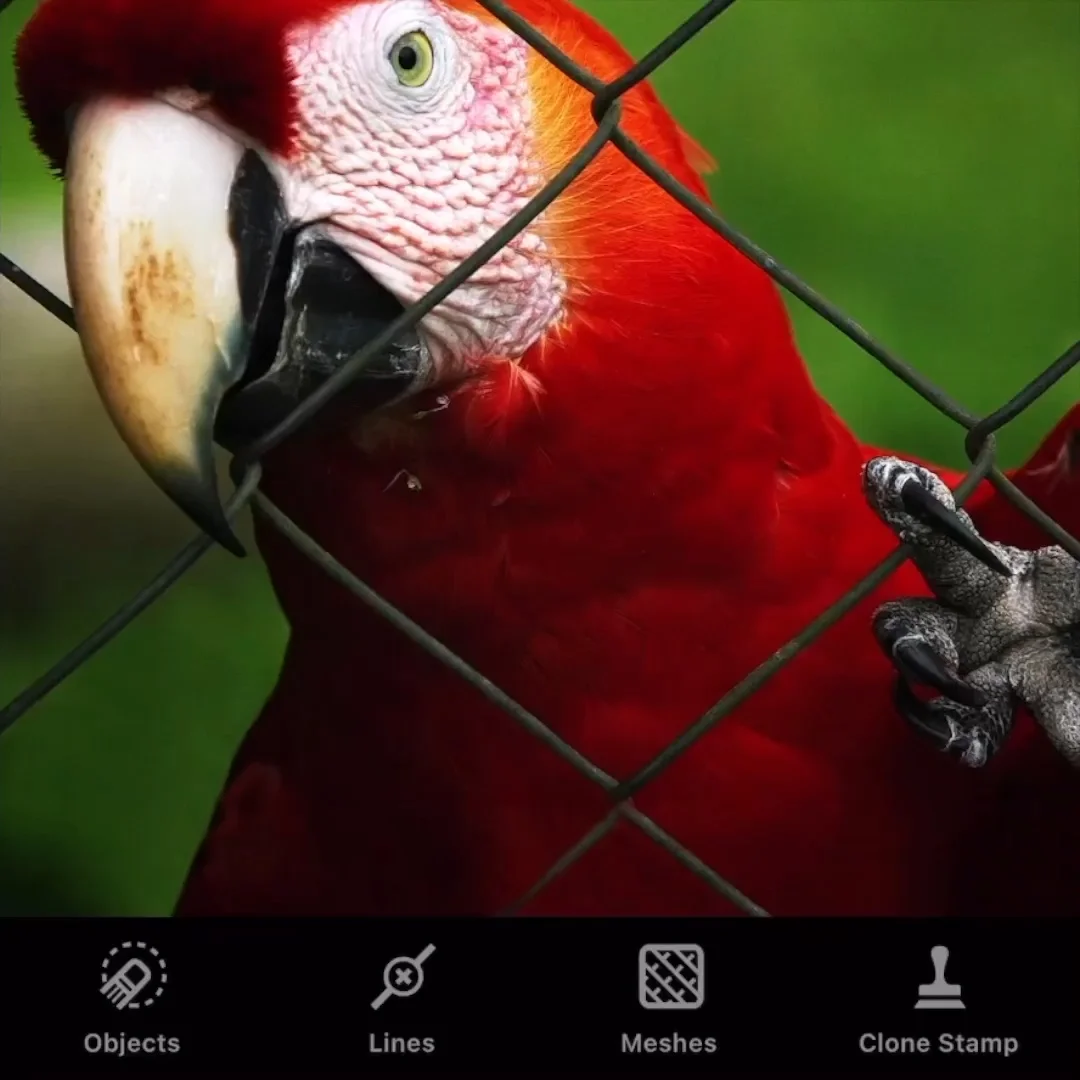
- Select Objects, and then tap Erase Al.
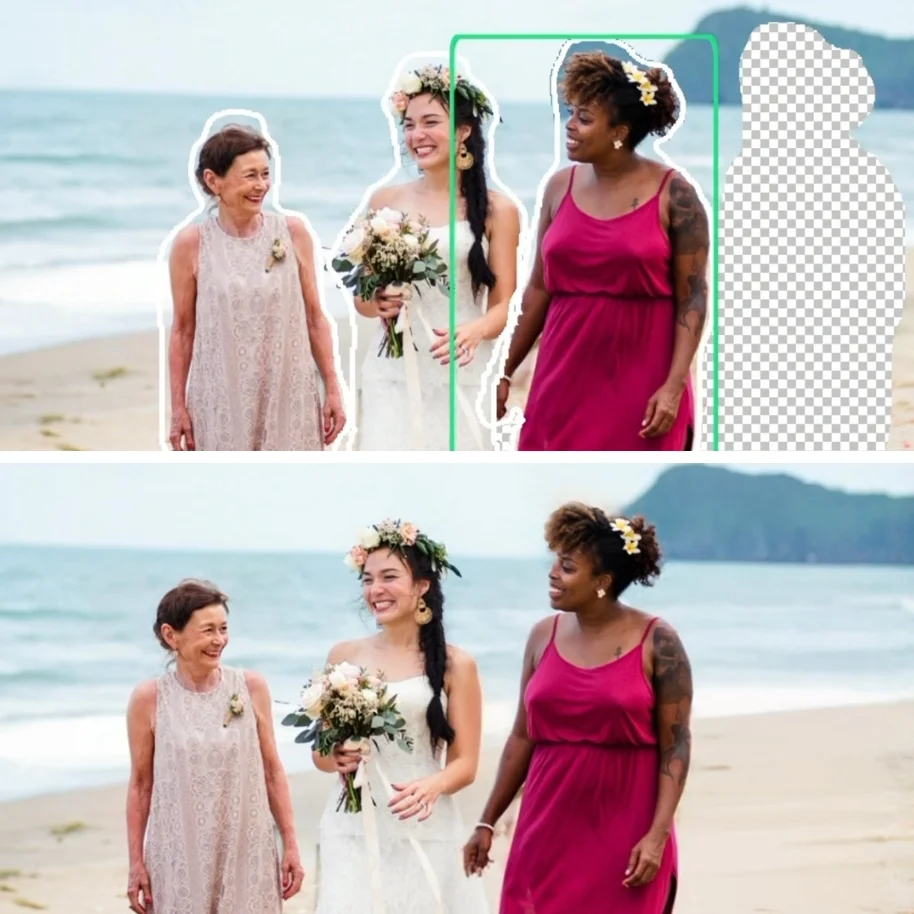
- You can tap masked objects to either deselect or reselect them.
- Tap the GO button to complete your edits.
Erase Al is a technology that uses the power of Al to assist in selecting unwanted objects in photos. The tool
automatically highlights items that it recognizes as potential objects for removal. This can save you time
compared to manual selection and is particularly useful when you want to quickly identify and remove
unwanted objects or distractions from images.
Step 1
Select the Objects tool in the main menu, and then tap the Erase Al button in the lower-left corner of the
workspace. The app will automatically identify and mask the objects to be removed.
Step 2
After applying the Erase Al feature, you might want to refine your selections and make adjustments.
Tap any masked object to either deselect it if it was selected incorrectly or reselect it if you missed something.
This step ensures precise control over the editing process.
Step 3
Once you are satisfied with the selections, tap the GO button, and the app will intelligently erase the objects
while seamlessly blending the surrounding background.