Smart Mesh Removal
Eliminate meshes from photos like magic.
Quick steps
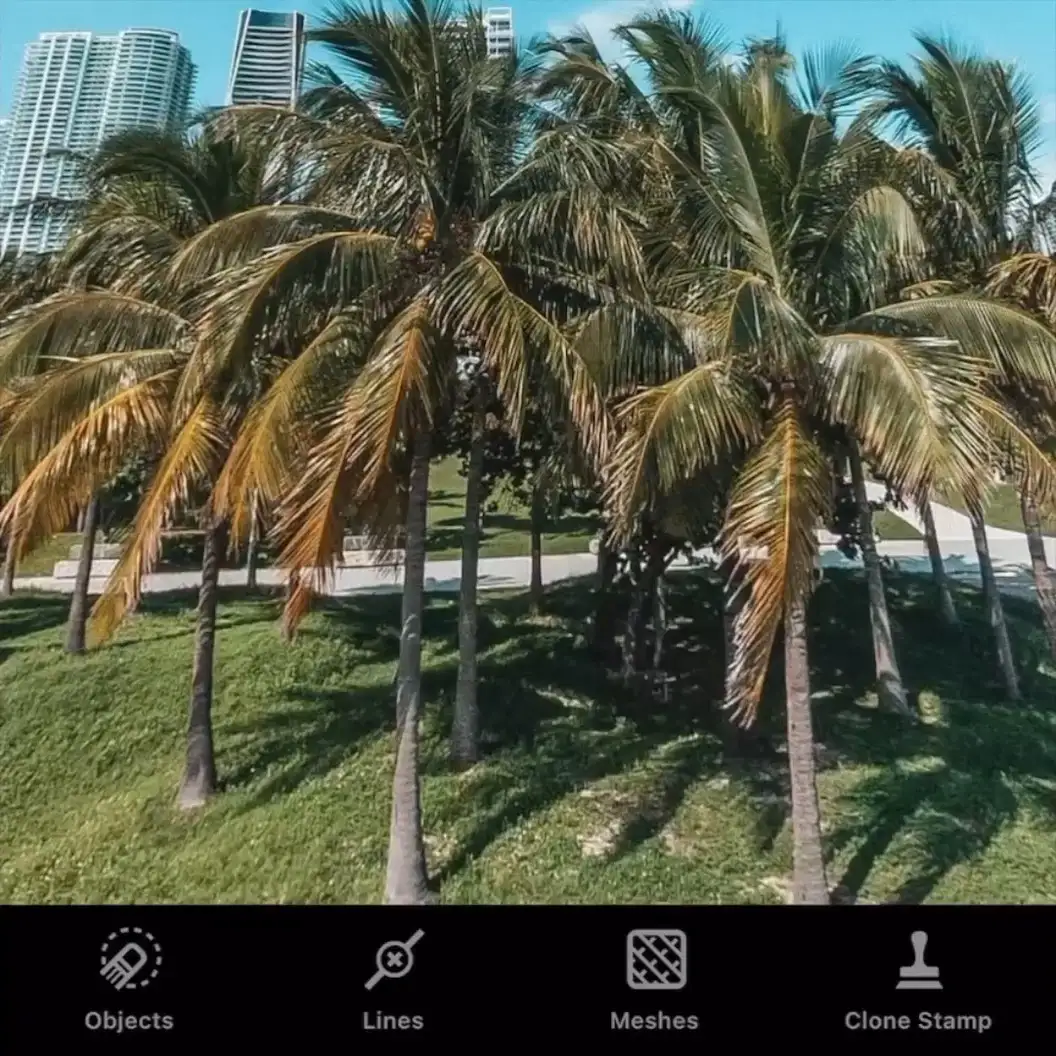
- Select Meshes in the main menu (the algorithm will find and select a mesh automatically).
- Use Eraser to unmark overmarked areas.
- Tap Go to have the mesh removed.
Meshes may create a challenge for a photographer. It’s mainly because they can’t be stepped over or climbed through when you need to get closer to an interesting subject to reach a strong photo composition. That’s absolutely true when it comes to taking photos of animals in wild animal parks or photographing sporting events where players are on a field surrounded by a protective netting. With TouchRetouch at hand, meshes are no longer a big pain. You can easily eliminate them from images with the app’s automatic mesh finder and remover.
Step 1
Tap Meshes in the main menu. The algorithm will automatically detect and mark the whole mesh.
Step 2
If you notice that there are portions requiring additional adjustments, you could easily fix unmarked and overmarked areas with Brush and Eraser. Change the Brush and Eraser size in the Settings menu (the rightmost button in the toolbar).
Step 3
Tap Go to have the mesh removed.
Note: If you are not satisfied with the result the algorithm produced, and there are some distortions around the photo, you can carefully remove them all by using the Brush tool.
TIPS & TRICKS
Restore Brush: Use this tool to brush back the changes just applied. The brush is not immediately accessible. It pops up in place of Eraser the moment a certain edit is made to a photo.
Reapply Brush: If you have restored too much of the original area, apply the edits once again. The brush becomes available as soon as you tap the Restore tool.
Revert to Original: Long-tap the Undo button to restore the original version of a photo. Single-tap this button to move one step back in the Undo chain.