Person Removal: Auto-Erase & Repositioning
Find with AI, remove with a tap.
Quick steps
Tap Person Removal to auto-find people.
Tap a person to remove them > tap GO to fill in the gap.
Use the Position tool to reposition others.
Long-tap a frame to access forward/backward controls.
Easily remove unwanted people from your group photos in just a few taps. The tool fills in the gaps automatically, so your background stays natural. You can also reposition other people to keep the composition balanced. Perfect for weddings, parties, or casual group shots. Make your group photos look polished without hours of editing. Quick, simple, and effective.
Step 1
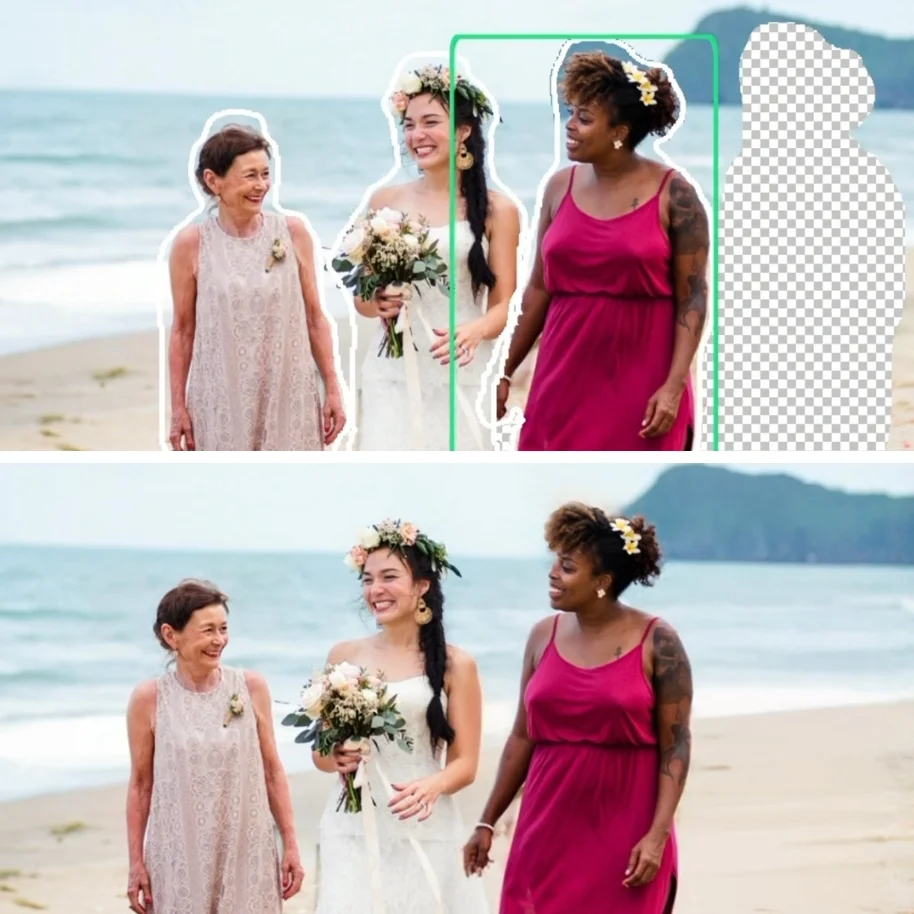
Select Person Removal from the main menu. The app will automatically detect and outline everyone in the photo.
Step 2
Tap a person to remove them instantly. Tap GO to finish — the app will fill in the gap and blend the background naturally.
Note: To remove several people, tap each one with the Remove tool.
Step 3
Select the Position tool. Tap a person to highlight them, then drag the frame to move them to a new spot.
Step 4
Long-tap the frame to open positioning controls. Bring someone forward or push them back to prevent overlap, add depth, and keep your photo balanced.