Backgrounds Tool: Background Replacement
Change backgrounds by single-tapping.
Quick steps
- Tap Backgrounds to auto-remove the background.
- Tap Background and choose a new one from preset styles.
- Import an image from your gallery or Unsplash.
The Backgrounds tool in TouchRetouch is your go-to solution for efficient background editing. This powerful instrument allows you to easily isolate subjects and replace backgrounds with just a few taps. Ideal for users looking to enhance their travel shots, edit cherished family photos, or design professional presentations, this tool offers a variety of customization options to elevate your images.
Step 1
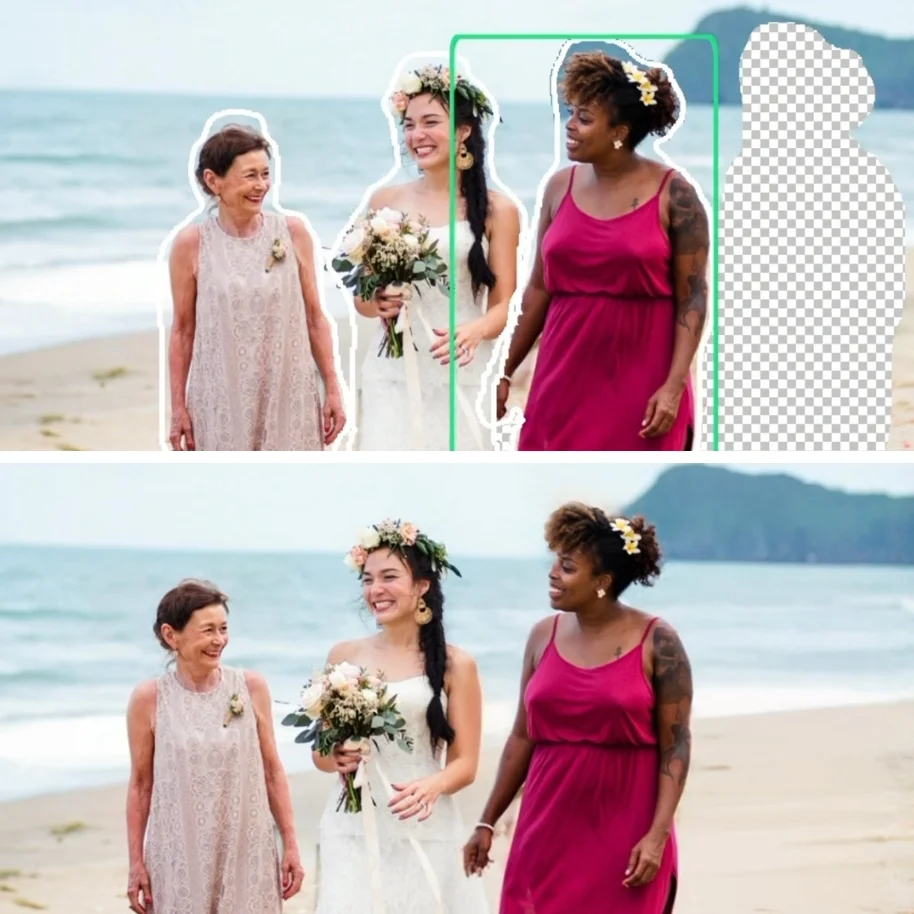
Select Backgrounds from the main menu. The app will instantly remove the background, leaving your subject intact.
Step 2
Set a new scene by picking a new background from the preset options or leave your subject on a transparent background for other creative uses.
PRESET BACKGROUND CATEGORIES
- Blur: Add a soft, out-of-focus look.
- Color: Use solid color backdrops or create a custom color background using the Color Picker.
- Scene, Nature, Texture: Choose from various themes to add depth and character to your photo.
- Gradient: Apply gradient backgrounds or create custom gradients using the Gradient Picker to blend colors beautifully.
Step 3
Set a new unique scene by importing a photo from Files, Photos, Clipboard or using the Unsplash integration to access stunning, high-quality images.
TIPS & TRICKS
Adaptive Adjustments: Tap the three dots on the selected option to modify the subject’s tone and color to harmonize with the new background.