Natural Blemish Removal
Erase blemishes just by marking or tapping them.
Quick steps
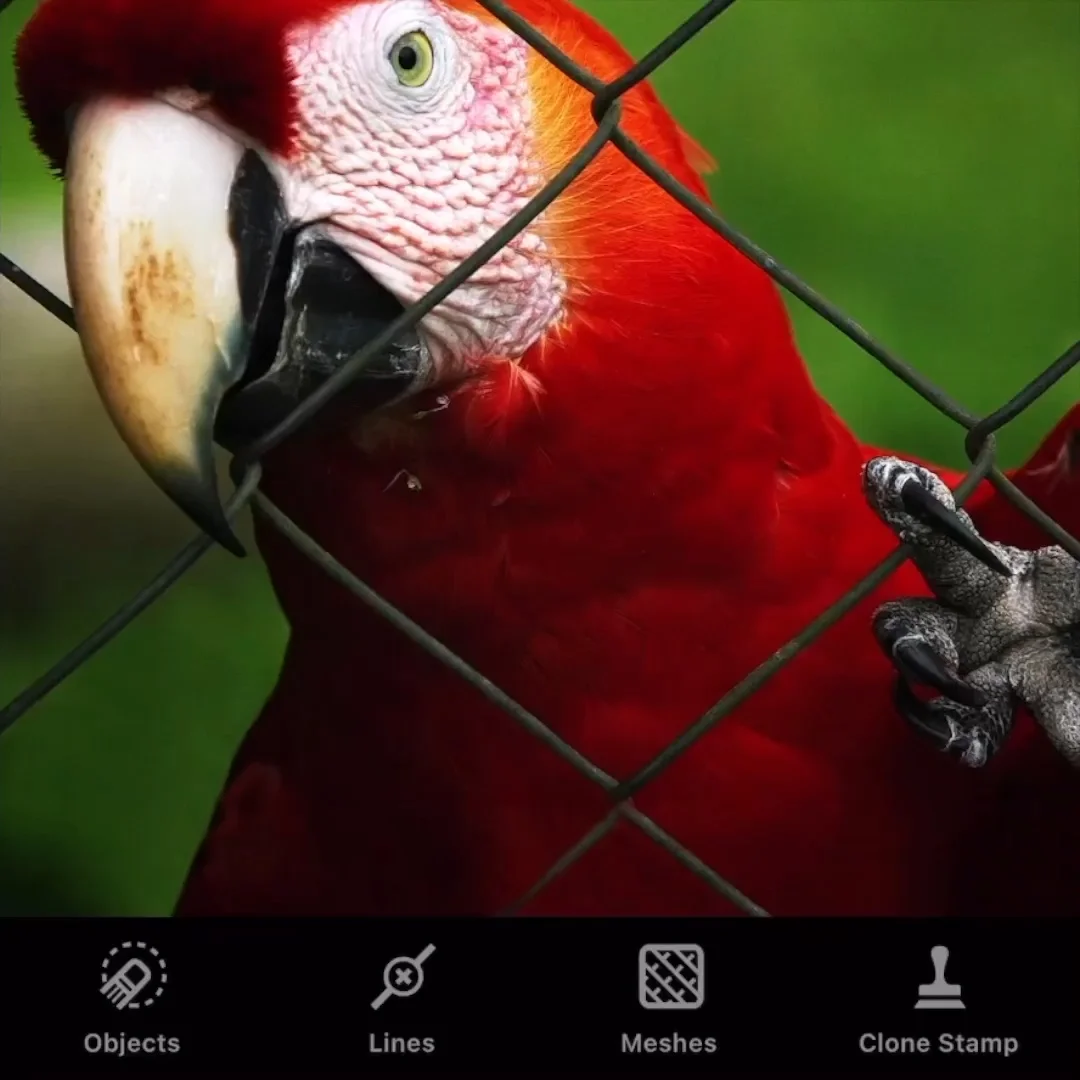
- Select Objects.
- With Brush, mark or tap an object to have it removed.
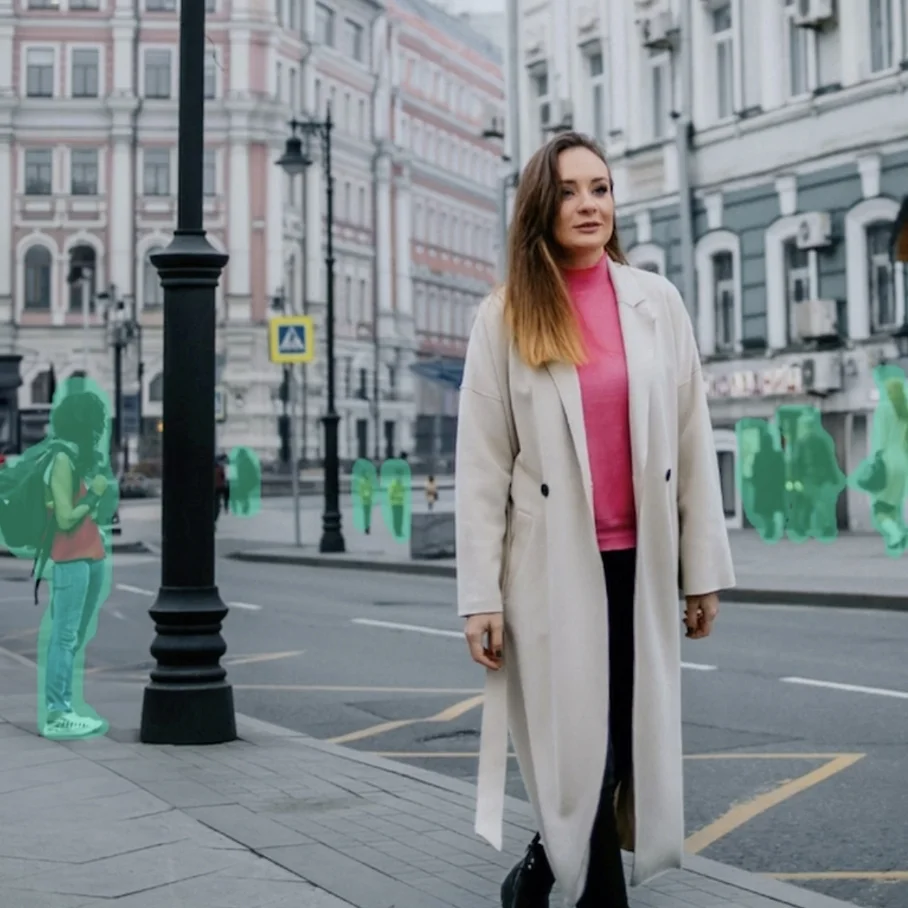
In case you need to touch up portrait photos (get rid of pimples or freckles) in the most natural way, clean up minor imperfections like tiny spots from dust on your camera sensor, or erase other small but annoying objects that distract the eye fast and with little effort, use the automatic retouching tools TouchRetouch has to offer.
The Auto Retouch mode may also help with photo restoration cases when you need to make a lot of similar object removal edits to a single image. It can make the process easier and less time-consuming.
Step 1
Tap Objects in the main menu and if needed, adjust the size of Brush in the Settings menu (the rightmost button in the toolbar). The Auto Retouch function is turned on by default.
Note: Switch from Auto Retouch to Manual Retouch whenever required.
Step 2
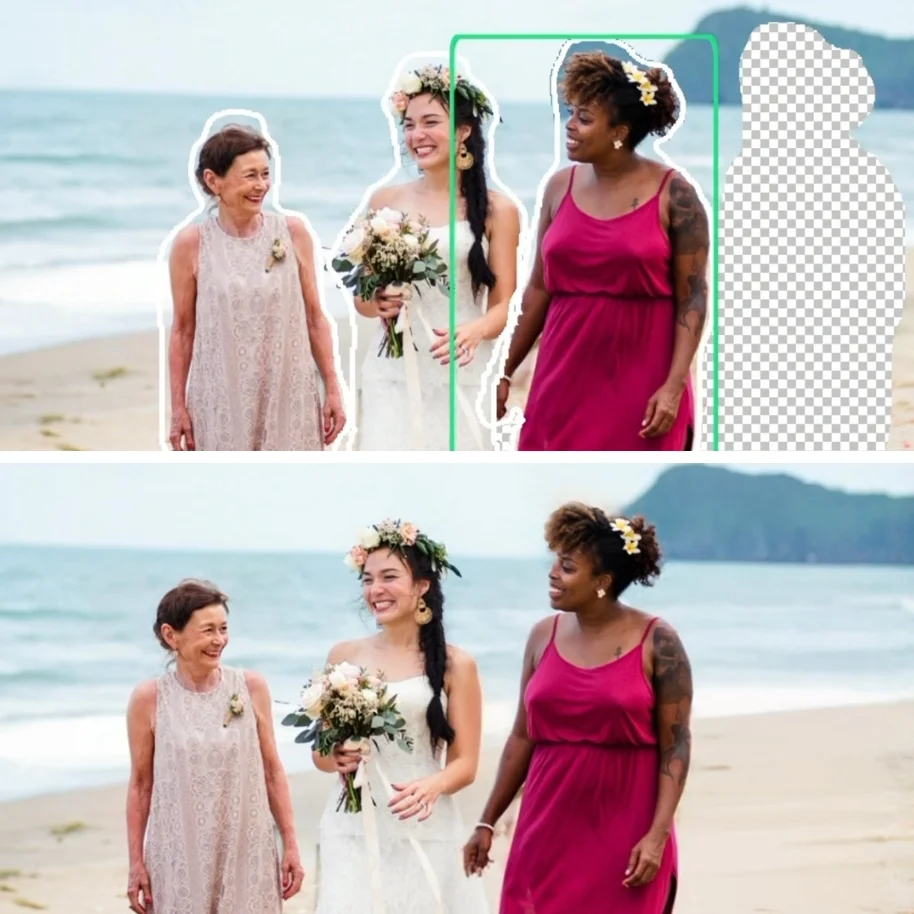
Tap or mark an object to have it removed (you can also use Lasso when you don’t need to draw a precise selection). The object will vanish the moment you take your finger off the screen.
The tool is highly-intellectual and leaves a clean finish. It looks for any blemishes in the selected area and removes them all without blurring the background.
TIPS & TRICKS
Restore Brush: Use this tool to brush back the changes just applied. The brush is not immediately accessible. It pops up in place of Eraser the moment a certain edit is made to a photo.
Reapply Brush: If you have restored too much of the original area, apply the edits once again. The brush becomes available as soon as you tap the Restore tool.
Revert to Original: Long-tap the Undo button to restore the original version of a photo. Single-tap this button to move one step back in the Undo chain.