People-Aware Retouching
Edit people or things out of photos with efficiency.
Quick steps
- Select Objects.
- In the tool’s settings, turn on the people-aware algorithm to get good results near the edges.
- Mark an object with Brush or Lasso (the moment you stop drawing, the object will disappear).
With the Objects tools, you can remove unwanted items either automatically or manually.
The automatic mode is useful when you need to make quick repairs to a photo. This function allows getting rid of minor imperfections from images fast and with almost no effort.
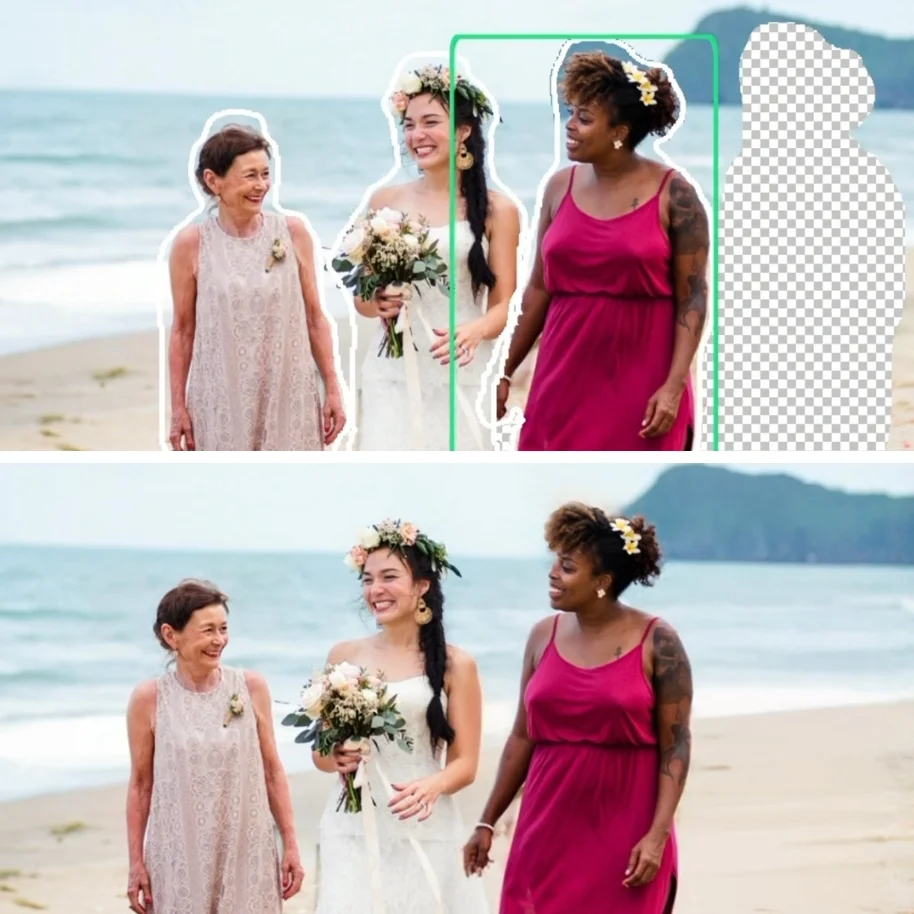
You can use the manual object removal mode to effectively edit people or other unwanted items out of your photos in cases where these objects’ edges overlap slightly. The intelligent people-aware algorithm produces great results at the boundaries. Undesired elements are easily removed, leaving a clean background.
Note: By default, this algorithm is turned off for all devices in the Brush Settings menu in Objects.
With the manual retouching function, you have full control over the editing process and can easily make additional adjustments to a selected area whenever needed.
AUTO RETOUCH MODE
The two-in-one Brush tool in the Auto mode can be used to remove unwanted details, both small and a bit bigger, by tapping or bushing over them. It’s easy to operate — you don’t need to interrupt the editing process to switch to another tool to fix larger items.
Step 1
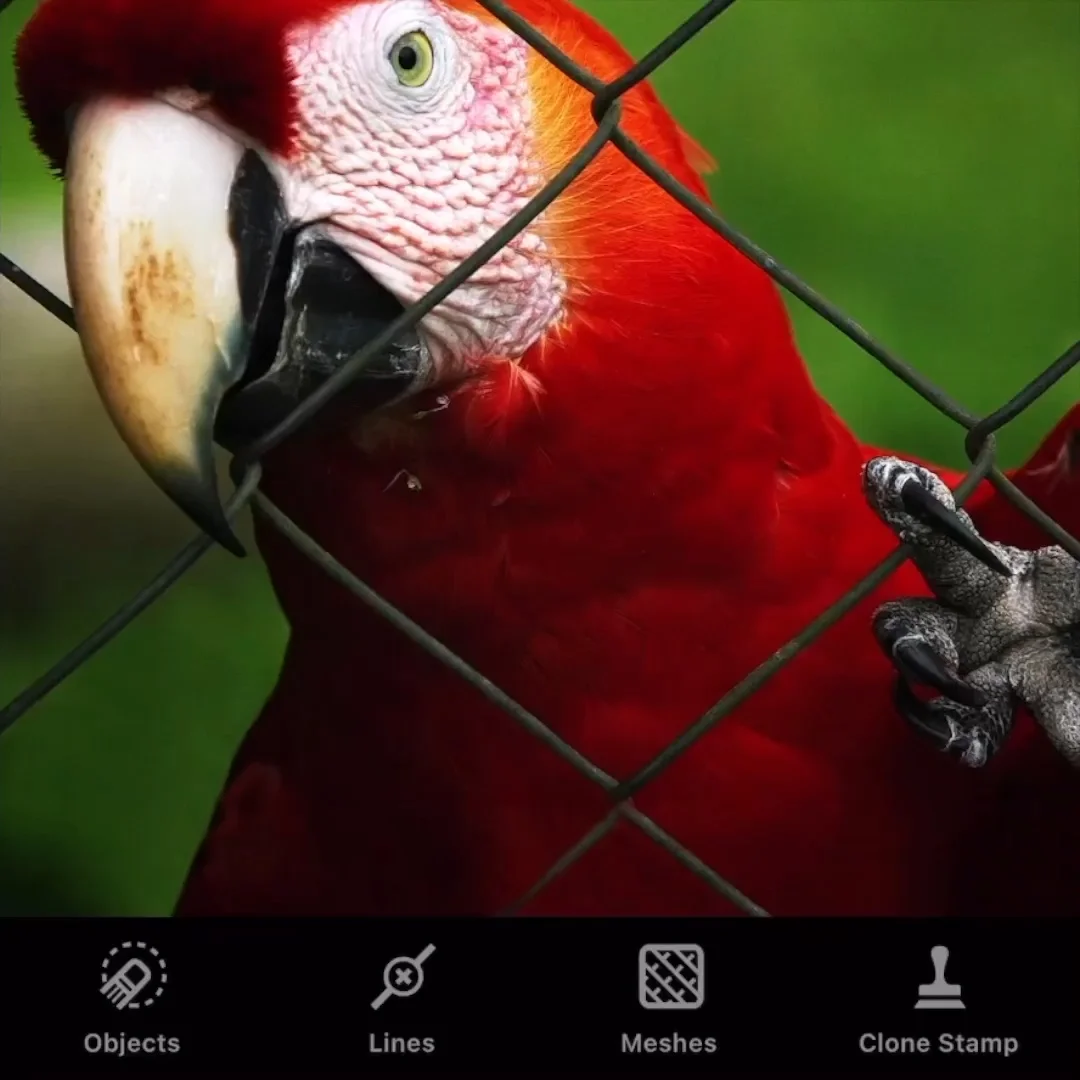
Tap Objects in the main menu.
Step 2
In the tool’s settings, turn on the people-aware algorithm to get good results near the edges.
Step 3
The Auto Retouch mode is turned on by default, so all you have to do is start selecting an unwanted item with Brush or Lasso.
When done, just release your finger from the screen and see the item disappear.
MANUAL RETOUCH MODE
When you need to be more precise when selecting, or in cases where unwanted objects are large or are close to other items, the Manual mode is a good choice. When using it, you can always stop when you need to modify a selection (to add to a selection or deselect some portion). With this mode, you can also mark multiple items at a time and remove them all in one operation.
Step 1
If your case is complex and you need to have more control over your actions, switch to the Manual Retouch function by using the Retouch Mode button in the lower-right corner of the screen.
Adjust the Brush size in the Settings menu (the rightmost button in the toolbar) and mark a person (an object) with Brush or Lasso:
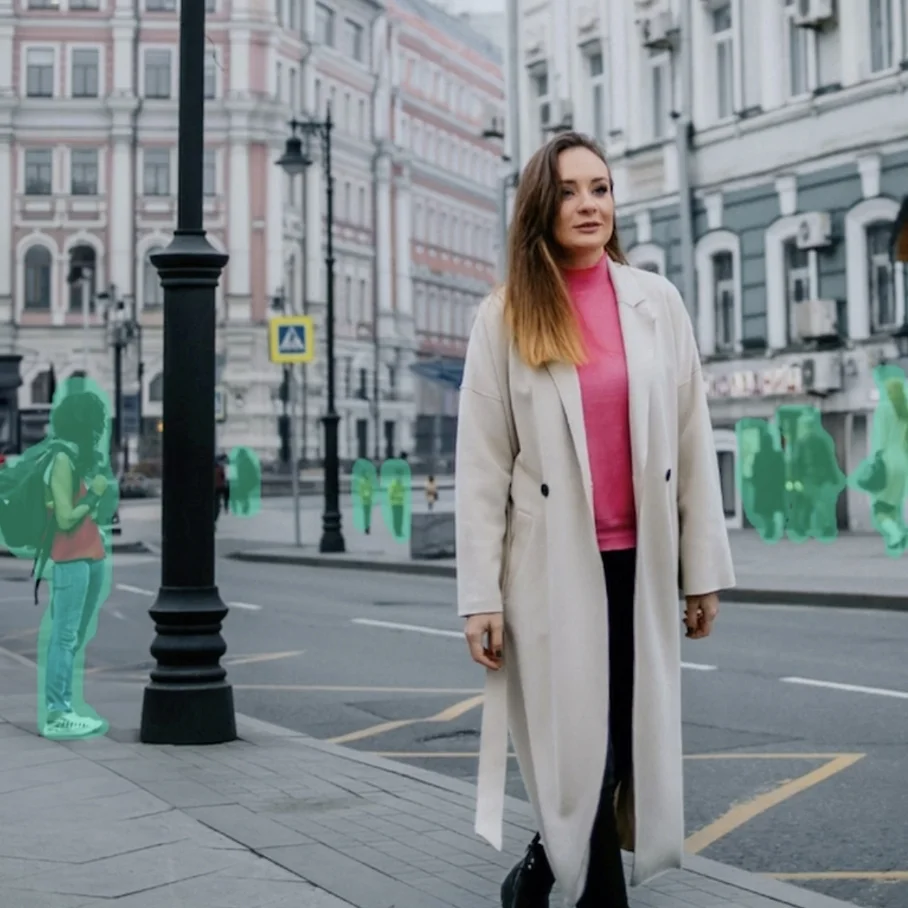
Lasso — use your finger to draw a continuous line around an item. A green patch will appear over it.
Brush — paint over an unwanted element to highlight it green.
Eraser: Use Eraser to unselect those parts of a marked area you don’t really want retouched. In Settings, set the size of Eraser.
Step 2
Tap Go to remove the selected object.
TIPS & TRICKS
Zoom tool: The app comes with a handy magnifying glass to help you be accurate when marking content. It shows you exactly what is under your finger.
By holding your finger on the object you are marking, you can drag the tool to any location you want with any other of your fingers.
Revert to Original: Long-tap the Undo button to restore the original version of a photo. Single-tap this button to move one step back in the Undo chain.
Restore Brush: Use this tool to brush back the changes just applied. The brush is not immediately accessible. It pops up in place of Eraser the moment a certain edit is made to a photo.
Reapply Brush: If you have restored too much of the original area, apply the edits once again. The brush becomes available as soon as you tap the Restore tool.