
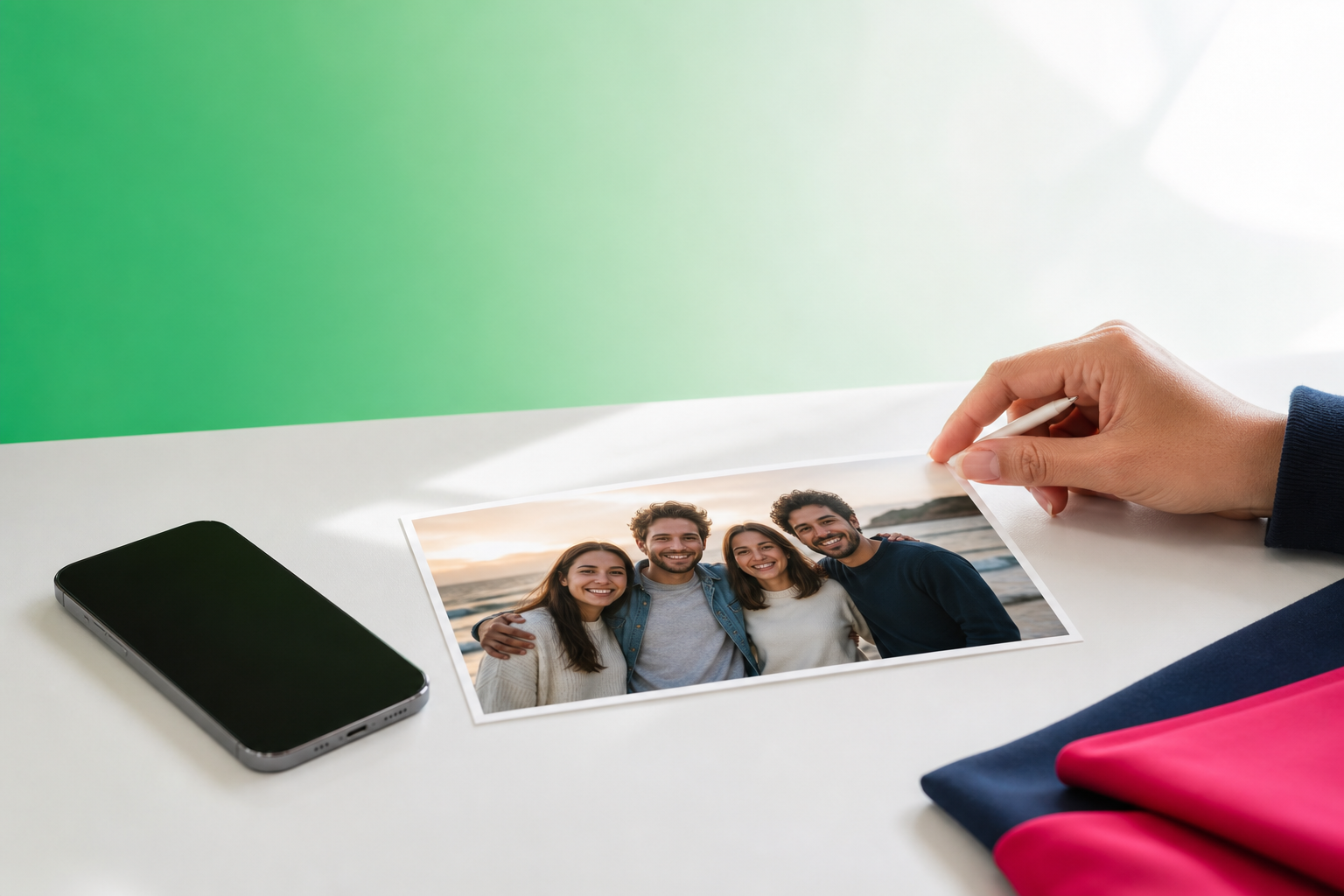
Want a simple mobile way to make add people to photos ai edits look more believable? TouchRetouch helps with the part many users actually struggle with: cleaning up seams, removing distractions, refining edges, and improving the final composite after a person has already been inserted. It does not pretend to generate a brand-new person from scratch, but it does give you practical tools to make an edited photo feel more natural on your phone or tablet.
What TouchRetouch can and cannot do
Does this app create a brand-new person automatically?
No. TouchRetouch does not generate a new person from text and does not create synthetic people from scratch. If your goal is to use an add person to photo ai tool that invents a person automatically, that task needs to happen elsewhere before you bring the image into TouchRetouch.
The difference between adding someone and refining a composite
Many searches mix two different jobs together. One is placing a person into a photo. The other is making that edited result look believable by fixing cutout marks, mismatched edges, stray objects, or background clutter. TouchRetouch focuses on the second job: cleanup and retouching after the person is already there.
When TouchRetouch fits into the workflow
TouchRetouch is a mobile photo editor developed by ADVA Soft for iOS and Android, and it is designed for photo editing only, not video editing. It works best when you already have a combined image from another app, a saved composite from a designer, or a photo where someone was inserted earlier and now needs polishing.
That makes it useful for family group shots, travel photos, and social posts where the person placement is done but the image still looks edited. Typical trouble spots include hair against busy backgrounds, shoes and feet near textured ground, and clothing edges where the original cutout left a halo. Results depend on scene complexity, lighting differences, and how clean the original composite is.
A practical mobile workflow for edited group shots
Prepare the combined image first if needed
If the person still needs to be placed into the photo, create that combined image first in another tool. Then save or export the result and open it in TouchRetouch for the cleanup stage. This is the most realistic way to handle add people to photos ai edits on mobile without expecting one app to do everything.
Open the composite on your phone or tablet
Once imported, start with the full image view and identify the most obvious problems. Large seams, leftover background fragments, photobombers, signs, and uneven edges are easier to spot before you zoom in. TouchRetouch also preserves original photo quality and EXIF data on export, which is helpful if you want to keep image details intact.
Work from big distractions to small details
A good order is simple: remove major distractions first, refine edges second, and adjust the background look last if needed. Then zoom in closely around hands, hairlines, clothing edges, and feet, because those areas often reveal that a subject was pasted in. Some AI-powered features require an internet connection, and premium AI features require a paid subscription.
If you want more general cleanup ideas before starting, these photo cleaner tips for tidier images are useful for spotting distractions that make composites look less convincing.
Clean up the inserted person so the photo looks natural
Use Remove Objects to fix seams and leftover cutout marks
Start with Remove Objects to erase visible seams, tiny leftover edges, or fragments from the original cutout. A common example is a thin light outline around hair or shoulders after an add person to photo ai edit. Use the Brush for narrow areas, the Lasso for irregular shapes, and Restore if you selected too much.
This tool is also useful for cleaning small background mistakes near the inserted subject. If part of the old background still shows near a sleeve, between fingers, or around shoes, mark it and let the app fill the area. On simpler walls, skies, and pavement, the result usually blends more easily than on dense foliage or patterned fabric.
Use Erase AI for photobombers, signs, shadows, and clutter
Next, use Erase AI to simplify the scene around the inserted person. It can remove background people, street signs, trash cans, stop lights, shadows, and other distractions that make a composite feel crowded. This is especially helpful when the new subject looks fine, but the surrounding scene still pulls attention away from them.
Erase AI works on existing photo elements only. It does not create a new person, and it is not an add people to photos ai generator. Instead, it helps the final image feel cleaner and more intentional by removing nearby clutter that makes the edit stand out.
Use Clone Stamp for manual texture repairs
For difficult areas, switch to Clone Stamp. This tool is useful when automatic removal needs refinement, such as extending grass behind a leg, rebuilding a brick wall near an elbow, or smoothing a repeated floor pattern under shoes. It gives you more control when the background has texture that AI removal cannot blend perfectly on its own.
Detailed scenes often need this extra step. Hair against tree branches, lace clothing against patterned wallpaper, or a foot crossing gravel are all examples where manual texture repair can improve the final look. If shadows need visual balance after cleanup, this guide on how to add shadow to an image can help you think through the finishing touches.
Improve the scene after the person is already in place
Replace the background with Backgrounds
If the inserted person does not match the original setting, Backgrounds can remove the current background and replace it with a built-in preset or a custom image. This is useful when the subject was added from a different location and the mismatch is too obvious to hide with small edits alone. Background blur is also available if you want to reduce visual mismatch and add depth.
Use Smart Scenes to transform the overall look
Smart Scenes changes the look of an existing photo with AI-powered transformations. It can alter the overall scene appearance when the composite feels inconsistent in mood, style, or setting. It does not generate a person from scratch, but it can help unify the image after an add person to photo ai workflow.
Choose the right tool for your goal
Use Backgrounds when the setting itself needs replacement. Use Smart Scenes when the whole image needs a different visual style. Use Remove Objects, Erase AI, and Clone Stamp when the main problem is local cleanup around the inserted subject.
That specialist focus is what makes TouchRetouch a strong photo cleanup app for mobile users. It is not an all-in-one text-to-image generator. It is a practical editor for refining composites, removing distractions, and making edited photos look more polished on a phone or tablet. You can also explore ways to remove objects with a swipe if background clutter is the main issue in your image.
Why mobile users choose TouchRetouch for composite cleanup
Best fit for simple on-phone editing
TouchRetouch fits people who want straightforward editing on the go: families fixing group shots, travelers removing distractions, creators polishing social images, and casual users who want a clean final photo without moving to desktop software. It is especially useful after add people to photos ai edits when the placement is done but the image still needs retouching.
Pros and limitations to know before downloading
Its strengths are clear: dedicated object removal tools, Person Removal for group photos, background replacement, Smart Scenes transformations, and a natural mobile workflow. TouchRetouch was selected by Apple as an Editors’ Choice app, and it has an approximate 4.7-star average rating across the App Store and Google Play as of writing; verify current ratings before publishing or citing them elsewhere.
There are also limits to know upfront. It does not generate people from text prompts, it has no standalone desktop version, and it does not edit video. Some AI features require a subscription, and complex scenes with tricky hair, lighting, or textures may need manual refinement with Clone Stamp.
Download for iPhone or Android
TouchRetouch is free to download; premium AI features require a paid subscription. Check the App Store or Google Play for current pricing, which varies by region. Try TouchRetouch — remove distractions from your photos in seconds: download for iPhone and iPad or get it on Android.
If you also want to sharpen the overall result after retouching, this guide on enhance photo quality on your phone pairs well with composite cleanup.
Frequently Asked Questions
Can AI add a person to a photo automatically?
Yes, some AI tools are designed to place or generate a person in a photo automatically. TouchRetouch is different: it is built to refine and clean up the edited result after a person has already been inserted into an existing image.
Can TouchRetouch create people from scratch?
No. TouchRetouch does not create synthetic people from scratch and does not generate a new person from a text prompt. It works on existing photos and edited composites.
What can TouchRetouch do after a person is inserted into a photo?
It can remove seams, leftover cutout marks, background clutter, unwanted people, signs, shadows, and other distractions. It can also replace the background, blur it, transform the scene appearance with Smart Scenes, and repair tricky textures with Clone Stamp.
Which TouchRetouch tools help make a composite photo look more natural?
Remove Objects helps clean seams and edge mistakes, Erase AI removes clutter around the subject, and Clone Stamp repairs detailed textures manually. Backgrounds and Smart Scenes are useful when the setting or overall look needs to be changed to better match the inserted person.
Is TouchRetouch available for iPhone and Android?
Yes. TouchRetouch is available for iOS and Android, and it is designed for smartphones and tablets. It is developed by ADVA Soft GmbH, based in Berlin, Germany.
If your goal is better-looking add people to photos ai results on mobile, the key is setting the right expectation. TouchRetouch does not invent a person for you, but it does handle the cleanup work that often makes the difference between an obvious edit and a more natural-looking final image.
Clean up your photos with TouchRetouch — download now on iOS or Android. It is a practical ai photo editor for removing distractions, refining composites, and improving photos right from your phone.
FAQ
How can I make add people to photos ai edits look more natural on mobile?
You can make add people to photos ai edits look more natural by cleaning up seams, refining edges, and removing distracting background elements after the AI insert is complete.
Can I use TouchRetouch after I add person to photo ai results?
Yes, TouchRetouch works well after you add person to photo ai results because it helps fix small imperfections, blend edges, and remove unwanted objects on mobile.
What problems should I fix after using add people to photos ai?
After using add people to photos ai, you should check for rough cutout edges, mismatched shadows, visible seams, and distracting objects that make the edit look less realistic.
Is mobile editing enough for believable AI photo composites?
Yes, mobile editing can be enough for believable AI photo composites when you use the right cleanup tools and spend a few minutes refining the final details.





