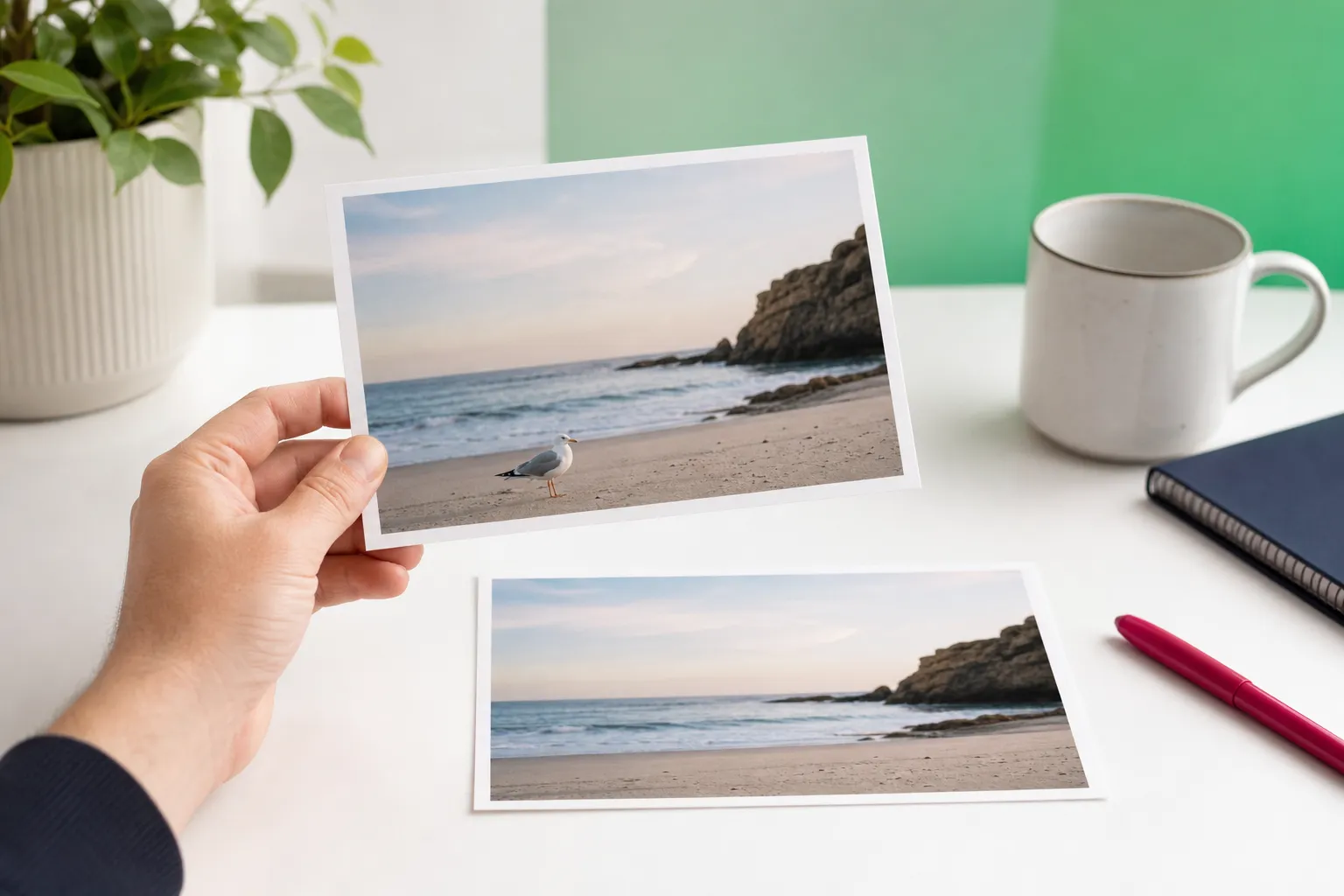
If you have ever wondered about the difference between photo editing and retouching, the simplest answer is this: editing changes the overall image, while retouching fixes specific details inside it. One helps shape the whole photo’s look, and the other helps clean up distractions that pull attention away from the subject.
That distinction matters because many people do not need a complex workflow every time they take a picture. Sometimes a photo just needs better light or color. Other times it already looks good, but one wire, photobomber, blemish, or sign ruins the shot.
For mobile users, both needs are common. A vacation photo may need brighter skies and warmer tones, then a quick cleanup to remove a stranger in the background. Knowing which task is which helps you choose the right app faster and get better-looking results with less effort.
Photo editing vs. retouching: the simple definition
What photo editing usually includes
Photo editing is the broad process of changing how an image looks overall. It can affect the full frame, the composition, the mood, or the style. If you crop a photo, brighten it, change contrast, shift colors, blur part of the frame, or replace the background, you are editing.
In everyday terms, editing is what you do when the whole image feels off or when you want a different visual style. Making the entire photo warmer, correcting a dark exposure, or transforming the scene into a more dramatic look all fall into this category. These are global or scene-level changes rather than small repairs.
What retouching focuses on
Retouching is more targeted. Instead of changing the whole image, it focuses on cleaning up or refining specific parts of the photo. Common retouching tasks include removing distractions, fixing small imperfections, cleaning lines, and refining portrait details that draw attention away from the main subject.
A simple example makes the distinction easier to see. If you make the whole image brighter, that is editing. If you remove a wire from the sky, erase a trash can from the sidewalk, or smooth a small skin detail in a portrait, that is retouching.
Why people often use the terms interchangeably
People often mix the two terms because retouching is part of photo editing. In other words, all retouching belongs under the editing umbrella, but not all editing is retouching. That overlap is why many apps and tutorials use the words loosely.
Portrait work is a good example. Adjusting the overall light and color is editing. Softening visible wrinkles slightly, evening skin tone, or brightening eyes is retouching. Both improve the same photo, but they solve different problems.
For most phone users, the practical takeaway is simple: use editing when the whole image needs improvement, and use retouching when one detail is ruining an otherwise good shot. If you want a deeper look at cleanup-focused tools, this photo cleaner guide explains where specialist apps fit best.
What counts as editing and what counts as retouching?
Whole-photo changes: color, mood, and composition
When comparing the two, it helps to sort common tasks into two clear buckets. Editing covers changes that affect the image broadly, such as exposure correction, color tone shifts, cropping, selective blur, background replacement, or transforming the overall scene style.
Examples are easy to spot. If a sunset photo looks flat and you increase contrast, deepen the orange tones, and crop out empty space, that is editing. If you replace a messy room background with a clean backdrop for a product shot, that also counts as editing because it changes the scene itself.
Targeted fixes: object removal, line cleanup, and blemishes
Retouching focuses on local fixes. Removing photobombers, erasing signs or trash cans, cleaning up power lines, removing fences or meshes, and refining small portrait details all belong here. These changes do not redefine the whole image; they remove what does not belong.
Portraits often combine both categories. Warming the skin tones or balancing exposure is editing. Subtle skin smoothing, reducing visible wrinkles, or brightening the eyes is retouching. The goal is refinement, not a completely different face.
When a background change sits between both categories
Background work sits near the border between the two. Replacing the entire background is usually editing because it changes the setting and mood. Removing one distracting object from the background, such as a parked scooter or a stray sign, is usually retouching because the scene stays the same.
That is why some apps are broad editors and others are specialists. A general editor is built for color, composition, and style. A cleanup-focused app is designed for precise fixes like object removal, line cleanup, and small corrections that need more control.
| Task | Usually Editing | Usually Retouching |
|---|---|---|
| Brightness and contrast | Yes | No |
| Color tone or warmth | Yes | No |
| Crop and composition | Yes | No |
| Remove photobomber | No | Yes |
| Erase power lines | No | Yes |
| Replace full background | Yes | Sometimes overlaps |
| Reduce small skin details | No | Yes |
If your main goal is cleanup, a specialist tool often feels more direct. For a closer look at that category, see this AI retouch app guide.
Everyday examples that make the distinction clear
Travel photos: remove people, signs, and wires
Travel pictures make the distinction very easy to understand. If your beach photo is too dark, raising exposure is editing. If a stranger walks through the frame and you remove them, that is retouching.
The same rule applies to city and skyline shots. Boosting color in the sunset is editing. Removing power lines, street signs, or a trash can from the foreground is retouching. These are classic photo cleanup jobs because they target distractions rather than the overall mood.
Wires, fences, and mesh barriers are especially clear examples. They usually cover only part of the frame, and the goal is to erase a specific unwanted element while keeping the rest of the scene intact. If you often deal with crowded landmarks, our tutorial on removing people from photos offers practical ideas.
Portraits: natural cleanup without changing identity
Portraits often need both broad adjustments and small refinements. If the image looks too cool or too yellow, adjusting warmth is editing. If you smooth skin slightly, brighten eyes, or reduce visible wrinkles while keeping the person’s natural features, that is retouching.
The key is subtlety. Good retouching helps the subject look polished and well lit without changing who they are. That is why natural portrait cleanup usually focuses on small details instead of dramatic face reshaping.
If your main interest is portrait refinement on a phone, our guide to face retouching on mobile explains what to look for in a natural-looking tool.
Product and social photos: cleaner backgrounds and fewer distractions
Product photos and social content follow the same pattern. Replacing a messy room background with a clean white one is editing because it changes the scene. Removing dust, cords, glare, or a small object near the product is retouching because it cleans up the existing shot.
A practical workflow usually works best: start with broad adjustments, then move to cleanup. First fix light, color, and framing. Then remove the details that distract the eye. That order keeps the process simple and helps you decide whether you need a full editor, a specialist cleanup app, or both.
For background-focused product images, a white background photo editor can be useful alongside a dedicated cleanup tool.
What is it called when you enhance a photo?
Enhancement, retouching, and cleanup in plain English
The answer depends on the kind of change you mean. It can be called photo enhancement, photo editing, or retouching. All three terms are common, but they point to slightly different goals.
Enhancement usually means improving the image overall. Making a photo brighter, sharper-looking, more balanced, or more vivid fits this label. In casual conversation, many people use “enhance” when they simply want the picture to look better without naming the exact adjustment.
When to use each term
Retouching usually means refining specific details. That includes distractions, skin details, blemishes, lines, glare, or small imperfections that stand out. Cleanup is the everyday word many people use when they want to remove unwanted objects, people, clutter, or background distractions.
The easiest way to describe your goal
You do not need perfect terminology to get the result you want. If you say “enhance this photo,” most people will expect overall improvement. If you say “retouch this portrait,” they will expect detail work. If you say “clean up this background,” they will expect object removal.
That is the easiest way to think about it: enhancement improves the whole image, retouching refines parts of it, and cleanup usually means removing what should not be there. If your goal is overall quality, our guide to improving photo quality covers that side.
Where TouchRetouch fits best
A specialist app for cleanup and targeted retouching
TouchRetouch is a specialist mobile app developed by ADVA Soft GmbH, based in Berlin, Germany. It focuses on AI-powered object removal and photo retouching for iPhone, iPad, Android, and compatible Mac devices with Apple Silicon support. In the App Store, it has also been recognized by Apple as an Editors’ Choice app.
This makes it a strong fit when the main problem is not the whole image, but a distraction inside it. If you want an AI retouch app for removing unwanted objects, people, lines, meshes, and blemishes, it is built for that kind of targeted work. It also includes background replacement, selective blur, Smart Scenes transformations, and Natural FaceRetouch.
Best use cases for Remove Objects, Erase AI, and Line Removal
The core cleanup feature is Remove Objects. You select the unwanted area with the Brush or Lasso, then let the app remove it. Adjustable brush settings help with precision, and Restore lets you bring back parts of the original area if you selected too much.
Erase AI is designed for common distractions in the background. It can detect and remove background people while keeping the main subject unchanged, and it can also target things like street signs, trash cans, stop lights, and shadows. This is especially useful for travel shots, sidewalk portraits, and busy public places.
Line Removal is built for wires and power lines. Mark part of the line, and the app identifies the rest automatically. For curved or trickier lines, manual retouch mode adds control points for more accurate cleanup.
Mesh Removal handles fences and similar foreground barriers. Instead of manually painting over every gap, the tool is designed to detect and remove the mesh pattern for you. That makes it useful for zoo photos, sports barriers, or any shot taken through a fence.
What it can do beyond object removal
TouchRetouch goes beyond simple object removal. Clone Stamp gives you a manual repair option for scenes with more texture or complexity, where automatic cleanup needs extra refinement. This is helpful for patterned walls, detailed pavement, or foliage where a more hands-on touch improves the result.
The Backgrounds feature automatically removes the background and lets you replace it with a built-in preset or your own image. It also supports background blur, which can add depth to portraits or hide visual clutter without changing the main subject.
Natural FaceRetouch is for subtle portrait refinement. It can smooth skin, brighten eyes, enhance a smile, reduce wrinkles on the face and neck, and even skin tone while preserving natural features. The result is meant to look polished, not artificial.
Smart Scenes transforms an existing photo into different looks using AI filters. It can change the overall scene appearance, including backgrounds and hairstyles, without requiring layers or prompt writing. It works as a photo transformation tool, not as text-to-image generation.
TouchRetouch is free to download; premium AI features require a paid subscription. Check the App Store or Google Play for current pricing, which varies by region.
Get TouchRetouch on iOS or Android.
What it is not designed to replace
TouchRetouch is a mobile photo app, not a standalone desktop replacement. It is designed for photos only and does not edit video. Some AI-powered features also require an internet connection.
It is best when you need focused cleanup and targeted retouching on a phone or tablet. If your image needs heavy scene rebuilding or advanced desktop-style workflows, a broader editor may still be useful alongside it. For object-removal workflows specifically, our object remover app guide shows where a specialist tool saves time.
How to choose the right tool for your photo
Use a broad editor when the whole image needs work
If the full image feels too dark, too flat, badly cropped, or visually inconsistent, start with editing. Broad editors are better for exposure, color, composition, blur effects, and overall scene changes. That is the most direct route when the problem affects the entire frame.
Use a retouching app when one detail ruins the shot
If the photo already looks good but one object stands out, start with retouching. Family photos with photobombers, travel shots with wires, portraits with minor skin cleanup, and product images with cords or clutter all fit this category. If you need to remove unwanted objects from photos, a specialist app is usually the more direct choice.
Object removal works best on simpler backgrounds. Complex textures such as dense leaves, patterned fabrics, or crowded architecture may need manual refinement with Clone Stamp. TouchRetouch also preserves original photo quality and EXIF data on export, which is useful when you want to keep image details intact after cleanup.
A simple decision rule for everyday users
Use this rule: if the whole image needs improvement, edit first; if one detail is ruining the shot, retouch first. Many people need both at different moments, but the right starting point depends on the problem in front of you.
Once you understand the difference, choosing the right app gets much easier.
Frequently Asked Questions
Is retouching the same as photo editing?
No, retouching is not exactly the same as photo editing. Editing is the broader category that includes changes to the whole image, while retouching focuses on specific details such as blemishes, wires, photobombers, or small distractions. Retouching is part of editing, but it is more targeted.
What is it called when you enhance a photo?
It is usually called photo enhancement, photo editing, or retouching, depending on what you change. If you improve the overall brightness, color, or balance, “enhancement” or “editing” fits best. If you refine a specific detail, “retouching” is the better term.
Is removing an object from a picture editing or retouching?
Removing an object from a picture is usually retouching. The reason is that you are fixing one part of the image rather than changing the whole scene’s color, composition, or style. Removing a wire, sign, or stranger in the background is a classic retouching task.
Can one app handle both photo cleanup and background changes?
Yes, some apps can handle both. TouchRetouch, for example, is designed for cleanup tasks like object, line, mesh, and person removal, and it also includes Backgrounds for automatic background removal and replacement. That combination is useful when you want both targeted cleanup and scene-level changes in one mobile app.
Is TouchRetouch a full photo editor or a specialist retouching app?
TouchRetouch is best described as a specialist retouching app with a few broader creative tools. Its main strength is removing unwanted objects, people, lines, meshes, and blemishes, while also offering features like background replacement, blur, Smart Scenes, and Natural FaceRetouch. It is a mobile photo app, not a standalone desktop replacement.
The main takeaway is simple: the difference between photo editing and retouching comes down to scope. Editing changes the overall image, while retouching cleans up specific parts that distract from it.
If your photos are already good but need cleaner backgrounds, fewer photobombers, or more polished details, TouchRetouch is built for that kind of work. Get it on the App Store or Google Play.