
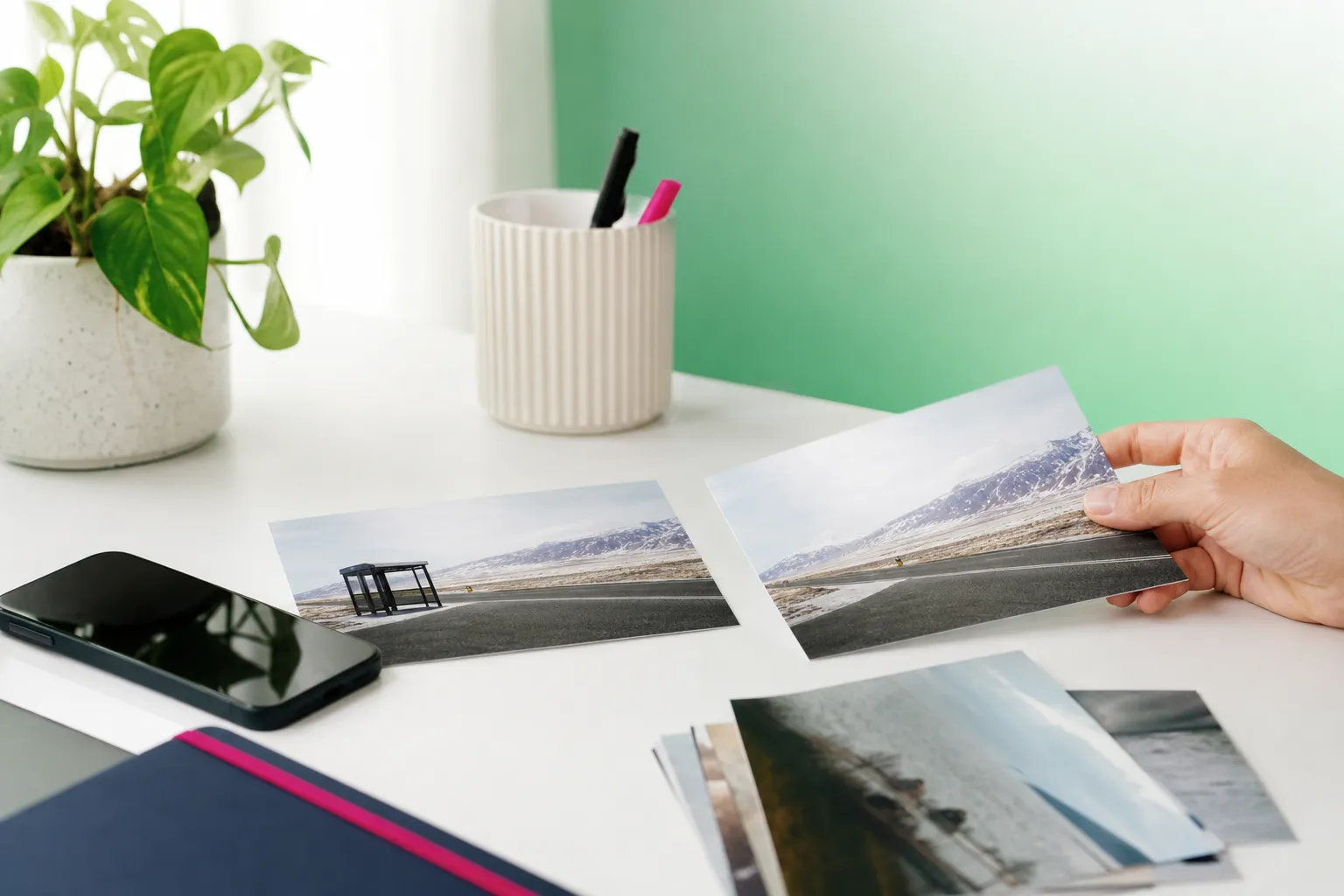
If you want to remove a passerby, a sign, a cable, or random clutter from a photo, Canva Magic Eraser is one of the tools people often find first. The bigger question is not just whether it exists, but where it works best and what to use if your main goal is fast cleanup on a phone.
Quick verdict: Canva is a practical choice for people who already build social posts, presentations, or simple graphics inside Canva on web, desktop, or mobile. TouchRetouch is a stronger fit for dedicated photo cleanup on iPhone, iPad, and Android, especially when you want specialist tools for removing objects, people, wires, and other distractions. The better option depends on your platform, your editing workflow, and whether you want a broad design editor or a focused object remover app.
Canva or a dedicated cleanup app?
The short answer for readers choosing between browser editing and phone cleanup
Most people searching for an erase tool want to do one simple thing: remove an object from a photo without rebuilding the whole image by hand. That usually means cleaning up background people, table clutter, street signs, cables, or small distractions that pull attention away from the subject.
For that job, Canva works well when your photo is already part of a design project. If you are editing a presentation slide, Instagram post, flyer, or thumbnail in the same workspace, keeping the cleanup there is convenient.
TouchRetouch makes more sense when photo cleanup is the main task rather than one step inside a larger layout. It is built specifically for retouching photos on mobile devices, so the workflow is more focused for users who mainly want to erase distractions and move on.
How Canva’s erasing tool works
Where you can use it
If you are wondering how to use Canva Magic Eraser, the first thing to know is where it runs. The erasing tool works in Canva’s photo editor on web, desktop, and the mobile apps. That means you can start in a browser, continue on a computer app, or make edits from your phone or tablet.
That cross-platform setup is useful for people who switch between devices. For example, you might upload product photos from your phone, then finish a social graphic on a laptop, or start a presentation on desktop and make a quick image fix later in the mobile app.
What the erase workflow looks like
The basic workflow is simple. You open your image in Canva’s photo editor, choose Magic Eraser, and then brush over or tap the objects you want to erase. After that, the editor fills the selected area based on the surrounding image.
This approach is best for common distractions such as a person in the far background, a small sign near the edge of the frame, or clutter on a tabletop. As with any photo eraser, results depend on the scene. A plain sky or wall is usually easier to clean than a busy crowd, patterned fabric, or detailed architecture.
Because the tool sits inside a larger design platform, it is especially handy when the image is only one part of the final project. If you are already adding text, shapes, or brand elements, staying in one editor can save steps.
Who should check Canva’s plan details before starting
Canva is free with paid plans. Access to Magic Eraser can change over time, so before you begin, check Canva’s current plan details in the app or on Canva’s pricing pages to see how the feature is offered for your account and device.
This matters most if you are choosing between a general editor and a specialist cleanup app. People who already spend time in Canva may prefer to keep everything in one place. Readers who mainly want fast phone cleanup, however, should compare mobile-first options before deciding; our magic eraser app comparison covers them.
How to remove objects step by step in Canva
Open your image in the photo editor
Start by opening the photo you want to clean up in Canva’s photo editor. This can be a travel shot with a stranger in the background, a food photo with clutter on the table, or a storefront image with a distracting sign.
Brush or tap over the distraction
- Open your image in Canva.
- Select Magic Eraser in the photo editing tools.
- Brush over the unwanted area or tap the object you want to remove.
- Wait for the editor to process the change.
This is the core action for anyone trying to remove an object from a photo inside Canva. A small background walker, a cup left on a counter, or a minor visual distraction near the edge of the frame are typical examples.
Review the result and repeat if needed
After the first pass, zoom in and inspect the area. If the fill looks uneven, repeat the erase step on any leftover fragments or try a more precise selection around the object.
Results depend on scene complexity and the texture around the removed item. A smooth beach, sky, or painted wall is usually easier than hair, fences, repeating patterns, or overlapping people. If your main goal is regular photo cleanup on a phone, a dedicated retouch app may feel more direct.
Comparison table: Canva, Google Photos, and TouchRetouch
At-a-glance differences
If you are comparing a design editor, a gallery app with built-in cleanup and a dedicated mobile retouch app, the table below shows the practical differences that matter most.
| App | Platforms | Cost model | Object removal | People removal | Wire/line removal | Face retouch | Key requirement |
|---|---|---|---|---|---|---|---|
| Canva | Web, desktop, mobile apps | Free with paid plans | Yes via brush or tap | — | — | — | Check Canva’s plan details for Magic Eraser access |
| Google Photos | Pixel, other Android phones, iPhone/iPad inside Google Photos | Free for eligible users with a personal Google Account | Yes | — | — | — | Android 8.0+ or iOS 18+ and at least 3 GB RAM for most editing features; personal Google Account only, not Workspace or school accounts |
| TouchRetouch | iPhone, iPad, Android, plus Mac with Apple M1+ via iOS compatibility | Free to download; premium AI features require a paid subscription. Check the App Store or Google Play for current pricing, which varies by region. | Yes with Remove Objects and Erase AI | Yes with Erase AI and Person Removal | Yes with Line Removal | Yes with Natural FaceRetouch | Photo editing only, no standalone desktop version, some AI features need internet |
A dash means the feature isn’t documented on the official pages we checked (October 2026).
In short, Canva is convenient inside a design workflow, Google Photos is useful if you already keep your library there and meet the device requirements, and TouchRetouch is the specialist option for dedicated mobile retouching. For a broader breakdown, see our guide to AI photo cleaner apps.
When a dedicated phone cleanup app makes more sense
Where TouchRetouch is the better choice
A specialist object remover app becomes more useful when cleanup is the whole job, not a side feature. That is where TouchRetouch stands out. It is a mobile photo-editing app developed by ADVA Soft GmbH in Berlin, Germany, and built specifically for removing distractions from photos on iPhone, iPad, and Android.
TouchRetouch is especially useful for travel photos, family pictures, street scenes, and everyday snapshots. Common fixes include removing photobombers, signs, trash cans, shadows, table clutter, fences, mesh, and power lines without moving the photo into a larger design project.
The app includes dedicated tools with clear jobs: Remove Objects for everyday distractions, Erase AI for common clutter and background people, Person Removal for selecting people in group shots, Line Removal for cables and wires, Mesh Removal for fences, Clone Stamp for manual refinements, Natural FaceRetouch for subtle portrait polish, plus Backgrounds, Blur, and Smart Scenes for additional photo editing.
That focused toolkit is the main difference. Instead of asking one broad editor to handle every type of project, you get tools designed around common cleanup tasks people do on phones. Apple also selected TouchRetouch as an Editors’ Choice app, which adds extra confidence for users who want a dedicated mobile retouch option.
Where it is not the right fit
TouchRetouch is not the right choice if you mainly want a full design workspace with layouts, presentations, and social graphics in one place. In that case, Canva may be the better fit because the image cleanup happens inside a broader creative workflow.
It is also important to know the limits. TouchRetouch is photo-only and does not edit video. It is not an upscaling tool, there is no standalone desktop version, results depend on scene complexity, the premium AI tools require a subscription, and some AI features require an internet connection.
If your main need is phone-based object removal, though, it is one of the clearest options available. You can also read our guides to object remover apps and removing people from photos.
How to clean up a photo in TouchRetouch
Use Remove Objects for everyday distractions
- Open your photo in TouchRetouch and start with Remove Objects.
- Use the Brush or Lasso to mark the unwanted item. This works well for things like a cup on a table, a small sign, a stray bag, or a person at the edge of the frame.
- Adjust the brush settings if you need a tighter or broader selection.
- If you mark too much, use Restore to bring back the parts you want to keep.
This is the everyday starting point for photo cleanup. It is a good fit when the distraction is clearly separated from the background and you want a quick, focused edit.
Switch to Erase AI for background people and clutter
- For background people or common distractions, switch to Erase AI.
- Use it on travel shots with walkers behind your subject, street scenes with bins or signs, or outdoor photos with shadows and small visual noise.
Erase AI is designed to detect and remove those distractions while keeping the main subject unchanged. It is especially useful when you want a cleaner frame without manually tracing every small object.
TouchRetouch is free to download: get it on iOS or Android.
Use Line Removal for wires and cables
- For power lines, cables, and similar elements, open Line Removal.
- Mark a section of the line, and the app can find the full line automatically.
- If the line is curved or more complex, use the manual control points for more precise guidance.
This tool is one of the clearest reasons to choose a dedicated photo eraser over a general editor. Skyline photos, beach scenes, and city shots often look much cleaner after removing overhead wires.
Refine tricky areas with Clone Stamp and Restore
- If the automatic fill needs help, use Clone Stamp to copy nearby texture into the repaired area.
- Use Restore again if you need to bring back a small edge, contour, or detail that should stay in the image.
- For fences or foreground mesh, use Mesh Removal.
These tools help when the background has more texture, such as stone walls, patterned surfaces, or overlapping details. Results still depend on scene complexity, but the extra control is useful when a one-tap removal needs a small cleanup pass.
Apply Natural FaceRetouch for subtle portrait polish
- If your photo is a portrait, open Natural FaceRetouch.
- Use it for subtle skin smoothing, eye brightening, smile enhancement, wrinkle reduction, and evening skin tone while keeping natural facial features intact.
- For group shots, use Person Removal to select and remove individual people from the image.
TouchRetouch also preserves original photo quality and EXIF data on export, which is helpful if you want to keep the image information intact after editing. That makes it a practical option for everyday mobile retouching, travel albums, and cleaned-up social photos.
Which tool fits your job?
Pick the tool that matches your workflow
Choose Canva if you already edit inside Canva and want object removal as one step in a broader design workflow. It fits people creating social posts, presentations, flyers, or simple graphics across web, desktop, and mobile.
Choose Google Photos if your pictures already live in Google Photos and you meet the platform requirements. Google lists its AI editing tools as free for eligible users with a personal Google Account, and most editing features require Android 8.0+ or iOS 18+ with at least 3 GB RAM.
Choose TouchRetouch if your main goal is removing unwanted objects on a phone or tablet. It is especially strong for people, wires, meshes, small distractions, and subtle portrait touch-ups, all inside a focused mobile editor rather than a general design workspace.
The practical difference is simple: Canva is broader, while TouchRetouch is more specialized. If you want a dedicated cleanup workflow on mobile, TouchRetouch is the more direct option.
Frequently Asked Questions
Is Canva Magic Eraser free to use?
Canva is free with paid plans, but access to the erase feature can vary by plan and platform. For that reason, the safest answer is to check Canva’s current plan details in the app or on its pricing pages before you start.
How do you use Canva’s erase tool on a phone?
Open your image in Canva’s mobile app, choose Magic Eraser, and brush or tap over the unwanted area. Then review the result and repeat the selection if a small part of the distraction remains.
Who can use Google Photos Magic Eraser?
Google Photos offers its AI editing tools to eligible users with a personal Google Account. For most editing features, Google lists Android 8.0+ or iOS 18+ and at least 3 GB RAM, and it does not list Workspace or school accounts as eligible.
Which mobile app is a good alternative if you mainly want to remove objects from photos?
TouchRetouch is a strong mobile-first choice if object removal is your main task. It focuses on photo cleanup and includes dedicated tools for objects, people, lines, mesh, and subtle portrait retouching on iPhone, iPad, and Android.
Can TouchRetouch remove wires, fences, and people from a photo?
Yes. TouchRetouch includes Line Removal for wires and cables, Mesh Removal for fences and similar foreground patterns, and both Erase AI and Person Removal for removing people from photos.
The main takeaway is straightforward: Canva Magic Eraser is useful when you already work inside Canva, while TouchRetouch is the better fit when your priority is dedicated mobile photo cleanup. If you want specialist tools for removing distractions from photos on your phone or tablet, get TouchRetouch on the App Store or Google Play: iOS / Android.





