
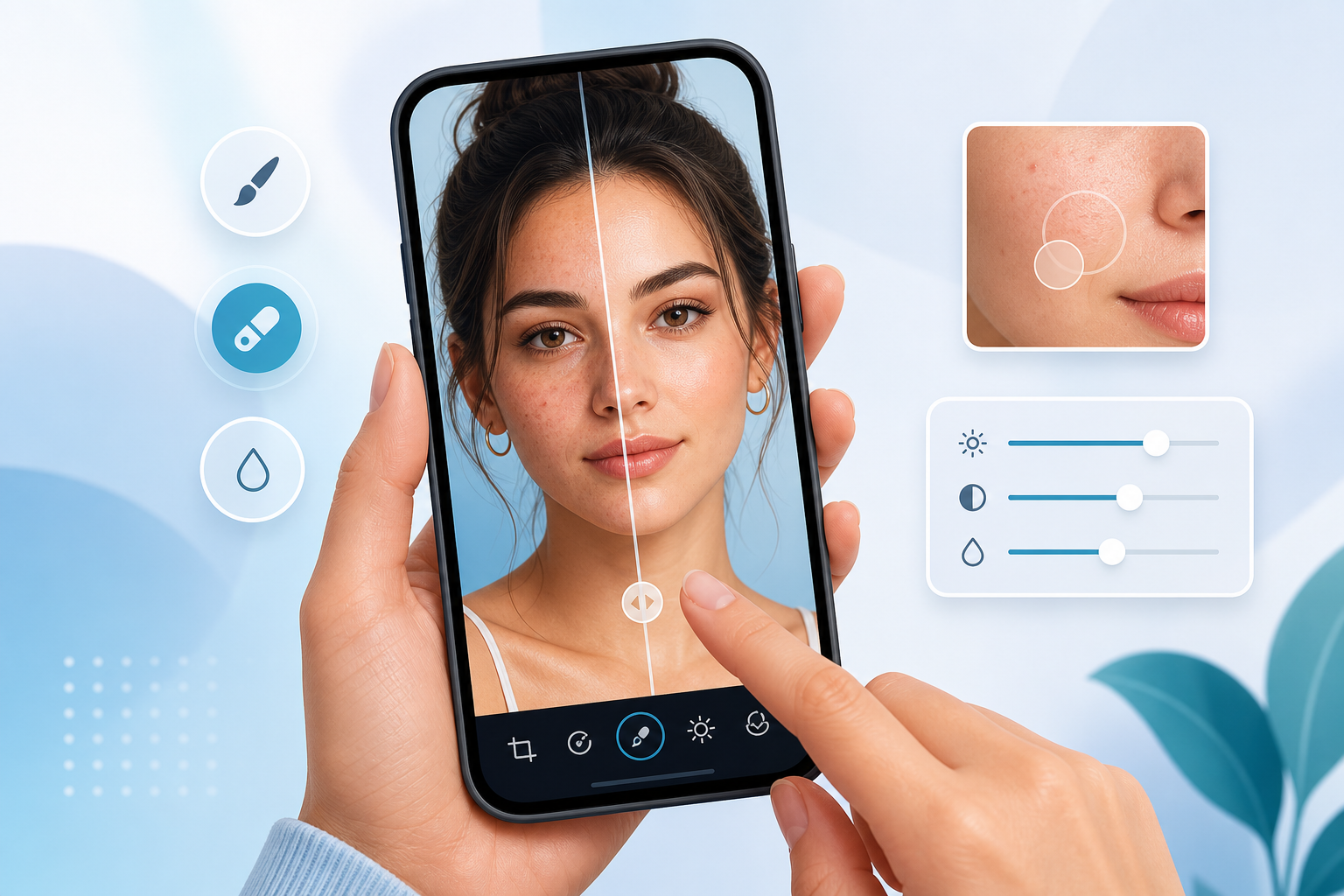
A good face retouch should help a portrait look fresh, bright, and polished without changing what makes the person in the photo feel real. TouchRetouch by ADVA Soft is a mobile photo editor for iPhone and Android designed for easy photo cleanup and natural portrait enhancement, so you can refine selfies, family photos, and profile pictures right on your phone.
TouchRetouch edits photos only and does not support video editing. That clear focus makes it a practical choice for people searching for a face retouch app that feels simple on mobile while still giving them useful tools for everyday images.
A simple way to enhance portraits on iPhone and Android
What TouchRetouch is designed for
TouchRetouch is developed by ADVA Soft GmbH, based in Berlin, Germany, and is available on iOS and Android. It is best known for photo cleanup, object removal, and retouching tools, including Natural FaceRetouch for portrait edits that stay subtle and believable.
That means the app is helpful when you want to smooth the overall look of skin, brighten eyes, or refine a portrait before posting it online. It also includes broader cleanup features, so if a great portrait has a distracting sign, background clutter, or an unwanted object, you can tidy the full image in one place.
Who this portrait editing feature is for
This portrait feature suits people who want quick, approachable editing on a phone or tablet rather than a complicated desktop workflow. It works well for selfies, profile photos, family pictures, social media posts, and casual portraits taken indoors, outdoors, or in mixed lighting.
It also fits users who want a face retouch app for everyday moments, not dramatic beauty effects. The goal is to support expression, light, and overall polish while keeping the person recognizable and comfortable in their own image.
Why subtle edits matter in everyday photos
Subtle edits tend to age better and feel more personal. A lightly refined selfie for a messaging profile, a polished graduation portrait, or a family photo shared in a group chat usually looks best when the edit enhances the photo instead of overpowering it.
If you also need full-image cleanup, the TouchRetouch app overview shows how portrait tools and object removal work together. That combination gives users one mobile editor for both portrait enhancement and distraction removal.
Why this face retouch tool looks natural
Natural FaceRetouch at a glance
Natural FaceRetouch is built for careful, natural-looking editing on mobile. It can smooth skin, brighten eyes, enhance smile, reduce wrinkles on the face and neck, even skin tone, and add eye highlighting while preserving the person’s natural features.
This matters when you want natural face editing for photos taken in less-than-ideal conditions. A portrait captured in harsh midday light, a selfie under indoor overhead lighting, or a favorite family picture taken quickly at dinner can all benefit from gentle refinement.
How the app preserves facial features
The feature is designed to avoid a plastic or over-edited look. Instead of pushing a portrait toward dramatic transformation, it supports the details that already make the image appealing: expression, eye contact, skin tone balance, and the overall feeling of the moment.
That makes it useful for profile photos, graduation portraits, travel selfies, and social images where authenticity matters. Unlike generic editing pages that talk broadly about filters and effects, this page is focused on portrait-retouch needs on mobile and how to keep results true to the person in the frame.
When a lighter touch creates the best portrait
A lighter touch often works best when the original photo is already strong and only needs a little polish. For example, a headshot with flat lighting may look more lively with brighter eyes and a more even skin tone, while a family portrait may simply need a softer overall finish before sharing.
In those situations, face retouch is less about changing appearance and more about helping the image reflect how the moment felt in real life. That is the appeal of a mobile tool centered on natural portrait enhancement instead of dramatic makeover effects.
What you can enhance in a portrait
Smooth skin while keeping texture believable
Skin smoothing in Natural FaceRetouch helps soften the overall look of skin in a portrait while keeping the image natural. This can be especially helpful in close-up selfies where strong phone-camera sharpening or uneven lighting makes the skin look harsher in the photo than it did in person.
For example, a window-lit portrait may already have beautiful expression and composition but still benefit from a gentler finish. Used lightly, this kind of portrait enhancement supports the image without making it look airbrushed.
Brighten eyes and add eye highlighting
Eyes often carry the emotional focus of a portrait, so small changes here can make a big difference. Brightening eyes and adding eye highlighting can bring more life to a photo when the original lighting feels flat, such as an indoor selfie, a cloudy-day portrait, or a quick front-camera shot.
If someone’s expression is warm but the image feels dull, this adjustment helps the portrait feel more awake and engaging. It is a simple way to guide attention back to the person rather than the lighting limitations of the moment.
Enhance smile and even skin tone
Smile enhancement helps expressions look more vibrant and photo-ready while still feeling like the same person. That can be useful for a profile picture, a birthday portrait, or a casual social post where you want the image to feel cheerful and polished.
Evening skin tone is also valuable when lighting is mixed or uneven. A portrait taken near a window with indoor lamps on, or a photo captured in patchy outdoor shade, can look more balanced after a gentle retouch that unifies the overall tone.
Reduce wrinkles on the face and neck
Natural FaceRetouch also supports wrinkle reduction on both the face and neck. This is best understood as a polishing tool for portraits, not a way to change identity; it helps the image feel smoother and more refined while preserving the person’s natural features.
That can be useful for a formal portrait, a family group photo crop, or a favorite image you want to print or share. For broader cleanup around the portrait, photo cleaner tools for overall image cleanup can help tidy distractions elsewhere in the frame.
How to keep edits realistic
When subtle retouching works best
Realistic portrait retouching works best in close-up portraits, profile photos, family pictures, and social posts where expression and authenticity matter most. In these images, the strongest result usually comes from supporting the original photo rather than trying to reinvent it.
How to avoid an over-edited portrait
Small adjustments are the safest approach. If you smooth skin, brighten eyes, and even skin tone a little instead of pushing one setting too far, the final portrait still looks like the original person and keeps the warmth of the moment.
It also helps to think of retouch as support for lighting and expression. A good edit can make a portrait feel clearer, brighter, and more polished without making it look artificial.
Pairing portrait edits with photo cleanup tools
Sometimes the face looks great, but the rest of the image needs attention. In that case, TouchRetouch’s Remove Objects tools can help clean up distractions in the background, while related tools for remove glasses glare from a photo and add shadow to an image can complement the portrait when the overall scene needs a more balanced finish.
Used together, these tools create a cleaner, more cohesive image. The portrait stays natural, and the viewer’s attention stays on the person instead of visual clutter.
What to know before you download
Platforms and device availability
TouchRetouch is available for iOS and Android. It works on iPhone and iPad, and it is also available through Google Play for Android users who want a mobile editor for portrait cleanup and object removal.
TouchRetouch is free to download; premium AI features require a paid subscription. Check the App Store or Google Play for current pricing, which varies by region. Some AI-powered features also require an internet connection.
Subscription details for premium AI tools
Natural FaceRetouch is one of the premium AI features that requires an active subscription. That means you can download the app first, explore its interface, and then review current subscription options in your store before deciding whether the portrait tools fit your needs.
Why TouchRetouch stands out for mobile editing
TouchRetouch stands out as a focused mobile editor that combines portrait enhancement with object removal and cleanup tools in one app. It is especially useful for people who want both a polished portrait and a cleaner background without switching between multiple apps.
TouchRetouch was selected by Apple as an Editors’ Choice app on the App Store. If you want a photo editing app iOS users can rely on for portraits and cleanup, or a similarly focused Android option, this is a practical place to start. Download TouchRetouch for free on iOS and start removing unwanted objects today. Transform your photos with TouchRetouch’s AI-powered tools — available on Android.
Frequently Asked Questions
What is the best way to retouch a face without making it look over-edited?
The best approach is to make small, balanced adjustments. Light skin smoothing, gentle eye brightening, and subtle skin tone evening usually create a more natural result than pushing one effect too far.
Can I use TouchRetouch for portrait editing on both iPhone and Android?
Yes. TouchRetouch is available on both iOS and Android, so you can use its portrait tools on either platform.
Does TouchRetouch edit videos or only photos?
TouchRetouch edits photos only. It does not support video editing.
Is Natural FaceRetouch included in the free download?
TouchRetouch is free to download, but Natural FaceRetouch is a premium AI feature that requires an active subscription. Current pricing is shown in the App Store or Google Play and varies by region.
What kinds of portrait improvements can I make with Natural FaceRetouch?
You can smooth skin, brighten eyes, enhance smile, reduce wrinkles on the face and neck, even skin tone, and add eye highlighting. The feature is designed to keep edits natural and preserve the person’s original look.
A natural-looking portrait does not need dramatic changes to feel polished. With the right face retouch, small improvements to skin, eyes, smile, and tone can help a photo look brighter and more refined while still feeling honest and personal.
TouchRetouch brings that approach to mobile editing, along with object removal and cleanup tools that support the whole image. Get TouchRetouch on the App Store or Google Play and start refining portraits right on your phone.
FAQ
How can I do a natural-looking face retouch on mobile?
Use light adjustments to remove temporary blemishes, soften distractions, and keep natural skin texture so the portrait still looks real.
What should I avoid when retouching a face photo?
Avoid over-smoothing skin, changing facial features too much, or removing details that make the person look like themselves.
Can I retouch portraits on iPhone and Android?
Yes, TouchRetouch is designed for both iPhone and Android, making it easy to edit portraits directly on mobile.
Which edits help portraits look brighter and more polished?
Small fixes like removing blemishes, cleaning up stray hairs, and refining distracting details can make portraits look brighter and more polished.





