
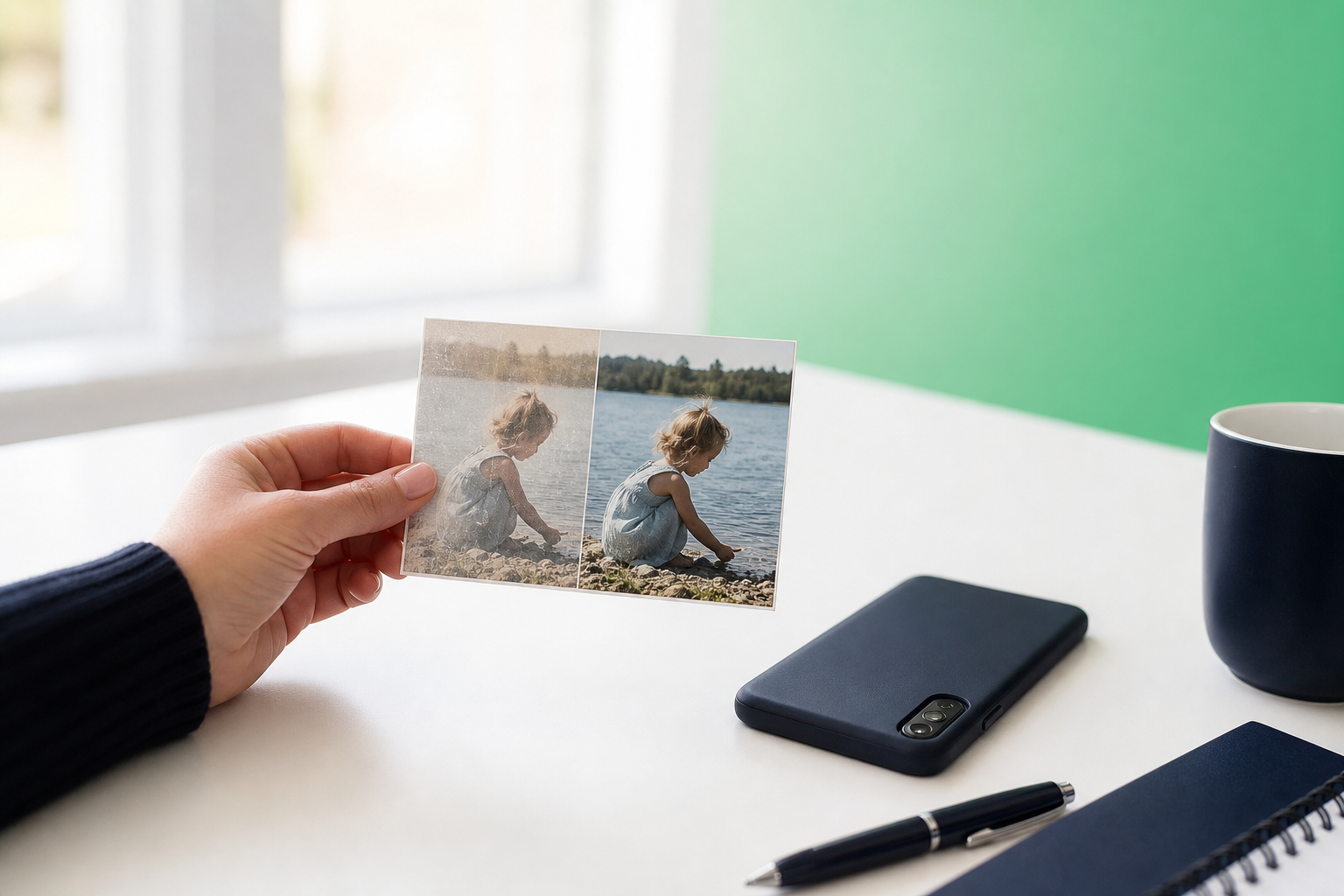
If you’re looking for a free photo enhancer, you probably want the same thing most people do: a fast way to make a picture look clearer, cleaner, and more polished without learning a complicated editor. That goal makes sense—but in many photos, the biggest improvement does not come from extra sharpness. It comes from removing the distractions that pull attention away from your subject.
That is where TouchRetouch fits. Developed by ADVA Soft GmbH in Berlin, Germany, TouchRetouch is a mobile photo editor for iOS and Android focused on object removal, natural retouching, and AI-powered cleanup. It is not a dedicated upscaler, but it can make photos look noticeably better by simplifying the scene and helping the main subject stand out.
What people usually want from a free photo enhancer
Why users search for a quick quality boost
When someone searches for a photo enhancer online free option, they usually want a low-effort improvement. Common goals include brighter lighting, better contrast, richer color, and a sharper overall look for a travel shot, portrait, or social post.
What online enhancement tools often try to improve
A typical enhancer adjusts basics such as brightness, contrast, color balance, and perceived sharpness. Those changes can help a flat image feel more lively, especially if the original photo is slightly dull or underexposed.
Where automatic enhancement can fall short
Still, many people searching for an enhancer are actually dealing with a different problem. A photobomber in the background, overhead wires, a trash can near the subject, skin blemishes, or random street clutter can make a photo feel lower quality even when the resolution is fine.
Enhancement alone also has limits. It does not rebuild missing detail, fully restore severely damaged images, or turn every low-resolution photo into a desktop-grade restoration. If your real goal is a cleaner, more intentional-looking image, TouchRetouch often makes more visual sense than a one-click filter. For more ways to enhance photo quality on your phone, cleanup is often the first place to start.
When enhancement alone is not enough
Distractions that make a photo feel lower quality
Many photos look “bad” not because they are too small, but because the frame is busy. Background people, signs, fences, power lines, shadows, and random objects can make a good shot feel messy and unfinished.
Why cleanup often matters more than extra sharpness
That is why an ai photo enhancer free search often leads people toward cleanup tools. Removing distractions from a portrait, family photo, property image, or vacation scene can instantly make the composition feel more deliberate, even when the resolution stays the same.
Cases where a separate upscaling tool may be needed
TouchRetouch is designed for mobile photo editing, especially object removal and retouching. It is not built for RAW workflows, bulk enhancement, or restoration of severely damaged photos. If you need true enlargement or 4K-style upscaling, a separate tool may be necessary alongside TouchRetouch.
That balanced approach matters. This app improves the overall look of an image through cleanup and retouching, but results still depend on the original photo quality and the complexity of the scene.
How TouchRetouch improves the overall look of your photos
Remove Objects for everyday cleanup
TouchRetouch is a specialist mobile app from ADVA Soft focused on AI-powered object removal and photo retouching. Its core feature, Remove Objects, lets you mark unwanted items with the Brush tool or Lasso, then remove them from the image. If the selection needs adjustment, Restore helps refine the result.
This is useful for everyday edits such as removing a bottle from a picnic photo, clearing a sign from a street shot, or erasing a small distraction from a portrait background. If your idea of a free photo enhancer is “make this image look cleaner fast,” this is often the most practical kind of improvement.
Erase AI for background distractions
Erase AI is designed for scenes where the background is the problem. It can detect and remove people in the background while keeping the main subject unchanged, and it can also target distractions such as street signs, trash cans, stop lights, and shadows.
Think of a travel photo at a landmark, a café shot with strangers behind you, or a real estate image with visual clutter near the entryway. In those cases, cleanup often does more than a generic ai photo enhancer free effect because it changes what the viewer notices first.
Line and mesh removal for cleaner scenes
TouchRetouch also includes dedicated tools for lines and mesh. Line Removal is built for wires and power lines: tap or mark part of the line, and the app finds the rest automatically. For curved segments, manual control points provide extra control.
Mesh Removal helps with fences or foreground mesh that can make outdoor photos feel busy. This is especially helpful for zoo photos, sports shots taken through barriers, or scenic views interrupted by a fence. If you want a photo cleaner guide for removing distractions, these are the kinds of edits that make a photo feel calmer and more intentional.
Clone Stamp for small manual refinements
For areas where automatic cleanup needs extra control, Clone Stamp lets you copy texture from one part of the image to another. It is useful on textured walls, patterned pavement, grass, or detailed backgrounds where a manual touch-up creates a more natural finish.
TouchRetouch works best when the background is simpler and more uniform, while complex scenes may need a mix of automatic tools and manual refinement. That honest limitation is worth knowing before you choose any free photo enhancer app.
Portrait and background tools that help photos feel more polished
Natural FaceRetouch for subtle portrait refinement
Many people searching for an ai photo enhancer online free tool are really trying to improve portraits. Natural FaceRetouch focuses on subtle edits such as smoothing skin, brightening eyes, enhancing a smile, reducing wrinkles on the face and neck, evening skin tone, and adding eye highlighting while preserving natural facial features.
The goal is a fresher, polished portrait—not an artificial face change. If you want a closer look at natural face retouch tools for portraits, this feature is designed to keep people looking like themselves.
Backgrounds for cleaner compositions
Backgrounds can automatically remove the background and replace it with a built-in preset or a custom image. It also supports background blur, which helps create a cleaner composition for profile photos, product shots, or casual portraits taken in busy places.
Blur for selective focus and privacy
Blur is a selective tool rather than a one-click global effect. You can use it to draw attention to the subject, soften a distracting area, or add privacy by blurring part of the background. For example, it can help reduce visual noise behind a child’s portrait or de-emphasize passersby in a street photo.
Smart Scenes for creative scene changes
Smart Scenes transforms an existing photo into different looks using AI filters. It can change the overall scene appearance, hairstyles, or backgrounds, but it does not generate images from scratch. That makes it useful when you want a more creative result from an existing image rather than a simple correction.
For many users, this feels more useful than a generic ai photo enhancer online free option. A cleaner portrait, a simplified background, or a subtle retouch often creates a stronger improvement than basic sharpening alone. If glare is the issue instead, you can also explore ways to remove glare from glasses in photos.
What to expect before you download
Platforms and export quality
TouchRetouch is available on iOS and Android. It is a mobile app, not a standalone desktop editor. A major practical benefit is that TouchRetouch preserves original photo quality and EXIF data on export, which is helpful if you want to keep image details intact after editing.
Pricing and premium features
TouchRetouch is free to download; premium AI features require a paid subscription. Check the App Store or Google Play for current pricing, which varies by region. Premium AI features include Erase AI, Blur, Backgrounds, Smart Scenes, Natural FaceRetouch, and Person Removal.
Who TouchRetouch is best for
This app is a strong fit for mobile photographers, travelers, social media creators, families, and anyone who wants quick cleanup on the go. Rather than trying to be every kind of editor, it is best for users who want to remove unwanted objects and improve photos directly from a phone or tablet. If your main goal is to remove objects with a swipe, that focused approach is the real advantage.
CTA: download on iOS or Android
Download TouchRetouch for free on iOS and start removing unwanted objects today.
Download TouchRetouch for free on Android and start removing unwanted objects today.
Frequently Asked Questions
Is TouchRetouch a free photo enhancer or a photo cleanup app?
TouchRetouch is primarily a photo cleanup and retouching app. It improves how photos look by removing unwanted objects, people, lines, meshes, and blemishes, while also offering portrait and background tools that make images feel more polished.
Can TouchRetouch increase image resolution or upscale photos to 4K?
No, TouchRetouch is not a dedicated upscaling tool. If you need true resolution enlargement or 4K-style upscaling, you will need a separate app in addition to TouchRetouch.
Does TouchRetouch work online or only on mobile devices?
TouchRetouch is a mobile app for iOS and Android. Some AI-powered features require an internet connection, but it is not positioned as a browser-based online editor.
Can I improve portraits naturally without making faces look over-edited?
Yes, that is the purpose of Natural FaceRetouch. It is designed for subtle portrait refinement such as skin smoothing, eye brightening, smile enhancement, wrinkle reduction, and skin tone balancing while preserving natural facial features.
Will TouchRetouch keep my photo quality and EXIF data when I export?
Yes. TouchRetouch preserves original photo quality and EXIF data on export, which is one of its practical advantages for mobile photo editing.
A good photo does not always need more pixels or stronger sharpening. Very often, it just needs fewer distractions, a cleaner background, or a more natural portrait retouch. That is why TouchRetouch works well for people searching for a free photo enhancer but really wanting a better-looking image overall.
If cleanup matters more to you than generic one-click effects, TouchRetouch is a strong fit. Try TouchRetouch — remove distractions from your photos in seconds.
FAQ
What is a free photo enhancer used for?
A free photo enhancer is used to improve how a photo looks by cleaning up distractions, refining details, and making the image appear clearer and more polished.
Can I use TouchRetouch as a photo enhancer online free alternative?
Yes, TouchRetouch works as a simple alternative when you want fast photo cleanup and enhancement without using a complicated editor.
Does an AI photo enhancer free tool remove unwanted objects?
Some AI-based tools can help improve image quality, but TouchRetouch is especially useful for removing unwanted objects, blemishes, lines, and other distractions from photos.
Is TouchRetouch good for beginners?
Yes, TouchRetouch is beginner-friendly because it focuses on quick, intuitive edits that help users clean up photos without advanced editing skills.
What results can I expect from a free photo enhancer?
You can expect cleaner, less distracting images that look more professional and visually polished for sharing, personal use, or marketing.





