
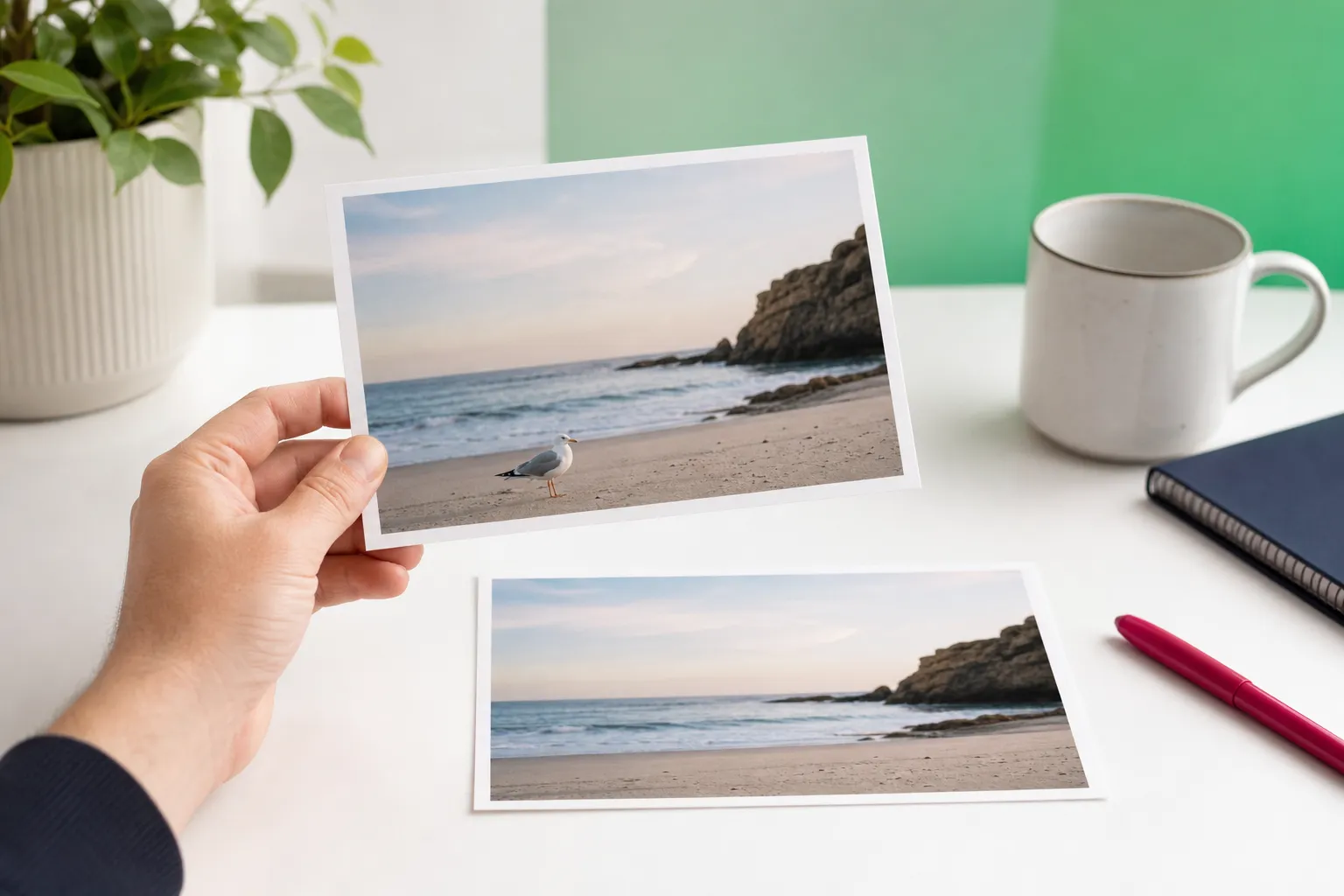
If you want to use Picsart’s Remove Object tool to clean up a photo, the main question is simple: will an all-in-one editor be enough for your shot, or do you need a dedicated cleanup app for trickier distractions like wires, fences, or extra people? That matters whether you are fixing a travel photo, removing a sign behind a portrait, or clearing clutter from a social post.
Short verdict: Picsart is a strong choice for casual edits because it combines object removal with broader photo and video editing in one app. Picsart is an AI photo and video editor for iOS, Android, and web, and Picsart describes its Remove Object tool as free with unlimited removals; premium adds priority processing and higher-resolution export.
That makes it a good fit if you want one editor for many jobs. If your main goal is photo cleanup, though, TouchRetouch has dedicated tools for tasks like removing wires, fences, and people from group shots because it focuses specifically on retouching photos rather than covering every kind of creative edit.
All-in-one editor or cleanup specialist?
The short answer for casual cleanup
If you want to remove objects in Picsart, such as photobombers, street signs, background clutter, power lines, or a small distracting item on the floor, the Remove Object tool can handle many everyday edits well. It is especially useful when the unwanted object sits against a fairly simple background like sky, pavement, grass, or a plain wall.
For quick social media cleanup, the built-in remover is often enough. Brush over the distraction, apply the edit, and then inspect the area closely before exporting.
When an all-in-one editor makes sense
Picsart works best for people who do not want a separate app just for cleanup. Because it combines object removal with broader editing tools, it suits users who may want to erase a small object, retouch a face, add creative effects, and prepare the image for posting in one place.
That broader workflow is the main reason many people choose it over a specialist. If you already use the app for filters, layouts, or video edits, keeping cleanup inside the same editor is convenient.
When a specialist is the simpler route
A dedicated cleanup app becomes more appealing when the photo problem is specific and repetitive. Thin cables across the sky, chain-link fences in front of a subject, or one extra person in a group photo often call for tools built around those exact jobs.
TouchRetouch, developed by ADVA Soft GmbH, focuses on AI-powered photo cleanup for iOS and Android. It is the more focused choice when you mainly want to remove unwanted objects from photos rather than switch between many unrelated editing features.
How to remove an object in Picsart step by step
Open your photo and find the removal tool
To use the Picsart object remover, start by opening Picsart on iPhone, iPad, Android, or the web editor. Begin a new edit, choose the photo you want to fix, and look for the object-removal option in the editing toolbar.
Interface labels and button placement can change over time, so the exact path may differ slightly from one version to another. In general, you are looking for the tool named Remove Object or a similar cleanup option inside the editor.
Picsart describes its Remove Object tool as free with unlimited removals, while premium adds priority processing and higher-resolution export. That means casual users can try the cleanup feature without needing the broader paid plan just to test basic object removal.
Brush over the distraction carefully
- Open the image you want to edit.
- Select the removal tool.
- Zoom in so you can see the unwanted object clearly.
- Brush over the object, person, sign, wire, or clutter you want to erase.
- Keep the selection as tight as possible around the distraction.
A smaller, more precise selection usually gives the app less guesswork. For example, if you are removing a soda can on a sidewalk, brush only the can and a tiny margin around it, not a large patch of pavement.
This method is easiest for small background distractions, isolated clutter, and objects that do not overlap important edges. A lamp on a blank wall, a bag on the beach, or a stray item on a table is usually simpler than removing a person standing in front of detailed architecture.
Review the result and repeat if needed
After applying the edit, inspect the cleaned area at full size and while zoomed in. Look closely at edges, repeated textures, shadows, and places where the removed object touched another subject.
If the first pass leaves a smudge or a visible pattern, undo and try a tighter brush stroke, or make a second pass on the remaining fragment. Complex backgrounds such as leaves, brickwork, crowds, patterned clothing, or overlapping faces often need extra cleanup.
Thin lines can also be tricky in broad editors. If you are trying to remove a cable crossing tree branches or a fence in front of a person, the result may need more than one pass or a different tool entirely.
Export your edited image
- Confirm the removal once the area looks natural.
- Save or export the image from the editor.
- Choose the highest available quality that fits your needs.
- Review the saved file once more before posting or sharing.
If you are editing for social media, a minor imperfection may be acceptable. If the image is for printing, a client gallery, or a favorite travel memory, zooming in before export is worth the extra moment.
For readers comparing options beyond this workflow, it also helps to compare more object removal apps, so you can match the tool to the type of distraction in your photo.
Where Picsart works well for object cleanup
Good use cases for everyday edits
Picsart is an AI photo and video editor on iOS, Android, and web. That broad availability makes it practical for users who edit across phone, tablet, and browser rather than staying inside one mobile-only workflow.
It works well for everyday cleanup jobs: removing a small item from the background of a portrait, cleaning up a travel photo before posting, or erasing a minor distraction from a product shot. In those situations, one app can handle the cleanup and the final styling.
Why an all-round editor appeals to many users
The biggest advantage of a broad editor is convenience. Instead of jumping between apps, you can remove an object, adjust color, crop for Instagram, and continue with other creative edits in the same project.
That is why some users who look for an alternative still stay with Picsart. If object removal is only one part of your workflow, the all-in-one approach can be more useful than a specialist tool.
When face retouch and broader editing matter too
Picsart also includes face retouching through AI Retouch, which adds another reason to keep everything in one place. A common example is a portrait where you want to remove a background distraction and then make subtle face adjustments before sharing.
In short, Picsart makes sense when cleanup is one task among many. It is not about declaring a universal winner; it is about choosing the editor that fits how you actually work.
When TouchRetouch is simpler for cleanup jobs
Thin wires and power lines
TouchRetouch is developed by ADVA Soft GmbH and specializes in AI-powered object removal and photo retouching for iOS and Android. If your photo has cables crossing the sky, rooftop wires, or other long thin distractions, its Line Removal tool is built for that exact problem.
Instead of brushing over an entire wire bit by bit, you mark part of the line and the app finds the full line automatically. For curved segments, manual retouch mode adds control points, which is useful when the line bends around branches or building edges.
If that is the kind of cleanup you do often, a dedicated line tool is easier than forcing a general remover to guess. You can see how this works on the Line Removal page.
Fences and foreground mesh
Fences are another common pain point. A broad remover can struggle when a mesh pattern covers a large part of the frame, especially in zoo, sports, or travel photos where the subject sits behind wire or netting.
TouchRetouch includes Mesh Removal for this exact scenario. The tool is designed to detect and remove foreground meshes and fences automatically, which makes it a practical choice when you want cleaner subject visibility without manually brushing every crossing line.
Removing one person from a group photo
Group photos create a different challenge because the removed person often overlaps shoulders, arms, or background details. TouchRetouch includes Person Removal, which automatically detects and selects all people in a group photo so you can remove one of them individually.
That matters when you want to tidy a family shot, fix a tourist photo, or remove a late walker from the edge of a group. If you want more ideas for that kind of edit, this guide shows how to remove people from photos on your phone.
Manual fixes for tricky edges
No app solves every scene perfectly, especially when the background is heavily textured. TouchRetouch covers that reality with manual tools too: Remove Objects with Brush and Lasso, Restore to bring back parts of a selection, and Clone Stamp for fine corrections along difficult edges.
TouchRetouch preserves original photo quality and EXIF data on export. It is still important to know the limits: it is for photo editing only, not video; it does not offer upscaling; the premium AI tools require a subscription; and complex scenes may still need manual refinement.
Picsart vs TouchRetouch vs Snapseed at a glance
Comparison table
| App | Platforms | Cost model | Object removal | People removal | Wire/line removal | Face retouch | Key requirement |
|---|---|---|---|---|---|---|---|
| Picsart | iOS, Android, web | Free with in-app purchases (Plus and Pro) | Remove Object tool described as free with unlimited removals; premium adds priority processing and higher-resolution export | — | — | AI Retouch | Suits users who want object removal inside a broader photo and video editor |
| TouchRetouch | iOS, Android; Mac via Apple Silicon compatibility | TouchRetouch is free to download; premium AI features require a paid subscription. Check the App Store or Google Play for current pricing, which varies by region. | Remove Objects, Erase AI | Person Removal | Line Removal | Natural FaceRetouch | Photo-only app; some AI-powered features require internet connection |
| Snapseed | iOS, Android | Free with no subscriptions, in-app purchases, ads, or watermarks | Healing tool | No separate tool | No separate tool | — | Suits users who want a simple free editor with basic object cleanup |
A dash means the feature isn’t documented on the official pages we checked (October 2026).
What the differences mean in real use
If you want to remove objects from photos while also editing videos, using web tools, and applying broader creative effects, Picsart is the most flexible of the three. It is the broad editor in this comparison.
If your main goal is photo cleanup on mobile, TouchRetouch is the specialist. It gives you dedicated tools for common real-world problems such as wires, fences, and extra people, plus manual refinement when the automatic result needs help.
Snapseed is the simplest free option here. Its Healing tool can be enough for small distractions on plain backgrounds, but it does not present the same dedicated line, mesh, or people-removal toolkit.
If you are still weighing options, our magic eraser app comparison gives a wider look at cleanup tools on mobile.
Where TouchRetouch is the better choice and where it is not
Choose it for dedicated photo cleanup
TouchRetouch is the better fit when your main task is removing distractions from photos on mobile. It is especially useful for users who regularly erase objects, people, lines, and meshes and want dedicated tools instead of a broad editor with one general remover.
That focus makes the app easy to understand: use Remove Objects for everyday clutter, Line Removal for cables, Mesh Removal for fences, Person Removal for group shots, and Clone Stamp when the scene needs a manual touch-up.
Skip it if you need video editing or upscaling
It is not the right fit if you need video editing, desktop-first workflows, or AI upscaling. TouchRetouch does not support video editing, and it does not offer upscaling.
It is also mobile-only. Mac access is available through Apple Silicon compatibility, but there is no standalone desktop version for a traditional desktop workflow.
What to expect on complex scenes
Every photo cleanup app depends on the scene. Uniform backgrounds are easier, while dense foliage, repeating textures, and overlapping subjects can require Clone Stamp refinement after the automatic removal.
That is not a flaw unique to one app; it is the nature of retouching. The advantage here is that TouchRetouch gives you both automatic and manual ways to finish the job cleanly.
How to clean up the same kind of photo in TouchRetouch
Use Remove Objects for everyday distractions
- Open your photo in TouchRetouch.
- Choose Remove Objects.
- Select Brush for freehand painting or Lasso for outlining the distraction.
- Mark the unwanted item as precisely as possible.
- Use Restore if the selection catches too much.
- Apply the removal and inspect the result.
This is the usual starting point for everyday clutter such as signs, trash cans, small background items, or a stray object on the ground. It also works well when you want an object remover app that keeps the process focused and simple.
Try Erase AI for background people and clutter
Switch to Erase AI when the distraction is a background person or a common object that the AI can identify automatically. It is useful for busy travel photos where a passerby, stop light, shadow, or street sign pulls attention away from the main subject.
The tool is designed to find and erase those distractions while leaving the main subject unchanged. Erase AI is a premium tool that requires a subscription, and some AI features need an internet connection.
Switch to Line Removal for cables
For wires and power lines, use Line Removal instead of forcing a brush tool to trace every segment. Mark part of the line and the app detects the rest, which is especially helpful against open sky or building edges.
This is one of the clearest examples of when a specialist beats a general cleaner. A tool built for lines usually means fewer passes and less manual correction afterward.
Use Mesh Removal for fences
If a fence or net sits between your camera and the subject, choose Mesh Removal. This tool is designed for foreground mesh patterns that are awkward to erase manually one strand at a time.
That makes it useful for zoo photos, sports shots, and travel images taken through barriers. When the mesh is dense or the background is busy, you can still refine the result after the automatic pass.
Refine with Clone Stamp and Restore
Finish with Clone Stamp if the cleaned area needs texture repair, edge smoothing, or a small patch fix. Restore is also helpful when your original selection included too much of the subject or background.
TouchRetouch also includes Natural FaceRetouch for subtle portrait edits, though the focus here is object removal. TouchRetouch is free to download on iOS and Android.
Which one should you choose?
Picsart: a broader editor
- Choose Picsart if you want one app for photo editing, video editing, and web access.
- Choose it if object removal is only one part of a wider creative workflow.
- Choose it if you want cleanup plus face retouch and other edits in the same project.
- Choose it if you prefer an all-round editor over a specialist cleanup app.
TouchRetouch: when cleanup is the main job
- Choose TouchRetouch if your main goal is removing distractions from photos.
- Choose it if you want dedicated tools for lines, meshes, and people in group shots.
- Choose it if you prefer a focused mobile retouching workflow over a broad editor.
- Consider Snapseed if you want a free editor with the Healing tool and no subscriptions, in-app purchases, ads, or watermarks.
Final takeaway
The simplest choice depends on the photo
The easiest choice depends on what you edit most often. Picsart is a solid all-round editor with a free Remove Object tool, while TouchRetouch is the simpler specialist for many cleanup-heavy tasks such as wires, fences, and removing one person from a group photo.
If you want broad editing across photo, video, and web, Picsart makes sense. If your main need is object cleanup with dedicated photo-retouch tools, TouchRetouch is the better fit; get it on the App Store or Google Play.
Frequently Asked Questions
Is Picsart’s object remover free to use?
Yes, Picsart describes its Remove Object tool as free with unlimited removals. Premium adds priority processing and higher-resolution export.
How do you remove people from a photo in Picsart?
Picsart’s tutorial covers Remove Object for unwanted objects in general; it doesn’t describe a separate people-removal tool. For a small background person, you can try brushing over them with Remove Object. This works best when the person is small, separated from the subject, and standing against a simpler background.
What is the difference between Picsart Remove Object and Snapseed Healing?
Picsart presents a dedicated Remove Object tool inside a broader AI photo and video editor. Snapseed handles object cleanup with its Healing tool and is a free editor with no subscriptions, in-app purchases, ads, or watermarks.
When should you use TouchRetouch instead of Picsart?
Use TouchRetouch when photo cleanup is the main job and you want dedicated tools for specific problems. It is especially useful for wires, fences, background people, and removing one person from a group photo.
Can TouchRetouch remove wires, fences, and people from group photos?
Yes, TouchRetouch includes Line Removal for wires and power lines, Mesh Removal for fences, and Person Removal for group photos. Results still depend on scene complexity, and heavily textured areas may need Clone Stamp refinement.





