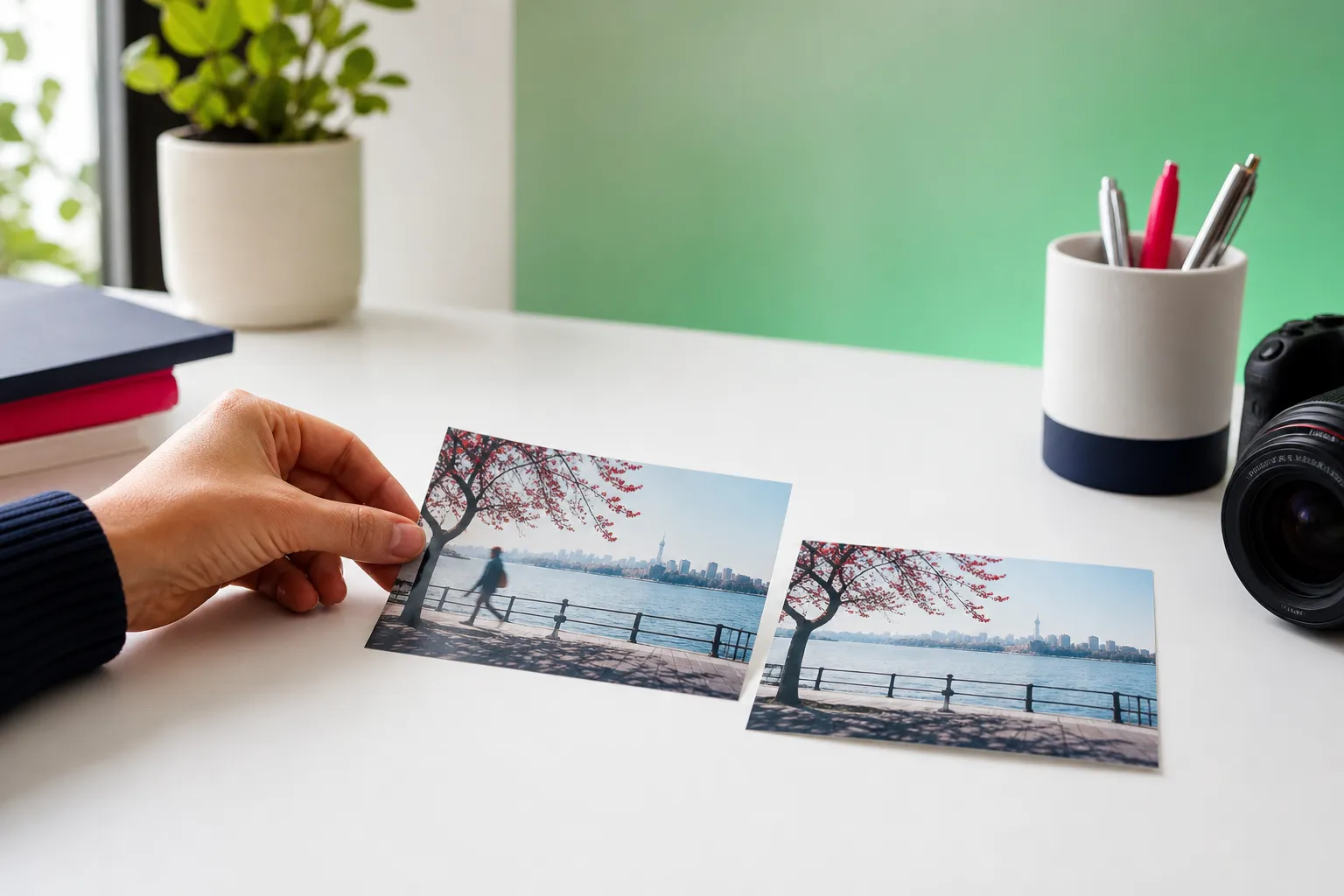
Samsung’s Object Eraser is appealing for one simple reason: many people want to remove a photobomber, power line, or random sign without downloading a complicated editor first. If you use a Galaxy phone, Samsung already includes built-in cleanup tools inside the Gallery editor, so quick fixes are often only a few taps away.
Quick verdict: Samsung’s built-in option is convenient for Galaxy owners and works well for everyday edits on supported phones. Samsung Generative Edit adds more flexibility for moving, resizing, or removing objects with AI fill, but it requires newer software and setup. If you use a non-Samsung Android phone, an iPhone, or want dedicated tools for wires, fences, and detailed cleanup, an alternative such as TouchRetouch or Google Photos Magic Eraser is often the better fit.
This guide is for three groups: Galaxy users who want to use what is already on their phone, Android users on other brands who need a similar tool, and iPhone users looking for a practical replacement. Support varies by model, software version, and sometimes region, so the exact options you see can differ from one device to another.
Built-in tools or a separate app?
Who this guide is for
If you take travel photos, family pictures, street shots, or quick social posts, unwanted details show up all the time. A stranger walks through the frame, a cable cuts across the sky, or a trash can pulls attention away from the subject. Most people do not want a full desktop workflow for that.
That is where a built-in tool helps. On Galaxy devices, the cleanup feature lives inside Samsung Gallery, which makes it easy to try before installing a separate object eraser app. For occasional edits on simple backgrounds, that convenience matters.
Short answer: when Samsung’s built-in tools are enough
Samsung’s built-in editor is usually enough when the distraction is small and the background is simple. Good examples include removing a person from a beach scene with open sand behind them, deleting a sign from a wall, or cleaning a small object from a tabletop photo.
If your phone supports Galaxy AI features, Samsung’s editing becomes more flexible through Generative Edit. That is especially useful when the removed area needs smarter filling, such as replacing part of a patterned floor or extending a background after moving a subject.
When another object eraser app makes more sense
A dedicated app makes more sense when you need tools built for specific problems. Wires, fences, background crowds, and detailed portrait cleanup usually benefit from specialist controls rather than a general gallery editor.
TouchRetouch is one example of a focused photo cleanup app. It includes Remove Objects, Erase AI, Person Removal, Line Removal, Mesh Removal, Clone Stamp, Natural FaceRetouch, Backgrounds, and Smart Scenes, which gives you more control than a basic built-in remover. If you want a broader cross-device option inside Google Photos, you can also compare it in this magic eraser app comparison.
How Samsung’s built-in cleanup tools work
Object Eraser in the Gallery editor
Samsung’s object removal feature is built into the Samsung Gallery editor and is documented for Galaxy devices. Object Eraser arrived with the Galaxy S21 on One UI 3.1 and later, which means it is not a universal Android feature and is not described by Samsung as available on other phone brands.
In practice, this tool is meant for quick cleanup inside your photo library. You open a picture in Gallery, enter edit mode, select the removal option if your device supports it, mark the unwanted area, and let the phone fill the gap. It works best for everyday distractions such as a passerby in the distance, a small sign, or a minor blemish in the scene.
What Generative Edit adds on supported Galaxy phones
Samsung Generative Edit goes further than simple removal. It can move, resize, or remove objects with AI fill, which means the phone does more than erase a marked area; it also tries to rebuild the surrounding image in a believable way.
There are clear requirements. Generative Edit needs One UI 6.1 or later on supported models, a Samsung account, and an internet connection. Samsung also notes that Generative Edit saves results at up to 12 MP and adds a visible AI watermark, so it is useful to know that before editing an important image.
Samsung describes basic Galaxy AI features as free. For many users, that makes Generative Edit a practical upgrade over the standard cleanup tool, especially when a photo needs more than a quick patch.
The difference between simple removal and AI fill
The easiest way to think about the difference is this: Object Eraser is for cleanup, while Generative Edit is for cleanup plus reconstruction. If you remove a small object from a plain wall, the standard tool is often enough. If you remove a larger subject from a textured background, AI fill has more room to rebuild what should be behind it.
That does not mean AI fill always looks perfect. Repeating patterns, crowded streets, tree branches, and detailed architecture are harder for any mobile editor. For exact compatibility, the safest approach is to look at your phone’s current software features and support details for your model rather than assuming every Galaxy device has the same tools.
Which phones can use these features
Galaxy devices with the built-in eraser
Support works in two layers. First, Samsung’s standard removal tool arrived with the Galaxy S21 and One UI 3.1+, so that is the usual baseline for Object Eraser.
That said, Samsung does not present one simple universal list that covers every region and every later device in the same way. A Galaxy phone sold in one market can have slightly different software timing or feature rollout than a similar model in another.
What you need for Galaxy AI editing
Second, Generative Edit has stricter requirements. You need One UI 6.1 or later on a supported model, plus a Samsung account and internet connection. If one of those pieces is missing, the feature may not appear or may not run.
For non-Samsung readers, this is the key point: these tools are documented only for Galaxy devices. If you use another Android brand, you will need another object eraser app or a service such as Google Photos.
What to do if your phone does not show the tool
If the tool is missing, the most common reasons are an unsupported device, an older One UI version, region differences, or account and setup requirements for Galaxy AI. Start by checking for a software update, then reopen Gallery and look inside the editor rather than the main photo view.
If you still do not see it, your best next step is practical rather than guesswork: confirm your One UI version, sign in to your Samsung account if you want AI editing, and compare the editing options available on your exact device. If you are on iPhone or another Android brand, moving to an alternative app is usually faster than trying to force a Galaxy-only feature.
How to remove objects on a Galaxy phone step by step
Using the built-in eraser in Gallery
If your Galaxy phone supports the feature, the basic workflow is straightforward. The tool is designed for quick edits directly inside your photo library, so you do not need to export the image to another app first.
- Open the photo in Samsung Gallery.
- Tap Edit.
- Look for the object removal option in the editing tools.
- Mark or select the unwanted object as tightly as possible.
- Apply the edit and review the filled area.
- Save the result, or save a copy if you want to keep the original untouched.
That is the basic Object Eraser workflow. On a clean background such as sky, pavement, water, or a plain wall, the result often looks natural after one pass. On busier backgrounds, a second attempt with a tighter selection usually helps.
Using Galaxy AI for more complex edits
If your phone supports Galaxy AI, Generative Edit is the better choice for larger or more complicated changes. It is useful when you want to remove a person near the edge of the frame, reposition an object, or resize part of the image and let the phone rebuild the empty space.
- Open the image in the supported editor on your Galaxy phone.
- Select the object you want to change.
- Choose the remove or transform action available on your device.
- Let the AI fill the area.
- Review the result closely before saving.
Two limits matter here. Generative Edit exports at up to 12 MP and adds a visible AI watermark. If you are editing a high-resolution image for printing or want a result without that visible marker, that may affect your choice.
Tips for cleaner results on busy backgrounds
For better cleanup, zoom in before selecting the object. A tight selection gives the editor a clearer job than a rough outline that includes extra background. This matters when removing a person standing in front of patterned tiles, tree leaves, or brickwork.
Try a second pass if the first fill looks uneven. For example, if a wire leaves a faint trace across the sky or a removed object leaves a soft blur on grass, reselect the leftover area and run the tool again. Small corrections often look better than one oversized selection.
If the scene is crowded or highly textured, the built-in editor may not be the best fit. That is where a dedicated cleanup app with tools for lines, meshes, or manual repair becomes more useful than repeating the same automatic fill.
Comparison table: Samsung, Google Photos, and TouchRetouch
Feature snapshot at a glance
| App/tool | Platforms | Cost model | Object removal | People removal | Wire/line removal | Face retouch | Key requirement |
|---|---|---|---|---|---|---|---|
| Samsung Galaxy Object Eraser / Generative Edit | Galaxy devices | Samsung describes basic Galaxy AI features as free | Yes | Yes | — | — | Galaxy device; for Generative Edit, One UI 6.1+, Samsung account, internet |
| Google Photos Magic Eraser | Pixel, other Android phones, iPhone/iPad inside Google Photos | Free for eligible users with a personal Google Account | Yes | Yes | — | — | Android 8.0+ or iOS 18+ and at least 3 GB RAM for most editing features |
| TouchRetouch | iPhone, iPad, Android, Mac with Apple M1+ via macOS compatibility | Free to download; premium AI features require a paid subscription | Yes | Yes | Yes | Yes | Some AI-powered features need internet connection |
A dash means the feature isn’t documented on the official pages we checked (November 2026).
What the table does and does not show
This table gives a fast feature-level comparison, not a full quality ranking. It shows where each tool is available and what kind of cleanup it is designed to handle, which is often the most useful starting point when choosing an alternative.
Availability can change with software updates, app versions, and device support. For example, Galaxy AI features depend on One UI version and model support, while Google Photos editing features depend on operating system and memory requirements.
Where TouchRetouch is the better choice and where it is not
When a dedicated cleanup app is more practical
TouchRetouch is a better fit when you want a specialist photo cleanup app rather than a general gallery feature. It is made by ADVA Soft and focuses on removing distractions from photos on iPhone, iPad, and Android, with Mac access through Apple Silicon compatibility.
Its strengths are specific and practical. Remove Objects handles everyday distractions, Erase AI helps remove background people and common clutter, Person Removal is built for group photos, Line Removal targets wires and power lines, Mesh Removal handles fences and screens, and Clone Stamp gives you manual control when automatic cleanup needs refinement.
It also includes Natural FaceRetouch for subtle portrait edits, plus Backgrounds and Smart Scenes for broader photo changes. Another useful advantage is that TouchRetouch preserves original photo quality and EXIF data on export.
Cases where Samsung or Google Photos may be enough
TouchRetouch is not automatically the best choice for everyone. If you already have a supported Galaxy phone and only want occasional cleanup in the Gallery app, Samsung’s built-in editor is often enough. The same is true if you prefer a free built-in option and do not need advanced controls for wires, fences, or manual repair.
Google Photos can also be enough if you already keep your pictures there and want one tool across Pixel, other Android phones, and iPhone or iPad. That route makes sense for users who value one familiar editing space more than specialist tools.
Important limits to know before choosing
TouchRetouch is photo-only, so it does not edit video. It is also not an image upscaling tool. If those are your main goals, you will need a different app.
Automatic removal works best on simpler backgrounds. On detailed scenes such as patterned clothing, dense foliage, or layered architecture, a manual pass with Clone Stamp may still be needed. If you want more ideas for crowd cleanup, this remove people from photos guide is a useful next read.
How to remove unwanted objects with TouchRetouch
Use Remove Objects for everyday distractions
If you want to remove unwanted objects from photos on iPhone, iPad, or Android, TouchRetouch gives you a direct workflow built around cleanup rather than general editing. The core tool is called Remove Objects, and it is designed for things like signs, litter, shadows, small background distractions, and random items on the ground or table.
- Open your photo in TouchRetouch.
- Choose Remove Objects.
- Mark the distraction with the Brush or Lasso.
- Adjust the brush size if you need more precision.
- Apply the removal.
- Use Restore if you selected too much and want to bring part of the image back.
For a closer look at this workflow, see the Remove Objects feature page. It is especially useful for travel photos where a sign, bin, or passerby pulls attention away from the main subject.
Try Erase AI or Person Removal for people in the background
When the main problem is background people, switch from manual selection to a smarter tool. Erase AI is designed to detect and remove people in the background automatically while leaving the main subject unchanged. It can also target common distractions such as street signs, stop lights, trash cans, and shadows.
Person Removal is different. It is made for group photos where you want to remove a specific person while keeping the rest of the composition looking natural. That is useful for family shots, tourist group pictures, or event photos where one person should be taken out without rebuilding the whole image by hand.
TouchRetouch is free to download; premium AI features require a paid subscription. Check the App Store or Google Play for current pricing, which varies by region.
Get TouchRetouch on the App Store or on Google Play.
Use Line Removal, Mesh Removal, and Clone Stamp for tricky scenes
For power lines and cables, use Line Removal. You tap or mark part of the line, and the app finds the full line automatically. For curved segments or more control, there is also a manual retouch mode with control points. You can learn more on the Line Removal page.
Mesh Removal is the right tool for fences, nets, and screens in the foreground. It uses a simple two-step process: choose the tool and tap Go. For scenes where automatic cleanup leaves a small artifact, Clone Stamp lets you copy texture from one area to another for precise repair.
Portraits have a separate option too. Natural FaceRetouch helps with subtle edits such as smoothing skin, brightening eyes, enhancing a smile, reducing wrinkles, and evening skin tone while keeping a natural look. If portraits are your focus, these face retouch tips on mobile add practical guidance.
Samsung, Google Photos or TouchRetouch: which fits your phone
Samsung Gallery: built-in editing on Galaxy phones
- Choose Samsung if you already use a supported Galaxy phone.
- Choose it if you want editing directly inside Gallery with no extra app.
- Choose it if your cleanup needs are occasional and fairly simple.
Google Photos: one editor across devices
- Choose Google Photos if you already store and edit images there.
- Choose it if you want Magic Eraser on Pixel, another Android phone, or iPhone/iPad.
- Choose it if your device meets the OS and RAM requirements for most editing features.
TouchRetouch: dedicated removal tools
- Choose TouchRetouch if you want a specialist object remover app for iPhone, iPad, Android, or compatible Apple Silicon Mac access.
- Choose it if you need dedicated tools for wires, fences, group-photo cleanup, or subtle portrait retouching.
- Choose it if you want a focused workflow for cleanup instead of a general photo editor.
If you are comparing more apps before deciding, this comparison of AI object remover apps can help narrow it down.
Frequently Asked Questions
Which Samsung phones have Object Eraser?
Samsung says Object Eraser arrived with the Galaxy S21 on One UI 3.1 and later. Availability still varies by exact model, software version, and region, so two Galaxy phones may not show the same editing options.
What is the difference between Object Eraser and Generative Edit on Galaxy phones?
Object Eraser is the simpler built-in cleanup tool inside Samsung Gallery. Generative Edit adds AI-powered move, resize, and remove actions with AI fill, but it needs One UI 6.1+ on supported models, a Samsung account, and internet access.
Can you use Samsung’s object removal tools without internet?
The standard built-in eraser is separate from Galaxy AI requirements. Generative Edit specifically requires an internet connection, so that part of the editing workflow does not work fully offline.
What is a good object eraser alternative for non-Samsung Android phones?
Google Photos Magic Eraser is a practical option if your phone meets the app’s OS and RAM requirements. TouchRetouch is another option if you want specialist tools for people, wires, fences, and detailed photo cleanup.
What should iPhone users use instead of Samsung’s built-in eraser?
iPhone users cannot use Samsung’s Galaxy-only editor, so they need another app or service. Google Photos Magic Eraser works inside Google Photos on iPhone/iPad, and TouchRetouch is a dedicated option for object removal, people cleanup, line removal, and natural portrait retouching.
Conclusion
If you already own a supported Galaxy phone, Object Eraser is a convenient place to start. It handles quick cleanup well, and Generative Edit adds more advanced AI-based removal when your device supports it and you are comfortable with the 12 MP export limit and visible AI watermark.
If you use iPhone, another Android brand, or simply want more control over wires, fences, group photos, and manual cleanup, a dedicated app usually fits better. Get TouchRetouch on the App Store or Google Play and clean up your photos with tools built specifically for removing distractions.