
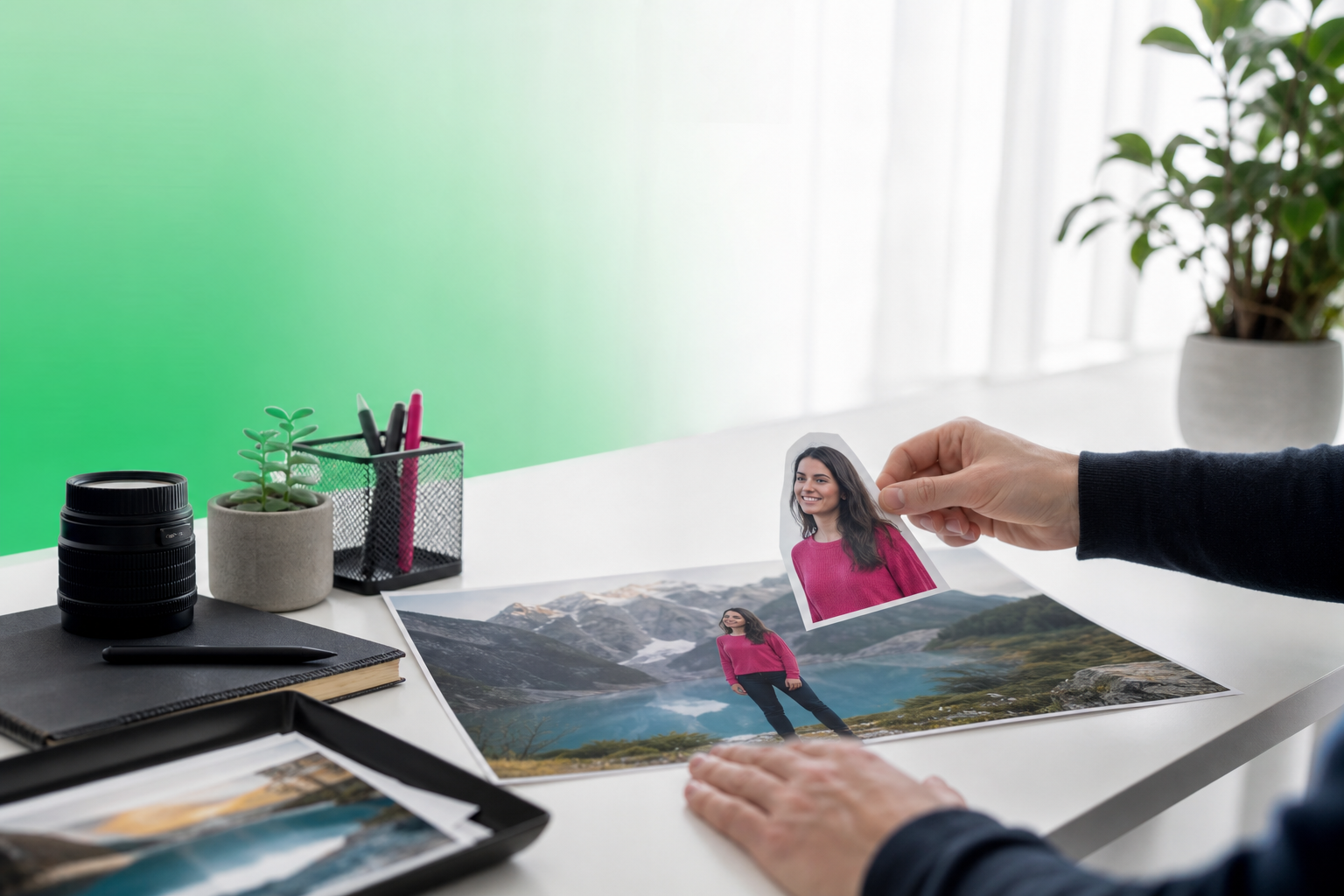
If you want to add person to photo results that actually look believable, the honest workflow is simple: use a compositing editor first to place the person, then use TouchRetouch to clean up the scene and polish the final image. That approach is more practical than forcing one app to do a job it was not built for.
People usually search for this task because they want to fix a missed family portrait, include someone in a travel shot, update a group picture, create a memorial edit, or make a social post feel complete. The goal is understandable. The challenge is that placing a new person into an existing image requires cutouts, positioning, and blending, which is a different job from cleanup and retouching.
Start with the honest answer: what this app can and cannot do
Why people search for this editing task
When someone looks up how to add a person to an existing photo, they usually want one of two outcomes. Either they need to place a missing person into a scene, or they want the final image to look natural after that person has been added. Those are related tasks, but they are not the same edit.
A common example is a family photo where one person was absent, so the user wants to insert them later from another picture. Another example is a vacation shot where the background is great, but the group was incomplete. In both cases, the placement step matters first, and cleanup matters second.
What TouchRetouch does not support
TouchRetouch does not insert, generate, merge, or composite a new person into a photo. It is not a layering-based compositing editor, and it does not offer AI person generation or person merging. If your main task is cutting out someone from one image and placing them into another, you need a different app for that first step.
That matters because many readers searching for an Ai add person to photo app expect one tool to handle everything. TouchRetouch is a mobile photo editor focused on object removal, cleanup, background work, and natural retouching. It is powerful within that role, but it is not a desktop compositing replacement.
What it can do before and after compositing
Where TouchRetouch becomes genuinely useful is the work around the composite. Before placement, it can clean the base image with Remove Objects, Erase AI, Person Removal, Line Removal, Mesh Removal, and Clone Stamp. After placement, it can help refine the image with Backgrounds, Blur, Smart Scenes, and Natural FaceRetouch.
For example, you can remove a bench, a trash can, or a photobomber before importing the image into another editor. After the person has been placed, you can soften a busy background, repair small seams, or make facial details look more polished without over-editing. If you want to add person to photo in a way that feels realistic, this prep-and-finish workflow is often the most sensible path.
Results depend on scene complexity. A plain wall, open sky, or smooth pavement is easier to clean than a patterned fence, crowded street, or detailed foliage. TouchRetouch is designed to help mobile users retouch photos on iOS and Android, not replace full desktop compositing software.
When you need a compositing editor vs. when TouchRetouch is the better choice
Use a layering editor for cutouts, placement, and blending
If your task is to physically place a new subject into a scene, use a compositing editor first. That kind of app lets you cut out the person from one photo, move them into another, resize them, adjust their position, and try to match the perspective and lighting as closely as possible.
Think of a graduation portrait where one sibling was missing. You need to isolate that sibling from a separate image, place them near the others, and make sure their size matches the camera distance. The same is true for a travel photo where you want to insert someone onto a boardwalk or beside a landmark.
That is also the reality behind many searches for an Ai add person to photo app. Some tools use AI to help with cutouts or placement, but the core requirement is still compositing. Layers and masks are the giveaway: if your edit depends on those, start in a compositing-capable editor.
Use TouchRetouch for cleanup, background prep, and final polish
TouchRetouch is the better choice when the photo already exists and needs cleaning. You can remove photobombers, erase signs, tidy pavement, fix wall distractions, remove wires, clear fences, blur busy spots, and retouch faces naturally after the main placement is done elsewhere.
That makes it especially useful before and after an add person to photo workflow. Before compositing, a cleaner background gives the inserted subject more room and fewer visual conflicts. After compositing, the app helps reduce the little distractions that make edits look fake, such as repeated textures, leftover seams, or clutter near the new subject.
Smart Scenes can also transform an existing image into a different look, but it does not generate a new person from scratch. It changes the appearance of the photo you already have. That distinction helps set realistic expectations when AI claims sound broader than the actual feature.
A simple decision checklist before you start
Use this quick checklist before you begin:
- If you need to cut out a person from another image, place them into the scene, resize them, or blend them with layers or masks, use another app first.
- If you need to remove distractions from the background, erase passersby, clean edges, blur clutter, or polish the final portrait, use TouchRetouch.
- If your goal is a transformed look from an existing photo, Smart Scenes may help, but it is not a person generator.
For many everyday users, the easiest path is a two-step mobile workflow. First, place the person in a compositing editor. Then open the result in TouchRetouch to improve the scene and make the image feel more coherent.
If your main need is cleanup rather than placement, start with TouchRetouch right away. It is available on iOS and Android and is built specifically for object removal and retouching. To see related cleanup techniques, you can remove people and objects from photos on iPhone and Android with a similar workflow.
How to prepare a photo before adding someone elsewhere
Remove unwanted people and clutter from the scene
A clean base image makes any later composite easier. Before you try how to add a person to a photo online in another editor, remove anything that competes with the future subject: random bags, extra chairs, parked scooters, benches, litter bins, or people walking through the frame.
Start with Remove Objects. Use the Brush for irregular shapes like backpacks or shadows, and use the Lasso when the object has a clear outline, such as a sign or a small table. If the selection grabs too much, use Restore to bring back the parts you want to keep.
For a travel photo in front of a landmark, clearing a backpack on the ground and a passerby near the edge can make the scene feel far less crowded. For a family portrait in a park, removing a picnic cooler or stroller from the background gives the future composition more breathing room.
Erase AI is especially helpful when the background contains people you do not want. It is designed to detect people in the background, remove them, and leave the main subject unchanged. That is useful when you want to insert a different person later without the scene already feeling overpopulated.
If the image is a group shot and you want to remove one or more existing people before replacing them in another editor, use Person Removal. The app detects all people in the group so you can remove selected individuals. This can help when one person blinked, someone stepped into the wrong spot, or you want to rebuild the group using a better source image.
Clean edges, wires, signs, and small distractions
Small details often break the illusion more than large ones. A power line crossing the sky, a bright sign near the subject area, or a fence pattern behind the future placement zone can make the final edit look awkward even if the person cutout itself is good.
Use Line Removal for wires, cables, and other linear distractions. Tap or mark part of the line, and the tool finds the rest automatically. If the line curves, the manual retouch mode gives more control over the path.
Mesh Removal is useful when a fence or net sits in front of the scene. That matters in sports photos, zoo shots, or playground images where the background is otherwise usable. Removing the mesh first gives you a cleaner area for later cut-and-paste work.
Signs, stickers, pavement marks, and small shadows can usually be handled with Remove Objects or Erase AI. If the automatic result looks slightly soft on brick, grass, or patterned stone, switch to Clone Stamp and copy nearby texture into the repaired area. Manual refinement is often the difference between an obvious edit and a believable one.
Simplify the background for easier cut-and-paste work
The best prep is not only about deleting distractions. It is also about simplifying the scene so the inserted person has a natural place to sit visually. Open space beside a family group, a clean patch of wall, or uncluttered pavement makes later placement much easier.
For example, if you plan to place someone at the end of a row of people, clear stray objects near their feet area first. If you want to insert someone into a beach shot, remove overlapping towels, coolers, or beach toys from the intended placement zone. These edits reduce edge conflicts when another app handles the cutout.
Some users searching how to add a person to a photo online expect the online editor to fix all these issues automatically. In practice, a cleaner source photo gives any compositing tool a better chance of producing a convincing result. TouchRetouch helps you build that cleaner starting point on mobile.
If you want a broader cleanup workflow before compositing, this guide on how to replace or clean a background with a photo cleaner workflow covers the same principle in more detail.
Ways to polish the image after a person has been added
Replace or tidy the background
Once the person has been placed in another editor, bring the result into TouchRetouch for finishing work. One useful option is Backgrounds, which can remove the existing background and replace it with a built-in preset or a custom image if the final composition still feels messy.
This is helpful when the original scene and the inserted subject do not fully match, or when a simpler background would make the image feel more intentional. For example, a cluttered indoor wall can be replaced with a cleaner backdrop, or a busy portrait background can be swapped for something less distracting.
Blur distractions to guide attention
Background blur can also make a composite feel more natural by reducing visual competition around the newly added person. If the scene has too many sharp details behind them, a subtle blur helps guide the eye toward the faces rather than the clutter.
The Blur tool works for selective focus, privacy, or artistic cleanup. You can soften a crowd in the distance, blur a license plate, or reduce the prominence of a bright object near the edge. This is especially useful for readers exploring Ai add person to photo online options, because many AI placements still need manual finishing to feel consistent.
Use blur carefully. Too much softening can make the inserted person look disconnected from the rest of the image. A light touch usually works better than a dramatic effect.
Refine faces and small imperfections naturally
After compositing, facial details often need the gentlest polish. Natural FaceRetouch can smooth skin, brighten eyes, enhance a smile, reduce wrinkles, even skin tone, and add eye highlighting while preserving natural facial features. The goal is not to change how someone looks, but to help the final image feel cohesive.
This is useful when the added person came from a different photo with slightly harsher light or more visible texture than the rest of the group. A subtle pass can help the faces sit together more comfortably. It also works well for social portraits where one face needs a little more balance after the merge.
If the compositing app left behind a seam around hair, clothing, or the floor area, use Clone Stamp for small repairs. Copy nearby texture over repeated patterns or edge artifacts until the transition looks cleaner. When you add person to photo in one app and finish in another, these tiny fixes often matter more than dramatic edits.
TouchRetouch preserves original photo quality and EXIF data on export. That is helpful when you want to keep image details intact after cleanup and finishing.
For portrait-specific finishing, you can also refine portraits with natural face retouch using the app’s subtle face tools.
How to add person to photo on Android: the realistic workflow
What Android users should do first
If you are searching how to add a person to a photo on Android, the realistic answer is that one app may not be enough. On Android, use a compositing-capable editor first if your job is to place a new person into an existing scene.
That first app should handle the cutout, placement, resizing, and blending. For example, if you want to insert a missing friend into a concert photo or add a relative into a family portrait, that placement step needs tools beyond what TouchRetouch is designed to do.
Where TouchRetouch fits into the process
TouchRetouch fits before and after that step. Before compositing, clean the original image by removing passersby, signs, wall marks, pavement clutter, or extra people in the background. After compositing, use it to reduce distractions, repair small flaws, and improve the overall balance of the image.
Android users often want an Ai add person to photo android solution that feels simple on a phone. A two-app workflow is often the most practical mobile option: one app for placement, TouchRetouch for cleanup and polish.
Mobile editing tips for cleaner results
On Android, zoom in before using Remove Objects or Clone Stamp so you can see edge detail more clearly. This helps when cleaning shoe outlines, floor seams, or textured walls. If the background has repeated bricks, tiles, or grass, make small corrections instead of one large patch.
Use Blur to soften distracting areas rather than trying to erase every minor detail. If the final portrait needs a more polished look, Natural FaceRetouch can gently even skin tone or brighten eyes without making the image look artificial.
TouchRetouch is available on Android via Google Play and on iOS via the App Store. TouchRetouch is free to download; premium AI features require a paid subscription. Check the App Store or Google Play for current pricing, which varies by region.
Download TouchRetouch for free on iOS and Download TouchRetouch for free on Android to start removing unwanted objects today.
Online tools and AI expectations: what to watch for
What online editors usually mean by this task
When people search for browser tools, they often expect a seamless way to place someone into a picture instantly. In reality, many services that promise Add person to photo online free no sign-up are offering one of three things: a basic cutout-and-paste editor, a collage template, or an AI-generated scene edit that changes the image rather than truly compositing it.
That does not mean online tools are useless. They can be convenient for quick experiments, especially if you only need a rough social post. But convenience is different from control, and control is what usually determines whether the final image looks believable.
Free no-sign-up tools: convenience vs. control
Free browser editors are attractive because they avoid app installs and often feel fast to try. If you search for Ai add person to photo online free, you will usually find tools that can remove a background from one image and place that cutout onto another. For simple scenes, that may be enough to create a passable result.
The tradeoff is limited control over edges, perspective, lighting, export quality, and privacy. Hair outlines may look rough, shadows may not match, and the final download may be compressed. Some services also require sign-up right before export, even when the landing page suggests otherwise.
Another common issue is scale. A person pasted into a street scene may be too large for the camera angle, or their feet may not sit naturally on the ground plane. These are not small details. They are often the reason an edit feels fake at first glance.
How to judge AI claims without getting misled
AI claims are easiest to judge when you break the task into parts. Ask: does the tool actually place a person into the scene, or does it just help with cutouts? Does it preserve the original image quality? Can you control placement precisely, or is it mostly automatic?
That is especially useful for searches like Ai add person to photo online. Some AI tools can help isolate a subject, remove a background, or transform a scene. But users still usually need cleanup afterward to remove repeated textures, fix clutter, or make the final image feel visually coherent.
TouchRetouch’s role in this process stays the same whether the first step happens online or in another mobile app. It is for cleanup and refinement, not for generating or inserting a new person. If your browser tool gives you a rough composite with a distracting sign, a leftover fence pattern, or an obvious seam near the shoes, TouchRetouch is the app you use to improve those details.
For example, imagine an online editor places someone into a beach photo but leaves extra tourists in the background. Erase AI can remove those background people. Or imagine the online tool leaves a visible edge near a jacket against a brick wall. Clone Stamp can help repair the texture so the area looks more natural.
The same logic applies to searches for Add person to photo online free no sign-up. Free access is convenient, but the final image still depends on the quality of the source photos, the realism of the placement, and the cleanup you do afterward. Choosing tools based on the actual task usually works better than chasing a single AI promise.
If you want to understand the app’s cleanup features more broadly, you can learn more about AI-powered editing tools in TouchRetouch.
Best practices for a believable final result
Match lighting, scale, and perspective
The most convincing edits start before any cleanup. If the added person was photographed from a different camera angle, under different light, or at a different distance, the result will look off no matter which app you use. Matching lighting direction, subject size, and perspective matters more than any single feature.
For instance, a person shot from eye level will look strange in a photo taken from above. A subject lit from the left will stand out in a scene where all shadows fall to the right. These are the details to watch when trying an Ai add person to photo android workflow or any other mobile method.
Clean the scene before and after placement
Clean the base image first so the inserted subject has fewer conflicts around them. Remove clutter near the intended placement area, clear extra people from the background, and fix obvious distractions like signs or wires. Then, after placement, do a second pass to repair seams, repeated textures, or awkward background details.
This two-stage approach is often what makes an add person to photo edit feel polished rather than patched together. A simple example is clearing a bench before placement, then using Clone Stamp afterward to tidy the pavement around the new subject’s shoes.
Know when a simple edit will look more natural
Sometimes the most natural result is not the most ambitious one. A lightly blurred background can help separate the subject from a busy scene without making the image look heavily edited. Subtle Natural FaceRetouch can help faces feel balanced without changing anyone’s appearance.
The short takeaway is this: use another app for placement, then use TouchRetouch for cleanup and finishing. That combination is often the most believable way to build a polished image on mobile.
If you want to soften a busy scene after compositing, you can add realistic depth with background and subject blur using the app’s blur tools.
Conclusion and next step
Use the right tool for each part of the job
Here is the honest summary: TouchRetouch does not place a new person into a picture, but it is extremely useful before and after that step. Use a compositing editor first for cutouts and placement, then use TouchRetouch to remove unwanted people, clean backgrounds, erase distractions, blur busy areas, replace backgrounds, and refine portraits naturally.
Download TouchRetouch for cleanup and refinement
If you want a more believable add person to photo result, the smartest workflow is usually two tools, not one. TouchRetouch, developed by ADVA Soft GmbH in Berlin, Germany, helps with the cleanup and finishing that make the final image feel more complete.
If the existing current add person in photo page is kept live, it should be rewritten to reflect this truthful positioning rather than imply unsupported compositing. Download TouchRetouch for free on iOS and Download TouchRetouch for free on Android and start removing unwanted objects today.
Frequently Asked Questions
Can TouchRetouch add a new person to an existing photo?
No. TouchRetouch does not insert, generate, merge, or composite a new person into a photo. It is designed for cleanup, object removal, background work, blur, and natural retouching before or after that placement happens in another editor.
What app should I use if I need to place someone into a picture first?
Use a compositing or layering editor first. You need a tool that can cut out the person, place them into the scene, resize them, and help match perspective and blending before you move to cleanup.
How can I clean up a background before compositing a person into it?
Start by removing clutter and unwanted people from the scene. In TouchRetouch, Remove Objects, Erase AI, Person Removal, Line Removal, Mesh Removal, and Clone Stamp can help clear benches, signs, wires, fences, and background distractions so the base image is easier to work with.
What is the best way to refine a photo after adding someone on Android?
Use TouchRetouch after the person has been placed in another Android editor. Clean small seams with Clone Stamp, remove leftover distractions, apply Blur to reduce visual clutter, and use Natural FaceRetouch for subtle finishing touches that keep faces looking natural.
Are free online AI tools enough for this kind of edit?
Sometimes, but usually only for simple scenes. Free online tools can be convenient for cutouts or quick placement, but they often offer less control over edges, perspective, export quality, and privacy, so cleanup in a dedicated mobile retouching app is often still needed.
FAQ
How do you add a person to an existing photo so it looks natural?
Start by placing the person with a compositing editor, then match scale, perspective, lighting, and shadows before cleaning up edges and distractions for a believable result.
Can AI add a person to a photo online for free?
Yes, some AI tools can add a person to a photo online for free, but the most realistic results usually still need manual cleanup and retouching.
How do I add a person to a photo on Android?
On Android, use a photo editor that supports layers or cutouts to place the person first, then use a cleanup app to refine edges, remove distractions, and polish the composite.
What should I fix after adding a person to a photo?
After placement, check edge halos, lighting direction, shadow strength, color temperature, object overlaps, and background distractions to make the edit look consistent.
Is an AI add person to photo app enough on its own?
An AI add person to photo app can speed up the process, but it often works best when combined with manual adjustments for blending, realism, and final cleanup.





