
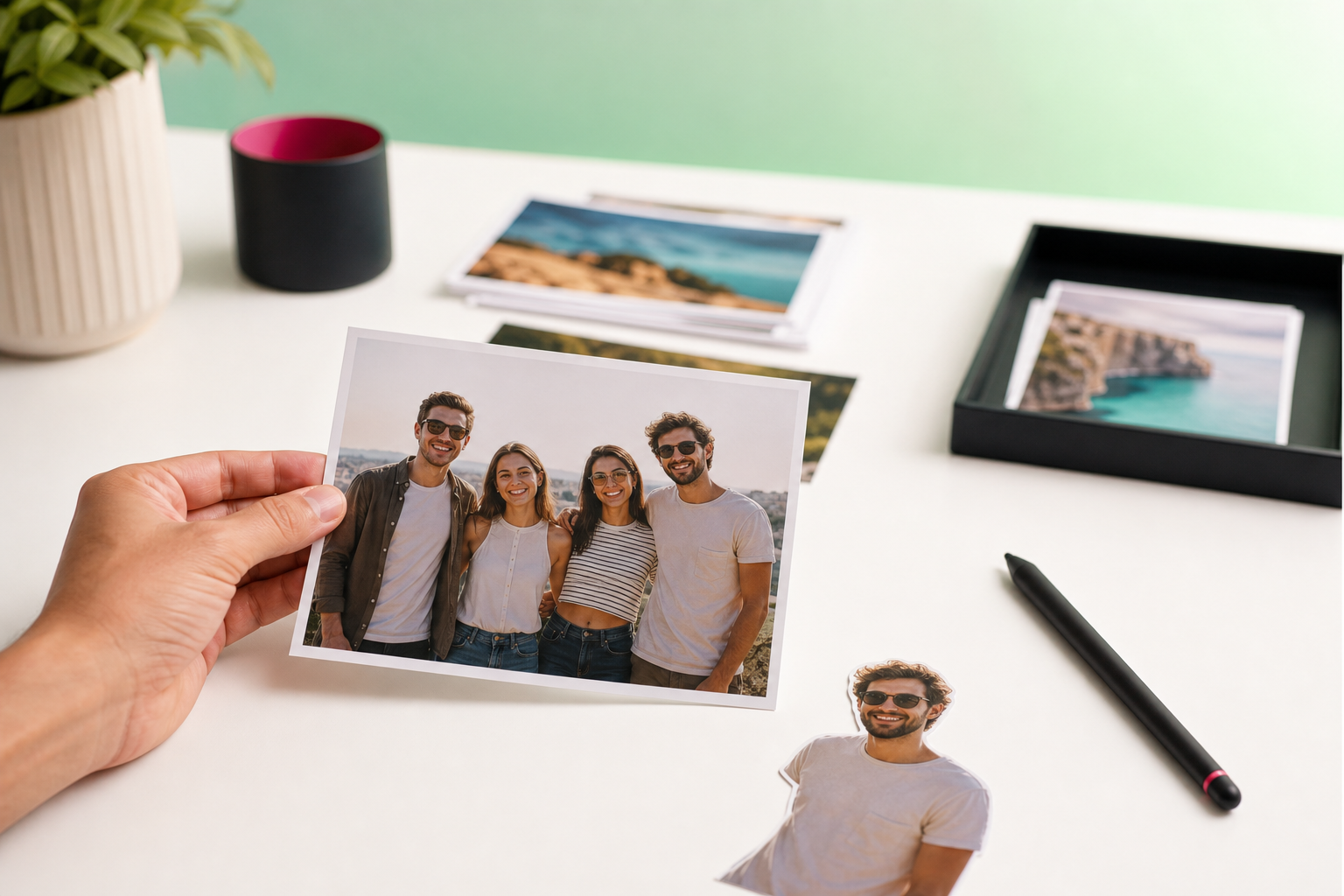
If you searched for an ai photo editor add person solution, the most useful answer is a clear one: TouchRetouch is a mobile photo editing app by ADVA Soft GmbH, and it does not create or insert a brand-new person into a photo from scratch. What it does offer is a practical set of cleanup and retouching tools that help you improve the final image on iPhone, iPad, and Android devices.
That matters because many people looking for add person to photo ai tools are actually trying to solve a slightly different problem. In many cases, the real goal is to improve a group shot, remove the wrong person, clear background clutter, swap the background, or polish a portrait after another app has already handled the compositing step.
So this page is the right fit if you want an honest explanation of what TouchRetouch supports on mobile. It is a specialist editor for object removal and retouching, not a desktop compositing tool, and that focus is exactly what makes it useful for everyday photo cleanup.
Before you start: what this page covers honestly
Why users search for ways to add someone into a picture
People usually search for this topic when someone missed a family photo, blinked in one version of a group shot, or needs to be removed and replaced in a cleaner composition. Others are comparing an Ai add person to photo online free tool with a mobile app and want to know what can be done directly on a phone.
What TouchRetouch can and cannot do on mobile
TouchRetouch is available on iOS and Android and is designed for smartphone and tablet editing. It can remove unwanted people and objects, replace backgrounds, blur distractions, and refine portraits, but it cannot automatically generate a missing person or paste a new human subject into the scene for you.
When this page is the right fit for your editing goal
If your real need is to clean up a photo before or after compositing elsewhere, this guide will help. If you want to remove unwanted objects from photos on iPhone and Android, improve a group image, or finish a portrait after another tool has done the person insertion, TouchRetouch is a strong mobile option.
Can an AI photo editor add a person?
The short answer for TouchRetouch users
No. TouchRetouch cannot generate a new person, paste in a missing person automatically, or create a realistic human subject from scratch. If your main question is How to add a person to an existing photo, this specific step needs a separate compositing tool outside TouchRetouch.
If the person already exists in another version of the image
When someone appears in one photo but not another, adding them into the final image usually requires manual compositing in software built for layers and cutouts. That is true whether you are using an Ai add person to photo online service or a desktop editor. TouchRetouch does not perform that insertion itself.
When you need compositing software outside TouchRetouch
Even so, the app still fits naturally into the workflow. Before compositing, you can clean the base image by removing signs, wires, extra people, or clutter. After compositing, you can refine the background, erase leftover artifacts, blur distractions, and explore Natural FaceRetouch for subtle portrait polishing so the final result looks more balanced on mobile.
This honest limitation is helpful if you are comparing apps before downloading. TouchRetouch is not trying to be an all-in-one answer for every editing task; it is built to make cleanup and retouching simpler on a phone or tablet.
What TouchRetouch can do for group photos and portraits
Use Person Removal to remove the wrong person from a group shot
If your goal is not to add someone new but to Add a person to a group photo by improving the overall composition, Person Removal is often the more practical fix. The feature detects people in a group image so you can remove one person individually, and the app fills the empty area while adjusting the scene as naturally as the background allows.
Use Remove Objects and Erase AI to clear distractions around the subject
For precise cleanup, use Remove Objects to clean up distractions with a swipe. The Brush and Lasso tools help you target bags, signs, shadows, cables, or small clutter near the main subject, while Restore lets you bring back any area you selected too broadly.
Erase AI is the faster option when the issue is background people or common distractions. It is designed to detect and remove photobombers, trash cans, street signs, and similar elements while keeping the main subject unchanged, which is especially useful in travel photos, family pictures, and event shots.
Use Backgrounds and Blur to reshape the scene
Backgrounds can automatically remove the original background and replace it with a built-in preset or a custom image. This is useful when the person is already in the photo but the setting feels messy, distracting, or inconsistent after edits.
Blur gives you another way to guide attention. You can soften a busy area behind the subject, reduce visual noise in a casual portrait, or add privacy to selected parts of the frame without changing the whole image.
Use Natural FaceRetouch for a polished final portrait
Once the scene is clean, Natural FaceRetouch helps with subtle finishing. It supports skin smoothing, brighter eyes, smile enhancement, wrinkle reduction, even skin tone, and eye highlighting while preserving natural features rather than pushing the portrait toward an artificial look.
That makes this Ai add person to photo app alternative especially useful when your real objective is a polished final image on mobile. Instead of promising desktop-style compositing, TouchRetouch focuses on the edits people actually need most after the main subject is already in place.
Best alternatives when your real goal is a better final image
Fixing a group photo after everyone is already there
Sometimes the best answer is not adding anyone at all. If the full group is already present, you can remove one unwanted person, tidy the background, blur a distracting area, and refine faces so the image feels more balanced and ready to share.
Removing photobombers from travel and family pictures
This is one of the strongest everyday uses for TouchRetouch. Erase AI or Person Removal can help remove strangers standing behind your subject in a landmark photo, a family beach shot, or a birthday picture where the background feels too crowded.
Cleaning the background before compositing elsewhere
If you plan to use another tool for insertion, start by preparing a cleaner base image. Remove signs, wires, fences, clutter, or extra people first, then use Clone Stamp for refinement in areas with complex textures such as patterned walls, tree branches, or uneven pavement.
Polishing portraits after another tool adds a person
After a separate editor handles the actual insertion, TouchRetouch can help smooth the result. You can clean background inconsistencies, erase leftover edges, replace or refine the background in your photo, and finish the portrait with Natural FaceRetouch for a more cohesive look.
That is why many users who search for an Ai add person to photo online free option still benefit from a dedicated cleanup app. Results depend on scene complexity, but for mobile editing, TouchRetouch works well as a companion tool before or after compositing.
Why choose TouchRetouch for mobile photo cleanup
A specialist app instead of a general editor
TouchRetouch is built specifically for object removal and retouching rather than trying to cover every editing category. It was selected by Apple as an Editors’ Choice app, and it has an approximate 4.7-star average rating across the App Store and Google Play as of writing.
Useful tools for everyday edits on iPhone and Android
The app brings together Person Removal, Remove Objects, Line Removal, Mesh Removal, Backgrounds, Blur, Clone Stamp, and Natural FaceRetouch in one mobile workflow. You can also learn more about AI-powered editing in TouchRetouch if you want a broader view of its AI-assisted tools.
What to expect from exports, learning curve, and limitations
Original photo quality and EXIF data are preserved on export. The interface includes in-app tutorials, but there are honest limits: it is a photo-only mobile app, not for video, some AI-powered features require internet, and complex scenes may need manual Clone Stamp refinement.
Download TouchRetouch and start refining your photos
Available for iPhone, iPad, and Android
TouchRetouch is available for iPhone, iPad, and Android, making it a practical choice if you want to know How to add a person to a photo on Android and discover that cleanup is the step you actually need first.
Pricing and premium feature note
TouchRetouch is free to download; premium AI features require a paid subscription. Check the App Store or Google Play for current pricing, which varies by region.
CTA for users ready to edit on mobile
Download TouchRetouch for free on iOS and start removing unwanted objects today. Download TouchRetouch for free on Android and start removing unwanted objects today.Frequently Asked Questions
Can TouchRetouch add a brand-new person to a photo with AI?
No. TouchRetouch does not generate or insert a brand-new person into an image. It is designed for photo cleanup and retouching, including removing people, clearing distractions, replacing backgrounds, and refining portraits.
What is the best way to add a person from one photo into another?
The best method is to use compositing software that supports layered editing and cutouts. After that insertion is done, TouchRetouch can help clean the background, remove artifacts, and polish the final image on mobile.
Can I remove one person from a group photo without affecting everyone else?
Yes. Person Removal is designed to detect people in a group photo so you can remove one of them individually. The result depends on scene complexity, and textured backgrounds may need extra refinement with Clone Stamp.
Is there a free app to add person to photo if I only want to clean up the final image?
If your real goal is cleanup rather than insertion, TouchRetouch is a strong option. TouchRetouch is free to download; premium AI features require a paid subscription, and it is especially useful for removing distractions, photobombers, and background clutter after another tool handles the person addition.
Can TouchRetouch help after another tool adds a person to my picture?
Yes. It can help refine the final result by removing leftover edges, cleaning inconsistent background areas, applying blur, replacing the background, and using Natural FaceRetouch for subtle portrait finishing.
If you came here looking for an ai photo editor add person tool, the key takeaway is simple: TouchRetouch does not create a new person for you, but it does handle many of the edits that make the final photo look cleaner and more polished. For group shots, travel photos, portraits, and post-compositing cleanup, that makes it a very practical mobile editor.
Try TouchRetouch if your real goal is a better-looking image on your phone or tablet. Get TouchRetouch on the App Store or Get TouchRetouch on Google Play.
FAQ
Can TouchRetouch add a brand-new person to a photo with AI?
No, TouchRetouch does not generate or insert a brand-new person into an image with AI.
What can TouchRetouch do when adding a person to an existing photo?
TouchRetouch can help clean up and refine a composite by removing distractions, fixing small imperfections, and improving the final image after a person has been added in another editor.
Is TouchRetouch a free app to add a person to a photo?
TouchRetouch is a photo editing app focused on retouching and object removal, not a free AI generator for adding a person to a photo.
How do you add a person to a group photo and make it look natural?
To make a group photo edit look natural, match lighting and perspective first, then use TouchRetouch to remove unwanted objects, tidy edges, and clean background distractions.
Can I use TouchRetouch on Android after creating a person-added photo elsewhere?
Yes, you can use TouchRetouch on Android to polish an edited photo by removing blemishes, unwanted items, and other visual distractions.





