
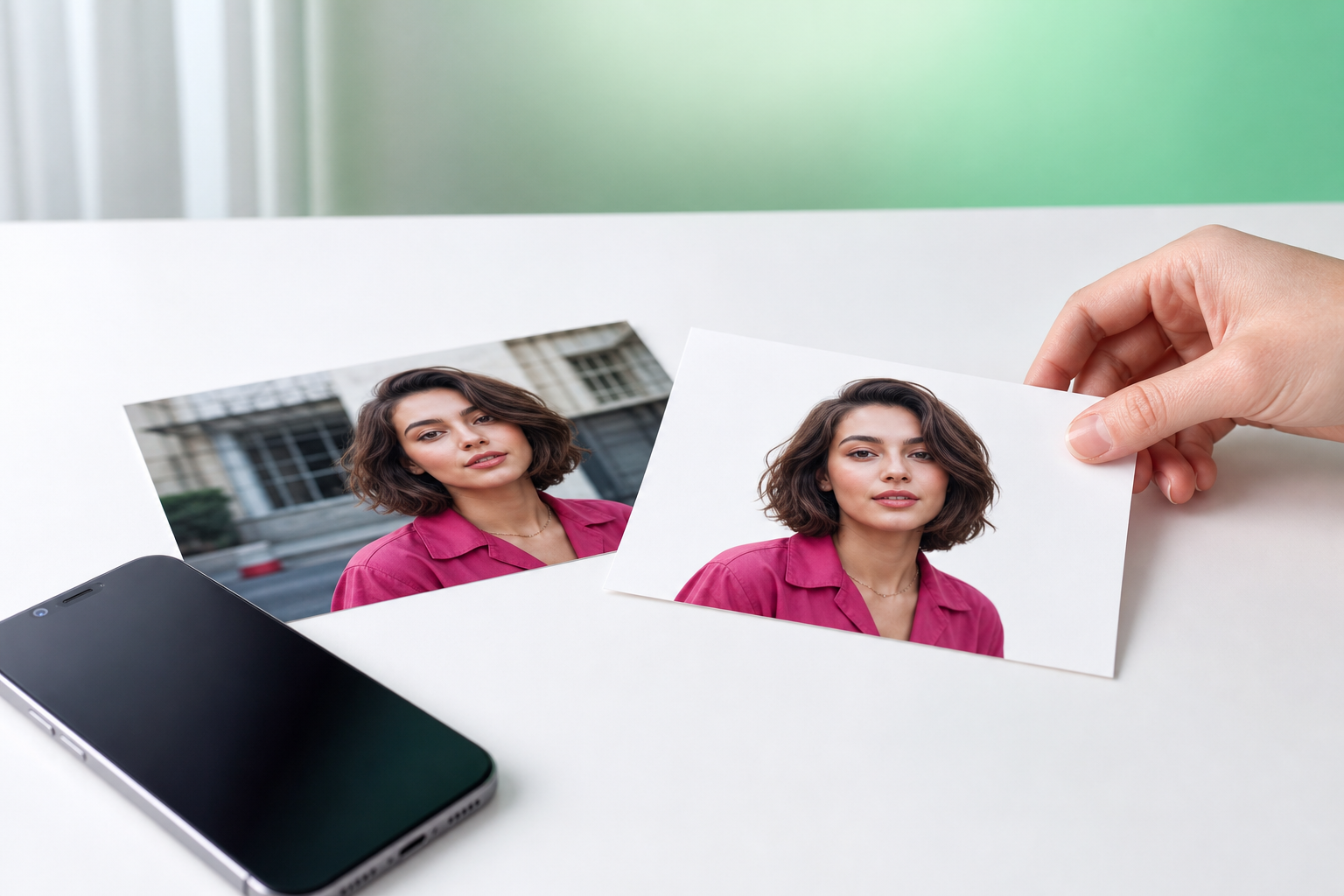
Need a cleaner photo for a product listing, marketplace upload, or social post? If you want to change photo background without opening a desktop editor, TouchRetouch gives you a practical mobile workflow. You can remove the existing backdrop, swap in a new image, or blur the scene directly from your phone or tablet.
TouchRetouch is a mobile photo editor for iOS and Android developed by ADVA Soft GmbH. Its Backgrounds feature is designed for people who want a simpler photo background changer for product shots, resale listings, portraits, and everyday edits that need a cleaner look.
Why use TouchRetouch for background replacement on mobile
What the Backgrounds feature does
Backgrounds automatically removes the background from a photo, then lets you replace it with one of the built-in photo presets or a custom image from your device. If a full swap feels too strong, the same feature also supports background blur for a softer, less distracting result.
Who this page is for
This page is for mobile users comparing tools for marketplace photos, online shop images, casual design prep, and social content. A seller photographing handmade jewelry, a parent cleaning up a school portrait, or a creator refreshing a travel snap can all use the same workflow.
What TouchRetouch is — and what it is not
TouchRetouch is a focused mobile editor, not a standalone desktop batch processor. It helps with background replacement, object cleanup, and photo retouching on iPhone, iPad, and Android devices, but it is not positioned as advanced studio-grade masking software or a desktop production system.
TouchRetouch is free to download; premium AI features require a paid subscription. Check the App Store or Google Play for current pricing, which varies by region. That includes premium AI tools such as Backgrounds.
How to change photo background with TouchRetouch
Step 1: Open your photo in the app
Start by downloading TouchRetouch from the App Store or Google Play, then open the photo you want to edit. This works well for product images, portraits, pet photos, and simple flat-lay shots where the subject is clearly visible.
Step 2: Use Backgrounds to remove the original scene
Select the Backgrounds feature to automatically remove the existing backdrop. This is the fastest route when the whole setting needs attention, such as a cluttered room behind a portrait or a kitchen counter behind a product photo.
Step 3: Pick a white backdrop, preset, or your own image
After the cut-out is created, choose a replacement that fits your goal. You can use one of the built-in photo presets, select a clean white-looking option if it suits your listing style, or import your own image for a branded or lifestyle look.
Step 4: Adjust the final look and export
If you do not need a full replacement, apply background blur instead to keep the original setting while reducing distractions. Then export the finished image from your phone or tablet. TouchRetouch preserves original photo quality and EXIF data on export, which is useful when you want to keep image details intact.
Some users looking for a transparent background photo editor mainly want the background removed first for marketplace or design workflows. TouchRetouch helps with that removal step, but it should be described honestly as a mobile photo editor with background removal and replacement rather than a full desktop asset-production tool.
Transform your photos with TouchRetouch’s AI-powered tools — available on iOS and Android. Get it on the App Store or Google Play.
Change photo background to white for product shots
When a white backdrop makes sense
Many sellers want to change photo background to white because it makes the subject stand out and creates a more consistent look across listings. This is especially useful for ecommerce photos of accessories, beauty items, handmade goods, small electronics, and resale pieces.
How to prep cleaner marketplace and catalog images
A simple workflow works well on a phone: photograph the item clearly, remove the original setting with Backgrounds, then place the product on a clean white replacement. For example, earrings shot on a wooden table or skincare products photographed on a kitchen surface often look more listing-ready with a plain backdrop.
Tips for better results from a phone photo
Good source photos make background removal easier. Use even lighting, keep some space between the subject and the original background, and avoid busy edges like loose hair, transparent packaging, or overlapping objects when possible.
Results depend on scene complexity and image resolution, so simple setups usually edit more cleanly than crowded ones. For small businesses and casual sellers, TouchRetouch offers a convenient way to prepare product images from a phone instead of moving every shot into a desktop editor.
Transparent background vs white background: which one do you need?
Best use cases for a white image background
A white background is often the best fit for product pages, simple marketplace listings, and catalog-style images. It keeps attention on the item and helps multiple photos look consistent when shown together.
When a cut-out image is more useful
A cut-out image is more flexible when the subject needs to be placed into layouts, layered into designs, or reused across different scenes. People searching for a transparent background photo editor usually want that clean subject separation first so the image can move into another workflow later.
How to choose based on where the photo will be used
Choose white for online shops, resale apps, and simple product cards. Choose a cut-out approach when the image will be handed off for design work, added to a flyer, or reused in social graphics with different backgrounds.
Replace a distracting scene or blur it for a cleaner mobile edit
Swap a messy background for a simpler image
A busy café wall, a cluttered bedroom, or a crowded travel spot can pull attention away from the main subject. In those cases, this background replacement app lets you swap the scene for a built-in preset or a custom image that feels cleaner and more intentional.
Use blur when you want a softer, more natural look
Blur is useful when the original setting still adds context but feels too busy. A portrait in a park, a casual food photo, or a pet picture at home can look more polished when the background stays in place but fades into softer focus.
When replacement is better than object cleanup alone
If the problem is the whole backdrop, Backgrounds is the more direct tool. If the issue is a sign, wire, person, or small distraction, TouchRetouch also includes Remove Objects, Erase AI, Blur, and Clone Stamp for more targeted cleanup. For related edits, you can also remove objects from photos on iPhone and Android or clean up distracting glare before replacing a backdrop.
Some AI-powered features may require an internet connection, so it helps to edit while connected when using premium AI tools.
Why mobile users choose TouchRetouch over a desktop-heavy workflow
Built for phone editing, not batch desktop production
TouchRetouch is designed for quick, practical edits on a smartphone or tablet. It helps you remove background from photo files, replace scenes, and clean up distractions without switching to a desktop workflow, but it is not a desktop batch processor.
Useful companion tools inside the same app
That matters because background edits often need small refinements. Remove Objects, Erase AI, Blur, and Clone Stamp can help tidy leftover distractions, polish edges, or improve the overall image after the backdrop has been changed.
Download options for iPhone and Android
TouchRetouch is available on iOS and Android. You can also explore related guides to remove objects with a swipe, add shadow to an image after background cleanup, or enhance photo quality on your phone.
Frequently Asked Questions
Can TouchRetouch change a photo background to white on a phone?
Yes. The Backgrounds feature can remove the original backdrop and let you replace it with a clean white-looking option if that fits your product or listing image. Results depend on the complexity of the original photo and how clearly the subject is separated.
Can I make a transparent-background photo with TouchRetouch?
TouchRetouch can remove the background from a photo, which is the step many users need before using the image in marketplace or design workflows. It is best described as a mobile editor for background removal and replacement, and you should avoid assuming desktop-style export behavior that is not explicitly stated.
Does TouchRetouch replace backgrounds with my own image?
Yes. Backgrounds lets you replace the removed scene with a built-in photo preset or a custom image from your device. That is useful for branded backdrops, lifestyle scenes, or cleaner social visuals.
Can I blur the background instead of replacing it?
Yes. If the setting works but feels too distracting, you can apply background blur instead of doing a full replacement. This often suits portraits, travel photos, and casual product shots where you want a softer look.
Is TouchRetouch a desktop batch editor or a mobile app?
TouchRetouch is a mobile photo-editing app for iOS and Android. It is not a standalone desktop batch editor, so it is best for practical phone and tablet workflows rather than large-scale desktop production.
If you want to change photo background for a listing, portrait, or social post, TouchRetouch keeps the process simple on mobile. You can remove the old scene, swap in a cleaner one, or blur it when a softer edit makes more sense.
Clean up your photos with TouchRetouch — download now. Get TouchRetouch on the App Store or Google Play.
FAQ
How can I change a photo background on iPhone or Android?
You can change a photo background on iPhone or Android by removing the original background, refining the cutout, and replacing it with a white, transparent, or custom background in a mobile photo editor.
Can I change photo background to white on my phone?
Yes, you can change photo background to white on your phone by isolating the subject and placing it on a clean white background for product photos, profile images, or marketplace listings.
Is it possible to make a transparent background on mobile?
Yes, a transparent background photo editor lets you remove the background and save the image with transparency for logos, stickers, layered designs, or ecommerce assets.
Do I need a desktop editor to replace a photo background?
No, you do not need a desktop editor because modern mobile apps can handle background removal, cleanup, and replacement directly on iPhone and Android.





