
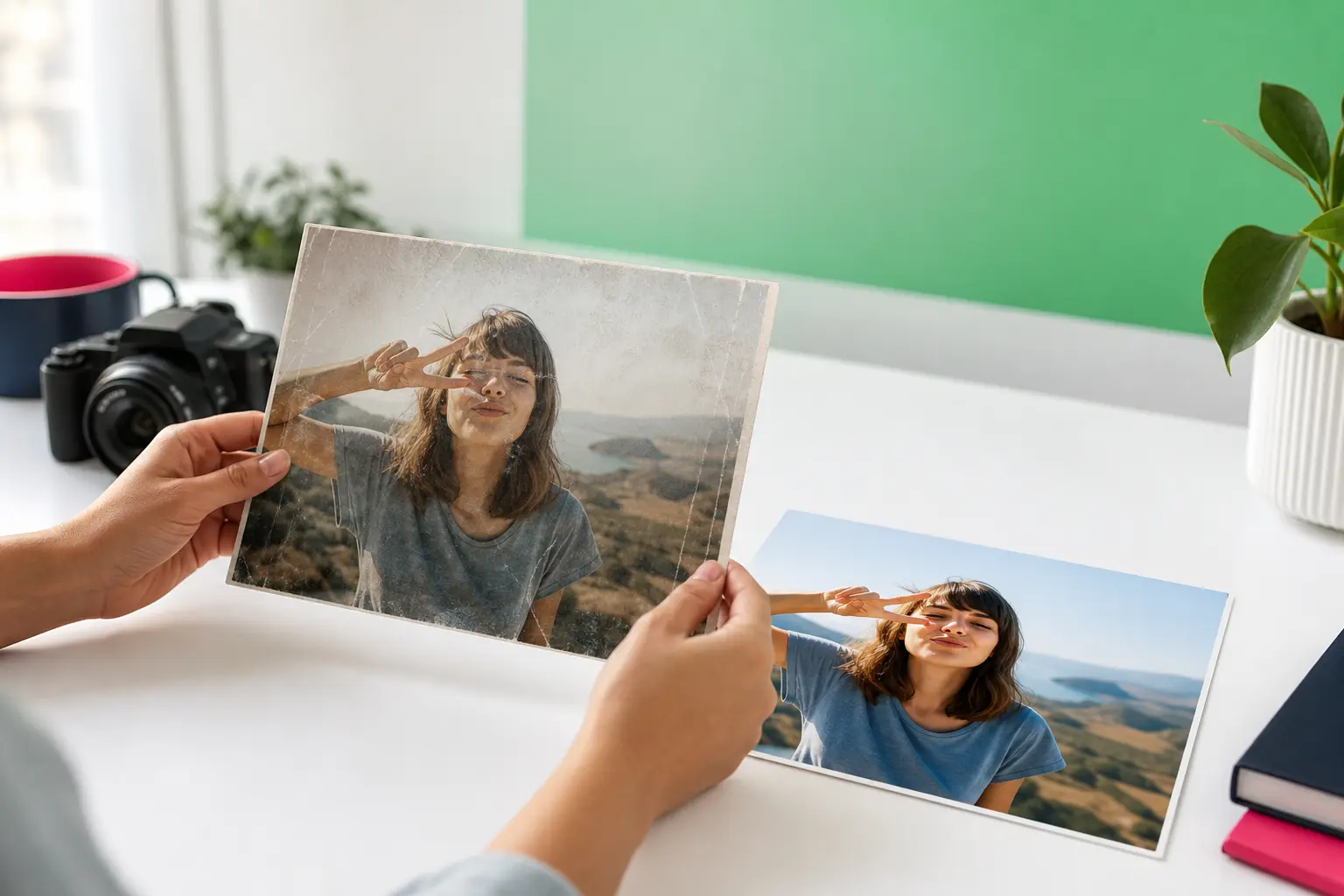
If you’re searching for a clean filter app, what you may really want is a simple way to clean up your photos by removing the distractions that pull attention away from the shot. In many cases, the goal is not to strip away a baked-in social media effect, but to erase the people, wires, signs, blemishes, or clutter that make an image feel busy.
That is where TouchRetouch fits. Developed by ADVA Soft GmbH, based in Berlin, Germany, TouchRetouch is a mobile editor built for photo cleanup and object removal on iPhone, iPad, and Android devices. It focuses on helping everyday users make photos look cleaner and more polished without a complicated workflow.
What people usually mean by a “clean” photo
Why this search can mean cleanup, not filter removal
The phrase “clean photo” is ambiguous. Some people mean a natural-looking image without heavy effects, while others mean a picture that feels uncluttered and distraction-free. That is why a search for a clean filter app often leads to tools that remove visual clutter rather than tools that detect or reverse a stylized overlay.
What TouchRetouch does — and what it does not do
TouchRetouch is not a filter-cleaning app for detecting or stripping baked-in Instagram-style filters from an image. If a filter has already been applied and flattened into the photo, the app is not designed to reconstruct the original unfiltered version. Instead, it helps you clean up your photos by removing unwanted objects, people, wires, fences, blemishes, shadows, signs, and background distractions.
A better fit for distraction-free photo editing
That specialist focus is what makes it useful. Rather than acting as a generic editor with dozens of unrelated controls, TouchRetouch is built around practical cleanup tasks that mobile users actually face. Results depend on scene complexity, and detailed areas such as patterned walls, hair, or textured foliage may need extra refinement with Clone Stamp.
How TouchRetouch helps you clean up your photos
Remove Objects for everyday distractions
The core of this photo cleanup app is Remove Objects. You mark what you want gone with the Brush tool or Lasso, and the app removes it while blending the surrounding area as naturally as possible. Adjustable brush settings help with narrow details, and Restore lets you bring back small parts if you selected too much.
This works well for common fixes such as a bottle on a table, a sign near a landmark, a small shadow on the ground, or a stray object in the corner of the frame. If you want to remove objects from photos on iPhone and Android, this is the main tool you will use most often.
Erase AI for background people and common clutter
For more automated cleanup, Erase AI can detect people in the background and remove them while keeping the main subject unchanged. It also helps with common distractions such as street signs, trash cans, stop lights, and shadows. This makes it especially useful for travel photos, street scenes, and casual portraits where the subject is strong but the surroundings feel messy.
Special tools for lines, meshes, and fine repairs
TouchRetouch also includes tools that many broad editors do not emphasize. Line Removal is designed for wires and power lines: mark part of the line, and the app detects the full line automatically. Mesh Removal handles fences and foreground mesh with a simple detection-and-remove process, which is helpful in zoo, sports, and city photos.
When automatic cleanup needs a little extra help, Clone Stamp gives you manual control for texture repair. That is useful around bricks, patterned clothing, or detailed backgrounds where precision matters. Together, these tools make TouchRetouch a focused cleanup editor for mobile photos, not a tool for removing embedded visual filters from an already stylized image.
Download TouchRetouch for free on iOS and Android and start removing unwanted objects today.
Common cleanup tasks people want from a clean filter app
Remove photobombers from travel shots
Travel photos are one of the clearest examples. A landmark may look great, but strangers in the background, bins near the curb, or bright signs can pull attention away from the scene. TouchRetouch helps remove distractions from photo compositions so the place you wanted to capture stands out more clearly.
Erase wires, poles, and street clutter
Outdoor and city images often suffer from cables, poles, and stop lights cutting across the frame. Line Removal is designed for these situations, especially when thin wires cross open sky or rooftops. The result is a cleaner composition that lets architecture, sunsets, or skylines breathe.
Clean portraits by softening small distractions
Portrait cleanup is often about subtlety. You can remove a temporary blemish, tidy up small distractions around the face, or even remove glare from glasses in a photo for a more balanced look. For gentle enhancement, TouchRetouch also includes natural face retouch tools for skin smoothing, eye brightening, smile enhancement, wrinkle reduction, and evening skin tone while preserving natural features.
Fix fences and mesh in zoo, sports, or city photos
Foreground fences are another common reason people look for a cleanup editor. Mesh Removal can reduce fence interference in animal park photos, sports shots, and street scenes where a barrier sits between the camera and the subject. For family and group photos, Person Removal can remove selected people from a group while maintaining a natural composition, and that is useful when one person needs to be taken out after the photo was already captured.
The same idea applies to real estate and product-style images. Removing clutter from the frame helps the main subject feel clearer, more intentional, and easier to focus on.
Before-and-after examples in real-world terms
Beach portrait with strangers in the background
Imagine a beach portrait where the subject is centered and well lit, but several distant people and a trash can sit behind them. In a before and after photo cleanup view, the difference is simple: before, your eye keeps drifting into the background; after, the scene feels calmer and the subject becomes the clear focal point.
City skyline crossed by power lines
Now picture a skyline at sunset with thin wires running across the sky and rooftops. Before cleanup, those lines interrupt the composition. After using Line Removal, the sky appears cleaner and the buildings are easier to appreciate.
Family photo blocked by a fence
A family photo taken through a fence is another strong example. Before editing, the mesh pattern sits between the camera and the people, making the image feel obstructed. After Mesh Removal, the subjects are easier to see and the photo feels more open.
Close-up portrait with small skin distractions
For a close-up portrait, a temporary blemish and a few small background distractions can compete with the face. After cleanup, the portrait still looks natural, just more polished and balanced. That is the goal when you want to clean up your photos naturally, although complex textures may still need a mix of automatic tools and Clone Stamp refinement.
When Backgrounds or Blur may be the better choice
Use Backgrounds when the whole backdrop needs replacing
Sometimes removing one object is not enough because the entire setting feels too busy. In that case, Backgrounds works more like a background remover app, automatically removing the backdrop and replacing it with a built-in preset or a custom image. This is useful for portraits, product photos, and cleaner social content when the original background does not support the subject well.
Use Blur when you want softer distractions, not removal
Blur is a better choice when you do not want to delete anything completely. It helps soften background details for privacy, artistic depth, or a less busy look while keeping the original scene intact.
Choose the right tool for the editing goal
Use Remove Objects, Erase AI, Line Removal, or Mesh Removal when a specific distraction should disappear. Use Backgrounds when the setting itself should change, and use Blur when you want distractions to fade rather than vanish. Premium AI features such as Backgrounds and Blur require an active subscription.
Why choose a specialist cleanup tool over a generic editor
Focused tools for object removal
TouchRetouch stands out as an object remover app because it is purpose-built for retouching and cleanup. Instead of burying removal features inside a broader editing workflow, it gives you dedicated tools for Remove Objects, Line Removal, Mesh Removal, Person Removal, Erase AI, and Clone Stamp in one mobile-friendly interface.
Mobile-friendly editing without a complicated workflow
It is also designed for everyday editing on the go. Apple selected TouchRetouch as an Editors’ Choice app, and it has an approximate 4.7-star average rating across the App Store and Google Play as of writing. The app preserves original photo quality and EXIF data on export, includes in-app tutorials, and supports iOS and Android, with Mac access available only through Apple Silicon compatibility.
Download, pricing, and platform details
TouchRetouch is free to download; premium AI features require a paid subscription. Check the App Store or Google Play for current pricing, which varies by region. If you want a cleaner, more distraction-free photo without a desktop-style learning curve, Try TouchRetouch — remove distractions from your photos in seconds. Get it on the App Store or Google Play.
Frequently Asked Questions
Can TouchRetouch remove an Instagram-style filter from a photo?
No. TouchRetouch is not designed to detect or strip away a baked-in social media filter from an already edited image. It is built for photo cleanup, object removal, and retouching instead.
What kinds of distractions can I remove to clean up my photos?
You can remove unwanted objects, background people, wires, power lines, fences, mesh, signs, trash cans, stop lights, shadows, and small blemishes. The app also includes Person Removal for group photos and Clone Stamp for manual refinements in more complex areas.
When should I use Backgrounds instead of object removal?
Use Backgrounds when the whole backdrop needs to change, not just one item in it. If the setting is too busy or unsuitable for a portrait or product photo, background replacement is often a better solution than removing several separate distractions.
Does TouchRetouch work on iPhone and Android?
Yes. TouchRetouch is available for iOS and Android devices, including iPhone and iPad. There is no standalone desktop version, although Mac access is available through Apple Silicon compatibility.
Is TouchRetouch free to download?
Yes. TouchRetouch is free to download; premium AI features require a paid subscription. Check the App Store or Google Play for current pricing, which varies by region.
If your search for a clean filter app is really about making photos look simpler, calmer, and more polished, TouchRetouch is a better fit than a generic filter editor. It does not pretend to reverse baked-in effects. Instead, it focuses on what many people actually need: removing the distractions that compete with the subject.
From photobombers and power lines to fences and small portrait distractions, the app gives you focused tools for practical cleanup on mobile. Clean up your photos with TouchRetouch — download now on iOS or Android.
FAQ
What is a clean filter app?
A clean filter app is a photo-editing tool that helps make images look cleaner by removing distractions, blemishes, or unwanted objects.
Can TouchRetouch remove unwanted objects from photos?
Yes, TouchRetouch is designed to remove unwanted objects, people, lines, spots, and other distractions from photos quickly and easily.
Is TouchRetouch better than using filters for cleaner photos?
If your goal is to clean up a photo rather than change its style, TouchRetouch can be more effective than filters because it removes the elements that distract from the image.
Do I need advanced editing skills to use TouchRetouch?
No, TouchRetouch is made for simple editing, so most users can clean up photos with just a few taps.





