
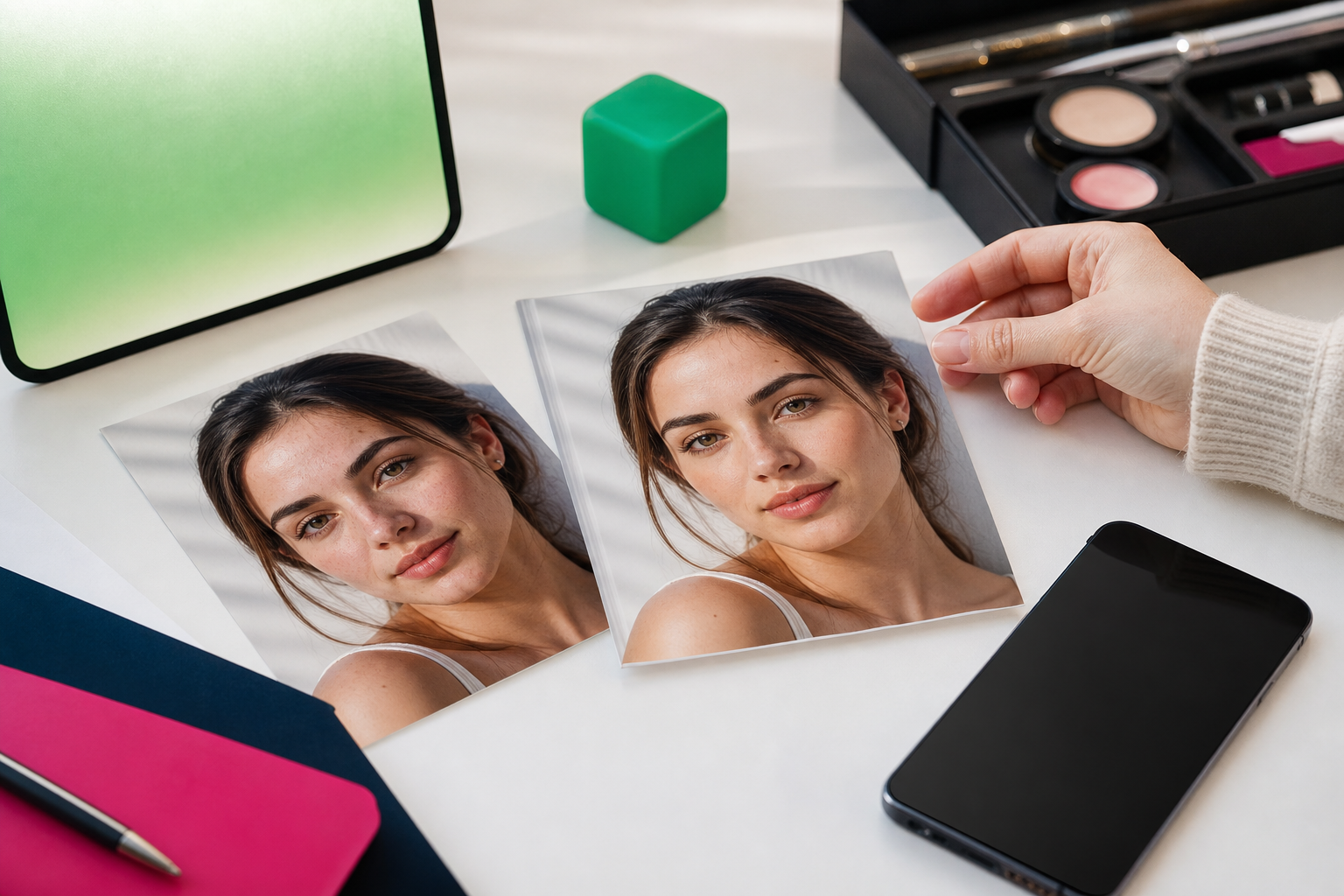
If you’re searching for a face fix on your phone, the best result usually is not a dramatic makeover. It is a light, thoughtful polish that helps a portrait look brighter, cleaner, and more balanced while still feeling like the real person in the photo.
That is why subtle mobile retouching matters. A good portrait edit can smooth skin a little, brighten tired-looking eyes, soften visible wrinkles, and even out tone without changing facial structure or erasing character. For everyday photos such as selfies, family portraits, profile pictures, and social posts, that natural approach is usually far more useful than heavy beauty effects.
TouchRetouch, developed by ADVA Soft GmbH in Berlin, Germany, is designed around that idea. It is a photo editing app for iOS and Android that combines object cleanup with Natural FaceRetouch, Blur, Backgrounds, and manual repair tools for careful portrait polishing on mobile. It is not a video editor.
TouchRetouch is free to download; premium AI features require a paid subscription. Check the App Store or Google Play for current pricing, which varies by region. Some AI-powered features also require an internet connection.
What people usually mean when they search for face fix
Why this search often points to portrait polishing, not dramatic retouching
The phrase face fix is broad, but most people are not looking to turn a real portrait into something artificial. They usually want a quick way to make a photo look more flattering after uneven lighting, a long day, or a phone camera that captured every shadow more harshly than expected.
In practical terms, that often means small improvements: softening skin texture, brightening eyes, enhancing a smile, reducing visible wrinkles, and evening out skin tone. The goal is refreshment, not reinvention. A portrait should still look familiar to friends, family, and anyone viewing a profile photo.
The difference between correcting distractions and preserving real features
A natural edit focuses on distractions rather than identity. If lighting makes the under-eye area look dull, a light retouch can help. If the skin looks patchy because of mixed indoor and outdoor light, evening tone can make the image feel cleaner without removing freckles, contours, or expression lines that belong there.
That distinction matters because the best portrait edits do not reshape a face or chase perfection. They support what is already in the image. A smile line, a few freckles, or the texture that makes skin look real often adds warmth and credibility to the final portrait.
What mobile users typically want from a portrait editing app
Most mobile users want a tool that is simple, selective, and fast to understand. They want to open a selfie, improve a few details, compare the result with the original, and export a polished image without learning a complicated desktop workflow.
TouchRetouch fits that need by offering Natural FaceRetouch for careful portrait enhancement on a phone or tablet. It is built for natural-looking edits such as smoothing skin, brightening eyes, enhancing a smile, reducing wrinkles on the face and neck, evening skin tone, and adding eye highlighting while preserving facial features.
That makes it a practical option when your search for a face fix really means “help this portrait look its best without making it look fake.” If you also want to enhance photo quality on your phone, a balanced retouch plus overall cleanup often gives a stronger result than facial editing alone.
TouchRetouch is available on iPhone, iPad, and Android devices. Mac access is limited to Apple Silicon compatibility, and there is no standalone desktop version. If you plan to use premium AI tools, remember that pricing varies by region and should always be checked in the App Store or Google Play.
What Natural FaceRetouch can do for a portrait
Smooth skin without flattening the whole face
Natural FaceRetouch supports smooth skin in a way that is meant to preserve natural beauty instead of creating a plastic finish. That matters in close-up selfies, profile photos, and indoor portraits where phone cameras often exaggerate texture because of direct overhead light or sharp digital processing.
Good natural face editing does not erase the face into a blank surface. It softens what feels distracting while leaving enough texture for the portrait to stay believable. In a casual selfie taken in bright bathroom lighting, for example, a light skin adjustment can make the image feel calmer and more flattering without making it look filtered.
Brighten eyes and add eye highlighting for a more awake look
Eyes often carry the emotional focus of a portrait, so small changes there can have a big effect. Natural FaceRetouch can brighten eyes and add eye highlighting, which helps a person look more awake and engaged in photos taken early in the morning, after travel, or at the end of a long event.
This is especially useful for profile pictures and family portraits where the camera captured dull shadows around the eyes. A subtle lift can restore life to the image without making the whites look unnaturally bright. The result should feel like better light, not obvious editing.
Enhance a smile while keeping expression natural
Natural FaceRetouch can also enhance smile details while keeping the original expression intact. That is helpful when a portrait already has a warm expression, but the camera made it look slightly flat because of angle, distance, or contrast.
For milestone photos, graduation portraits, or a quick social post with friends, a gentle smile enhancement can make the image feel more open and polished. The key benefit is that the person still looks like themselves. The app is designed for refinement, not for changing the mood of the face.
Reduce wrinkles on the face and neck with a light touch
Another supported feature is the ability to reduce wrinkles on the face and neck. This is useful in portraits where side lighting or phone sharpening has made lines look stronger than they appear in real life. A light adjustment can soften that effect while preserving natural contours.
Neck retouching matters more than many people expect. If the face looks polished but the neckline remains noticeably harsher, the edit can feel uneven. Including the neck helps the portrait look consistent from face to neckline, especially in headshots and closer crops.
Even skin tone for a cleaner, more balanced portrait
Natural FaceRetouch also lets you even skin tone, which is often one of the most useful portrait improvements on mobile. Uneven tone can come from mixed lighting, sun exposure, camera shadows, or the simple reality of a candid photo taken on the go.
In family photos, outdoor portraits, and social images captured in changing light, evening skin tone can make the whole image feel cleaner and more balanced. Combined with smooth skin, brighter eyes, smile enhancement, wrinkle reduction, and eye highlighting, it creates a polished result that still respects the original face.
If your goal is a portrait that looks refreshed rather than transformed, this kind of natural face editing is often the right level of correction. It supports real features instead of replacing them, which is exactly what many people want when they search for a simple portrait retouch tool on mobile.
When to use a face fix approach for better portraits
Profile photos that need a cleaner, brighter finish
A light face fix approach makes sense when a profile photo is almost right but needs a little polish. Slightly brighter eyes, smoother skin, and more even tone can help a headshot look clearer and more approachable on professional profiles, messaging apps, or social platforms.
This is where a portrait retouch app is most useful: not to change how you look, but to help the image represent you well. If the expression is good and the framing works, small refinements are often enough to make the portrait feel finished.
Casual selfies where lighting makes skin look uneven
Phone selfies are often taken in imperfect light. Window shadows, overhead bulbs, and mixed indoor lighting can make skin look patchy or tired even when the moment itself is great. A subtle retouch can smooth skin, brighten eyes, and even tone so the photo matches how the scene felt in person.
That is also true after a long workday, a flight, or a late event. The camera may exaggerate fatigue more than the eye does. In those cases, gentle editing supports the memory without turning the portrait into something artificial.
Family portraits that deserve a polished final version
Family photos often become the images people keep, print, and share the longest. If one portrait has good expressions but slightly harsh skin texture or visible shadows around the eyes, a careful cleanup can make it more presentation-ready while keeping everyone recognizable.
A portrait retouch app is especially helpful for milestone moments such as birthdays, reunions, or holiday photos. These are the kinds of images where a polished final version feels worthwhile, but heavy beauty editing would distract from the people in the frame.
Travel and outdoor portraits with small visual distractions
Travel portraits can benefit from facial retouching when sun, wind, or midday contrast makes the face look rougher than expected. Outdoor images also often include small distractions around the subject, which is where broader cleanup tools become useful alongside facial edits.
When to skip retouching and leave the image as it is
Sometimes the best edit is almost no edit at all. If the portrait already looks balanced, expressive, and natural, only make the smallest visible improvement or skip retouching entirely. The strongest portraits often succeed because they feel honest.
As a rule, edit based on purpose. A profile image may benefit from brighter eyes and smoother skin, while a candid memory from dinner with friends may need little more than a quick review before sharing. The best changes support the photo rather than becoming the main thing people notice.
How to keep portrait edits subtle and believable
Start with the smallest visible improvement
The easiest way to get a natural result is to begin lightly. Instead of trying to perfect everything, look for the one change that improves the portrait most. In many photos, that is smoother skin, slightly brighter eyes, or more even tone.
This approach works well for subtle portrait enhancement because it keeps you focused on the image as a whole. If the portrait already has strong light and expression, one or two small adjustments may be all it needs.
Edit one area at a time instead of everything at once
Work through the portrait in stages. First check skin, then eyes, then smile, then wrinkles on the face and neck, and finally overall balance. Editing one area at a time makes it easier to stop before the image starts looking overworked.
That also helps you notice what is actually improving the photo. In a family portrait, for example, evening skin tone may matter more than smile enhancement. In a selfie taken after sunset, brighter eyes may have the biggest impact.
Watch for over-smoothed skin and overly bright eyes
The most common signs of over-editing are easy to spot once you know them. Skin starts to look waxy, the whites of the eyes become too bright, the smile feels exaggerated, and natural texture disappears from the face. When that happens, the edit becomes the focus instead of the person.
A good rule for subtle portrait enhancement is that someone viewing the image should notice the portrait looks fresh, not obviously retouched. If the first thing you see is the editing itself, pull back.
Keep texture, expression, and character intact
Freckles, smile lines, and natural contours often add warmth and realism. They do not always need to be removed. If they are part of how the person genuinely looks, keeping them usually leads to a more believable portrait.
This is especially important in close-up photos. A little skin texture helps the face stay human. A few expression lines can make a smile feel more sincere. The goal is polish, not perfection.
Compare the edited version with the original before exporting
Before you save, compare the edited image with the original. This quick check helps you see whether the portrait looks refreshed or transformed. If the difference feels too strong, reduce the changes until the result feels more natural.
TouchRetouch preserves original photo quality and EXIF data on export, which is useful if you want to keep image details intact after editing. If you also need to remove glasses glare from a portrait photo, combining a light face retouch with targeted cleanup can produce a much more balanced final image.
Another helpful habit is to pause after each adjustment and look at the full frame, not just the face. A portrait can look perfect when zoomed in but slightly unnatural when viewed normally. That wider check keeps edits grounded in how the image will actually be seen on a phone screen, profile page, or social feed.
In everyday use, restraint is what makes mobile retouching work. Light edits first, compare often, and stop when the portrait looks rested, clear, and believable. That is the sweet spot most people are after.
How TouchRetouch complements portrait retouching beyond the face
Use Blur to create selective focus around the subject
A polished portrait is not only about facial detail. Composition matters too. TouchRetouch includes Blur, which lets you apply blur to specific areas of a photo for selective focus, privacy, or a cleaner visual hierarchy around the subject.
For example, if a selfie was taken in a busy café or a family portrait includes distracting details in the background, blur can help direct attention back to the person. It can also soften private details such as house numbers or background clutter that do not need to stand out.
Use Backgrounds for cleaner portrait presentation
The Backgrounds feature can automatically remove and replace the background or add background blur for a tidier portrait presentation. This is useful when the subject looks great but the surrounding environment feels messy, distracting, or inconsistent with the image’s purpose.
For a profile picture, replacing a chaotic room background with something cleaner can make the portrait feel more intentional. For social posts, background blur can create a softer look without changing the person in the frame. This keeps the focus on the portrait while improving the overall image design.
Remove small distractions from the frame with Remove Objects
TouchRetouch is best known as a photo retouching app for object cleanup, and that matters for portraits too. The Remove Objects tool helps clean up distractions such as stray items in the environment, signs, clutter, or small blemishes that pull attention away from the subject.
Imagine a travel portrait with a great expression but a trash can, sign, or random object near the edge of the frame. Cleaning that up can make the portrait feel calmer and more polished. If you want to clean up distracting objects in a photo, this is one of the most practical ways to improve the full image, not just the face.
TouchRetouch also offers Erase AI for AI-powered object removal, including background people and common distractions. Results depend on scene complexity, and object removal works best on more uniform backgrounds. In busier or heavily textured areas, some manual refinement may still help.
Refine tricky areas with Clone Stamp when needed
That is where Clone Stamp becomes useful. It is a manual repair tool that lets you copy texture from one area to another when automatic removal needs a more precise finish. In portrait editing, this can help tidy up small problem areas around clothing, hair edges, or background details after the main cleanup is done.
Used together, Blur, Backgrounds, Remove Objects, and Clone Stamp turn TouchRetouch into more than a face editor. They help you polish the whole portrait naturally. If you want to use a photo cleaner for a tidier final image, this combination is often more useful than facial retouching alone.
Try TouchRetouch — remove distractions from your photos in seconds. Get it on the App Store or download it on Google Play.
Why TouchRetouch stands out for mobile portrait cleanup
A specialist app instead of a crowded all-in-one workflow
TouchRetouch stands out because it is focused. Rather than trying to be every kind of editor at once, it specialises in object removal and practical photo cleanup, then adds natural portrait tools that fit that same mobile-first workflow.
That focus is useful for people who want clear, direct controls on a phone or tablet. If your typical editing job is cleaning a portrait, removing distractions, softening facial details, and improving presentation, a specialist tool often feels easier to use than a crowded all-purpose interface.
Natural-looking face retouching alongside strong cleanup tools
As a face retouch app, TouchRetouch offers Natural FaceRetouch for smooth skin, brighten eyes, enhance smile, reduce wrinkles on the face and neck, even skin tone, and add eye highlighting. The key difference is the intent: preserve natural features instead of pushing the image toward a plastic, over-edited look.
It also pairs those portrait tools with Remove Objects, Erase AI, Backgrounds, Blur, and Clone Stamp. That means you can improve the face and the surrounding frame in one mobile workflow, which is especially useful for profile images, family portraits, and travel photos.
Simple mobile editing for iPhone, iPad, and Android devices
TouchRetouch is available on iOS and Android, including iPhone and iPad. Mac access is only through Apple Silicon compatibility, and there is no standalone desktop version. That keeps the product squarely focused on mobile photo editing rather than desktop production work.
The app was selected by Apple as an Editors’ Choice app, and it has an approximate 4.7-star average rating across the App Store and Google Play as of writing. If exact figures are being cited in a published version, they should be verified again before publication because ratings change over time.
What to know before downloading
TouchRetouch is a photo editor, not a video editor. Some AI-powered features require an internet connection, and results depend on photo resolution and scene complexity. For object removal in particular, more uniform backgrounds usually produce cleaner automatic results than highly detailed ones.
TouchRetouch is free to download; premium AI features require a paid subscription. Check the App Store or Google Play for current pricing, which varies by region. That applies to premium AI features such as Natural FaceRetouch, Blur, Backgrounds, Erase AI, and Person Removal.
Clean up your photos with TouchRetouch — download now. App Store / Google Play.
How to choose the right mobile editor for natural portrait enhancement
Questions to ask before picking an app
If you are comparing tools for mobile portrait editing, start with the result you actually want. Do you want a portrait that still looks like you? Do you need selective tools rather than one-tap beauty effects? Do you also want to clean up the background, remove distractions, or add blur around the subject?
Those questions quickly narrow the field. An editor that only applies dramatic filters may be less useful than one that gives you controlled, natural adjustments and cleanup tools for the rest of the frame.
What matters more than dramatic filters
For everyday portraits, natural-looking results matter more than extreme transformations. Profile photos, family pictures, and social posts usually benefit from balanced skin tone, brighter eyes, and a cleaner background far more than from heavy effects that make the image feel less real.
That is why a practical toolkit matters. TouchRetouch combines Natural FaceRetouch with Blur, Backgrounds, Remove Objects, and Clone Stamp, giving users a straightforward way to polish both the subject and the setting from a phone or tablet.
A practical checklist for everyday portrait editing
When choosing an app, look for five things:
- Natural-looking retouching rather than harsh beauty filters
- Easy controls that make selective edits simple on mobile
- Tools for background cleanup or replacement
- Object removal for clutter, signs, and stray details
- Reliable export quality after editing
If that is the kind of workflow you want, TouchRetouch is a strong option to consider. For readers exploring portrait cleanup in more depth, the face fix page is a useful next destination alongside this standalone guide.
Conclusion: polish portraits without losing what makes them real
A simple editing mindset for authentic results
The best portrait edits refine rather than reinvent. A light touch with smooth skin, brighten eyes, enhance smile, reduce wrinkles on the face and neck, even skin tone, and add eye highlighting can make a photo feel fresher while keeping expression, texture, and personality intact. Add Blur or Backgrounds when the rest of the frame needs support, and the whole image becomes more polished without looking overworked.
That is the most useful way to think about a face fix on mobile: not as changing a person, but as helping a portrait look clean, balanced, and true to life. For selfies, family photos, profile pictures, and travel portraits, subtle edits usually create the strongest final result.
Where to download TouchRetouch
TouchRetouch is free to download; premium AI features require a paid subscription. Check the App Store or Google Play for current pricing, which varies by region. Remove unwanted objects from your photos — try TouchRetouch free on iOS or Android.
Frequently Asked Questions
What does a natural face retouch look like in a portrait?
A natural face retouch looks like a cleaner, fresher version of the original photo. Skin may appear smoother, eyes slightly brighter, and tone more even, but the person’s real features, expression, and character still remain clear.
Can TouchRetouch smooth skin without making a face look over-edited?
Yes. TouchRetouch includes Natural FaceRetouch, which supports smooth skin while preserving natural facial features. The most believable result comes from light adjustments rather than pushing the effect too far.
How do I brighten eyes and enhance a smile while keeping a photo realistic?
Start with small changes and compare the edited photo with the original before exporting. In TouchRetouch, Natural FaceRetouch can brighten eyes, add eye highlighting, and enhance smile details, and the image stays realistic when those edits are kept subtle.
Can I also clean up the background of a portrait in TouchRetouch?
Yes. TouchRetouch includes Backgrounds for background removal, replacement, and background blur, plus Remove Objects and Clone Stamp for cleaning up distractions around the subject. Results depend on scene complexity, and more uniform backgrounds are easier to clean automatically.
Is TouchRetouch available for iPhone and Android?
Yes. TouchRetouch is available for iPhone, iPad, and Android devices. It is mobile-focused, with Mac access only through Apple Silicon compatibility, and there is no standalone desktop version.
FAQ
What does a natural face fix mean in mobile photo editing?
A natural face fix means making light adjustments that improve brightness, skin tone, and balance without changing the person’s real features.
How can I retouch a portrait on my phone without making it look fake?
Use small edits such as gentle skin smoothing, subtle blemish removal, and minor light correction so the portrait stays realistic and expressive.
Which edits matter most for a polished mobile portrait?
The most important edits are exposure balance, skin cleanup, under-eye softening, color correction, and light detail enhancement around the eyes and hair.
Is face fix editing only for selfies?
No, face fix editing can improve selfies, professional headshots, family portraits, and casual photos taken in uneven lighting.
What should I avoid when editing faces on mobile?
Avoid heavy smoothing, extreme reshaping, and overly brightening features because these changes can remove natural texture and make the portrait look artificial.





