
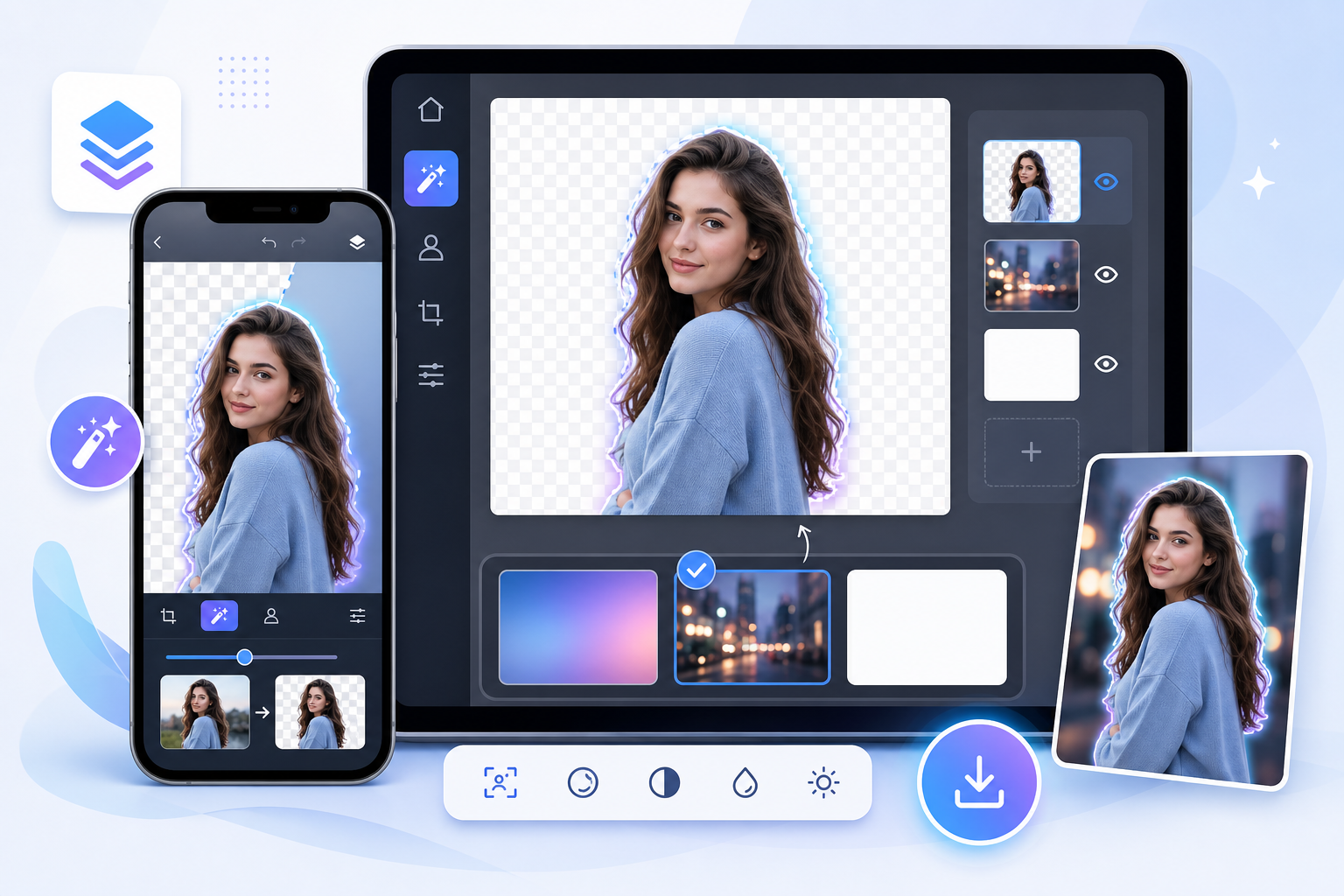
Need a simple way to remove a photo background, make it transparent, swap in a new scene, or blur it for depth right from your phone? A good image background remover helps you do exactly that without moving your photo to a desktop editor. For mobile users who want quick, polished results, TouchRetouch offers a straightforward way to handle background edits on iPhone, iPad, and Android devices.
TouchRetouch is a mobile photo editor by ADVA Soft GmbH for iOS and Android, built for quick cleanup and retouching on a smartphone or tablet. It includes a Backgrounds feature that can automatically remove and replace a backdrop, use built-in presets or your own image, and apply blur for a softer look. TouchRetouch is free to download; premium AI features require a paid subscription. Check the App Store or Google Play for current pricing, which varies by region.
Why mobile users look for a fast background editing tool
What people usually want to do with a cutout photo
Most people searching for a photo editor background remover want one of four things: remove background from image files, make image background transparent, change photo background, or clean up a white background that looks uneven. Common examples include a product shot for a marketplace listing, a portrait for a profile photo, or a social post that needs a cleaner subject cutout.
When a phone app makes more sense than desktop software
A phone app is often the better fit when you want to edit on the go, work from your camera roll, and finish a single image without opening a full desktop program. TouchRetouch is designed for that kind of mobile-first workflow. It is not a standalone desktop replacement, and it does not support video editing.
Important limits to know before you start
Background removal works best when the subject stands out clearly from the scene. Hair, low-contrast edges, and busy backgrounds can take more patience, and final quality depends on the photo resolution and scene complexity. Some AI-powered features also require an internet connection, so this background remover tool is best used with realistic expectations.
How TouchRetouch helps remove and replace backgrounds
Remove the backdrop and keep the subject
The Backgrounds feature is built to remove background from image files automatically and keep the main subject in place. That makes it useful for portraits, product photos, and simple cutout-style edits where the goal is a cleaner composition without manual tracing.
Use a transparent look for cutout-style images
If you want a transparent background photo editor workflow, this feature lets you remove the original backdrop so the subject stands out cleanly for reuse in posts, thumbnails, or layered designs. It is a simple mobile approach rather than a layer-heavy desktop masking system, which keeps the process approachable for everyday edits.
Swap in a preset scene or your own image
You can replace the removed background with one of the built-in presets or choose a custom image from your device. This is useful for turning a kitchen-table product photo into a cleaner branded visual, or for giving a portrait a fresh setting without reshooting.
Blur the background for a softer depth effect
Another option is background blur, which softens the surroundings and draws more attention to the subject. Exports preserve original photo quality and EXIF data, so your finished image keeps important file information intact.
Transform your photos with TouchRetouch’s AI-powered tools — available on iOS and Android. Android downloadBest use cases for this image background remover
Product photos with a clean or white backdrop
For sellers, this editor helps remove distracting surroundings and create a cleaner white background look for listings, catalogs, and social commerce images. If your original setup has shadows, wrinkles, or uneven lighting, you can isolate the item and replace the backdrop instead of trying to fix every flaw by hand. That makes it a practical white background remover for everyday product photography.
Profile pictures with a fresh new background
Portraits are another strong use case. You can change photo background choices to something simpler and more polished, or apply blur to reduce visual clutter behind the person. If reflections or distractions are also getting in the way, you can also remove glare from glasses for cleaner portraits in a separate cleanup step.
Transparent PNG-style visuals for marketplaces and social posts
A cutout-style subject works well for stickers, thumbnails, and layered social graphics. While TouchRetouch is not a desktop compositing suite, it does help create a transparent-looking result that is easier to reuse across different designs and posts.
Creative edits with custom scenes and soft blur
For casual creators, the app is also useful for swapping in a custom scene, softening the background, and cleaning up distractions in the same image. TouchRetouch is especially suited to everyday creators, sellers, and casual editors who want a straightforward background remover app on iPhone or Android rather than a more complex desktop workflow.
Quick how-to: remove a background on iPhone or Android
How to remove background from image on iPhone
If you want an iphone remove background from photo workflow, the steps are simple. TouchRetouch is available on iOS and works on iPhone and iPad, and Android users follow the same general process.
- Open TouchRetouch and choose a photo from your device.
- Select Backgrounds.
- Let the app detect and remove the existing background.
- Choose the result you want: a transparent-style cutout, a built-in preset, your own image, or blur.
- Review the final look and export the edited photo.
How to make an image transparent
To make image background transparent in a practical sense, remove the existing backdrop so the subject stands out cleanly for reuse in another post or design. This is especially handy for marketplace thumbnails, simple branding graphics, or social stickers.
How to remove a white background from a picture
If your original image has a plain but messy white setup, use the same Backgrounds flow to isolate the subject and replace that background with a cleaner option. This approach is often easier than manually tracing every edge when you need to remove white background from image files on a phone.
How to change an image background
To change image background choices, pick a built-in preset or select a custom image from your gallery. Then adjust the look visually until the subject feels natural in the new scene. If extra cleanup is needed, you can also remove unwanted objects from photos on iPhone and Android using other TouchRetouch tools.
TouchRetouch vs online and app-based alternatives
What users often compare before choosing
People looking for the best background remover often compare TouchRetouch with broader tools such as Picsart, Pixlr, Pixelcut, Photoroom, PicWish, Canva, Adobe apps, GIMP, Photoshop, and CapCut. Searches like picsart background remover or pixlr background remover usually reflect a simple question: which option matches the user’s device, editing depth, and preferred workflow?
Where broad editors may fit better
Some alternatives focus on web editing, some combine many design tools in one suite, and desktop programs like GIMP or Photoshop are better suited to advanced layer-heavy work. Users searching remove background photoshop or how to remove background in photoshop are often looking for detailed manual control that goes beyond what a mobile app is meant to provide. CapCut is also commonly tied to video workflows, while TouchRetouch is photo editing only.
Where TouchRetouch is a practical mobile choice
TouchRetouch stands out as a phone-first option for background removal and replacement, with related cleanup tools in the same app. Alongside Backgrounds, it includes Remove Objects, Erase AI, Blur, and Clone Stamp for fixing distractions around the subject. That makes it useful when you want to remove image background elements and tidy the rest of the photo without switching apps.
- Pros: easy mobile workflow, built-in background replacement, blur options, quality-preserving export, EXIF retention
- Considerations: mobile-only, not a desktop replacement, results vary with complex scenes like hair or busy edges
Why choose TouchRetouch for mobile background edits
A cleaner workflow for everyday photo tasks
TouchRetouch brings background removal, replacement, blur, and general cleanup into one mobile editor. If you want a simple background remover app for product shots, portraits, or social visuals, that all-in-one approach keeps the process easier to manage on a phone.
Helpful extras beyond background replacement
It also includes Remove Objects for stray items, Erase AI for background distractions, Blur for selective softness, and Clone Stamp for manual refinement when needed. TouchRetouch has been recognized as an Apple Editors’ Choice app by Apple, which reinforces its position as a polished, approachable tool for mobile photo editing.
Download links for iPhone and Android
Get TouchRetouch on the App Store / Google Play. Clean up your photos with TouchRetouch — download now.
Frequently Asked Questions
How do I remove the background from a photo on iPhone?
Open TouchRetouch on your iPhone or iPad, choose your photo, and use the Backgrounds feature. The app detects and removes the backdrop, then lets you keep a transparent-style cutout, add a preset, use your own image, or apply blur.
Can I make an image background transparent with TouchRetouch?
Yes, TouchRetouch can remove the existing backdrop so the subject appears as a clean cutout for reuse in other designs or posts. It is a practical mobile option for transparent-style visuals rather than a full desktop compositing workflow.
How can I remove a white background from an image on my phone?
Use the Backgrounds feature to isolate the subject and replace the original white background with a cleaner one. This works well when the plain background is uneven, shadowy, or visually messy.
Can I change a photo background with my own image in TouchRetouch?
Yes, you can replace the removed background with a custom image from your device. That makes it easy to create a new setting for a portrait, product photo, or social post directly on your phone.
Is TouchRetouch a free online background remover or a mobile app?
TouchRetouch is a mobile app for iOS and Android, not a free online background remover. TouchRetouch is free to download; premium AI features require a paid subscription. Check the App Store or Google Play for current pricing, which varies by region.
If you want a practical image background remover for everyday edits, TouchRetouch focuses on what mobile users usually need most: remove a backdrop, replace it, blur it, and clean up distractions in the same photo. It stays honest about its role too—it is a capable phone editor, not a desktop replacement for advanced layer-based work.
For sellers, creators, and casual editors, that balance is often exactly the point. You get a clear mobile workflow, quality-preserving export, and extra cleanup tools when the scene needs more than a simple cutout. If you want a more polished final image, you can also add a realistic shadow after changing a background to help the subject sit more naturally in the scene.
FAQ
What is the best image background remover for iPhone and Android?
The best image background remover depends on your needs, but top options usually include mobile apps with AI cutout tools, background replacement, and export support for transparent PNG files.
Can I remove a photo background for free online?
Yes, many online tools let you remove a photo background for free, although some limit image quality, file size, or access to HD exports.
How do I remove background from image on iPhone?
On iPhone, you can remove background from an image by using built-in photo cutout features or a dedicated background remover app that creates a transparent subject in a few taps.
Which tools can change a photo background after removing it?
Many background remover apps and online editors let you replace the original background with a solid color, transparent canvas, blur effect, or a new image after the cutout is complete.
Do AI background removers work well for hair and fine edges?
AI background removers can work very well on hair and fine edges, but the best results usually come from tools that also offer manual edge refinement and high-quality export settings.





