
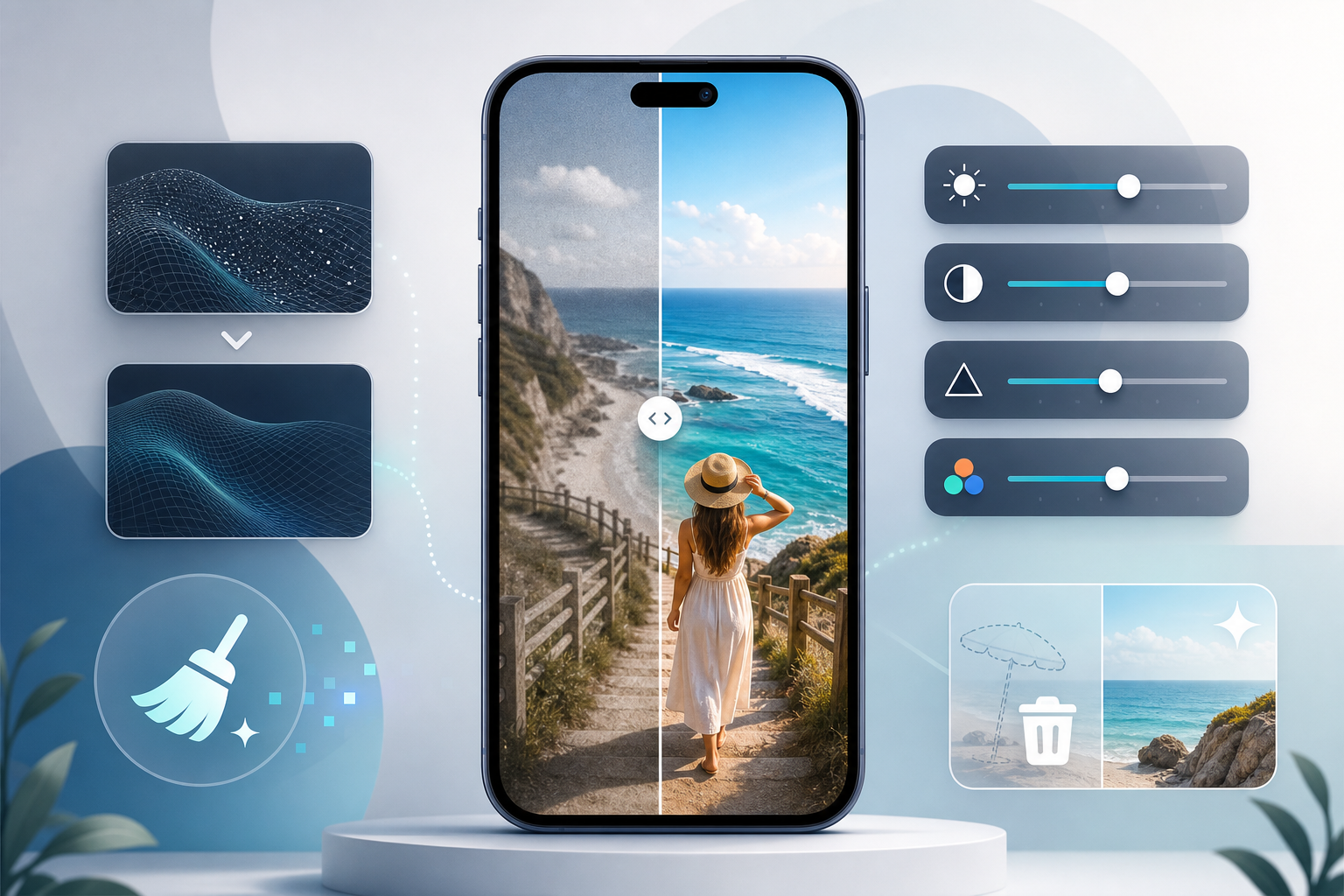
If you search for phone enhance, you usually do not mean turning a weak photo into a studio file with more pixels. Most people want something simpler and more useful: a cleaner image, fewer distractions, a better background, and subtle retouching that makes the picture feel polished without looking fake.
That is why small edits often matter more than camera specs. A photobomber behind your travel shot, a trash can near a landmark, or clutter around a portrait can lower the impact of an otherwise good image. Remove those distractions first, and the photo often looks noticeably better right on your phone.
This guide explains how to improve mobile photos naturally using cleanup, selective blur, background changes, and light portrait retouching. It also keeps the limits clear, so you know what a phone editor can improve and what still depends on the original shot.
What people usually mean when they search for better photo quality
Does enhancing a photo mean higher resolution or a better-looking image?
When people try to enhance photo quality on phone, they often mean “make this picture look better overall,” not “increase the resolution.” That distinction matters. Technical image quality refers to things like sharpness, resolution, and noise, while perceived image quality is about what your eye notices first.
A photo can have plenty of pixels and still feel messy if a sign cuts into the frame, a stranger stands behind the subject, or the background competes for attention. On the other hand, a modest phone photo can feel more premium once the frame is cleaned up and the subject stands out clearly.
Why visual cleanup often improves a picture more than extra pixels
Visual cleanup changes the way a photo reads at a glance. Removing a power line from a skyline, a bin from a street scene, or a blemish from a portrait can make the image feel more intentional. For social sharing, travel memories, and casual product shots, that often matters more than technical upscaling.
Composition also affects perceived quality. If the eye lands on clutter instead of the subject, the image feels less polished. A cleaner background, softer blur in the right place, or a more controlled portrait edit can improve the overall impression without changing the camera sensor or adding detail that was never captured.
What a phone can realistically improve without desktop software
On a phone, you can realistically improve distractions, background appearance, selective focus, and portrait polish. TouchRetouch is not a photo upscaler or batch enhancer. It is a mobile photo-editing app focused on object removal and retouching, with tools for cleanup, Backgrounds, Blur, Smart Scenes, and Natural FaceRetouch.
That honest positioning is useful because it sets expectations correctly. If a photo is heavily blurred from motion or badly out of focus, editing can improve presentation, but it cannot fully recreate missing detail. Results also depend on the original photo resolution and scene complexity, especially when the background has heavy texture or repeating patterns.
TouchRetouch preserves original photo quality and EXIF data on export, which is especially helpful when editing on a phone and keeping image information intact. For everyday users, that means you can retouch a photo for sharing or saving without turning the process into a desktop project.
How to phone enhance images by removing distractions first
Start with the elements that pull attention away from your subject
If you want to improve a mobile photo quickly, start by removing what should not be there. This is often the highest-impact edit because distractions compete with the main subject immediately. A cleaner frame makes the subject easier to notice and gives the whole image a more deliberate look.
Think about common situations: a traveler standing in front of a landmark with strangers behind them, a scenic overlook with a bright warning sign near the edge, or a skyline crossed by cables. In each case, the photo does not need a dramatic filter. It needs cleanup.
What to remove: photobombers, signs, trash, wires, fences, and small blemishes
One of the most practical ways to remove distractions from photo files on a phone is to target the obvious visual interruptions first. Background people, trash cans, stop lights, street signs, overhead wires, fence mesh, and small skin blemishes are common examples that pull attention away from the moment you wanted to capture.
Travel photos benefit a lot from this approach. A person walking through the background of a beach shot, a bin next to a historic building, or a sign in a mountain view can make a memory photo feel busier than it needs to be. Cleaning those elements up often creates a calmer, more shareable result.
City and landscape scenes have their own version of clutter. Power lines can cut across sunsets, cables can interrupt architecture, and mesh or fencing can sit between you and the subject. These are exactly the kinds of details that make a phone image feel less polished even when the light is good.
Which TouchRetouch tools fit each cleanup task
TouchRetouch is developed by ADVA Soft GmbH in Berlin, Germany and is designed specifically for object removal and photo retouching on mobile. The app includes several tools that match different cleanup jobs, which makes editing more practical than trying to force one tool to handle everything.
Use Remove Objects with the Brush or Lasso for general distractions. This works well for signs, bins, small blemishes, clothing distractions, and random objects on the ground. The adjustable brush settings help you make tighter selections, and Restore lets you bring back areas if you remove too much.
Erase AI is useful when the background contains people or common distractions that the app can identify automatically. It is especially helpful for travel shots with photobombers, street scenes with bins, or public spaces where the subject is clear but the background is crowded.
For group photos, Person Removal is the better fit. It automatically detects all people in the image so you can remove one or more individuals while keeping the remaining group looking natural. That is different from general object removal because the tool is built specifically for people in shared compositions.
Line Removal is the right choice for wires and power lines. Instead of brushing over every segment manually, you tap or mark part of the line and the app finds the full line automatically. If the line curves, manual retouch mode gives you control points for more precise cleanup.
Mesh Removal is designed for fences and foreground mesh. This is useful for photos taken through barriers at zoos, sports venues, playgrounds, or scenic viewpoints. Rather than trying to erase each strand one by one, the tool detects and removes the mesh structure for you.
When the background is detailed, Clone Stamp helps refine the result manually. That matters on brick walls, patterned clothing, dense foliage, or textured pavement where automatic removal may leave an area that needs a small repair. In those cases, object removal works best as a first pass, followed by careful manual cleanup.
Automatic removal generally works best on more uniform backgrounds such as sky, water, walls, sand, or blurred surroundings. On complex textures, the app still helps you do the heavy lifting, but a final pass with Clone Stamp often gives the most natural finish.
If you want a deeper walkthrough, see this guide on how to remove objects from photos on iPhone and Android. It pairs well with the cleanup-first approach because object removal is usually the fastest way to make an image feel more refined.
Improve composition and focus without reshooting
How a cleaner frame changes the feel of a photo
Sometimes the framing is basically fine, but the image still feels weak because too much is happening around the subject. To make a photo look better on phone, you often do not need to crop aggressively or reshoot. You need to simplify what the viewer sees.
Removing edge distractions is one of the easiest ways to improve composition. A bright object near the border, a half-visible person entering the frame, or clutter behind a product can pull the eye outward. Once those elements are gone, the subject feels more central and the photo looks more intentional.
This is especially useful for casual shots that were taken quickly. A travel selfie with a crowd behind it, a portrait in a busy room, or a product photo on a crowded table can all become stronger simply by reducing visual competition around the main subject.
Use selective blur to guide the eye
Blur helps control attention by softening selected areas of the image. On a phone, that can create a cleaner sense of focus even when the original background is too busy. It is useful for portraits, tabletop photos, and privacy situations where you want less detail in part of the frame.
For example, if you photographed a coffee mug on a kitchen counter and the background includes packaging, cords, and dishes, selective blur can quiet the scene without changing the subject itself. In a portrait, blur can soften a crowded room so the face stands out more naturally.
When background replacement makes composition stronger
Backgrounds goes a step further by automatically removing the background and replacing it with a built-in preset or a custom image. You can also use it for background blur if you want a depth-of-field style effect without fully changing the scene.
This works well when the original environment is the main problem. A product shot taken on a messy table can look cleaner on a simple backdrop. A portrait captured in a cluttered room can feel calmer with a softer replacement. A travel selfie with a distracting crowd can become more balanced if the background is simplified.
These edits improve the overall look of the image, not the camera optics or file resolution. That distinction matters. You are improving composition and visual focus so the photo feels stronger, cleaner, and easier to share.
Subtle portrait edits that still look like you
When face retouching helps and when to keep it minimal
Portrait editing works best when it supports the photo instead of taking over. In most cases, a natural portrait feels more polished when the edits are light. The goal is not to change someone’s identity. It is to present the same person in a cleaner, more balanced way.
This is why natural face editing usually beats heavy filters. Travel selfies, family photos, daylight portraits, and profile pictures tend to look better when skin tone is even, eyes look a bit brighter, and small distractions are softened without removing the character of the face.
What Natural FaceRetouch can adjust
Natural FaceRetouch is designed for subtle portrait refinement. It can smooth skin, brighten eyes, enhance a smile, reduce wrinkles on the face and neck, even skin tone, and add eye highlighting while preserving natural facial features.
That matters because a believable portrait still needs texture, expression, and recognizable features. The tool is built to polish rather than reshape. If you want a portrait to look refreshed instead of heavily edited, that balance is exactly what you want on a phone.
How to keep portraits natural instead of over-edited
Use small adjustments and compare the before and after often. If freckles, skin texture, or expression are part of what makes the photo feel real, keep them. A lighter touch usually looks better than trying to smooth every detail away.
It also helps to clean up the frame before retouching the face. Remove distractions around hair, clothing, or the background first, then apply FaceRetouch lightly. In many portraits, the image feels “enhanced” because the scene is calmer and the subject is clearer, not because the face was dramatically changed.
If glare is the issue rather than skin or background clutter, this guide to remove glasses glare from a photo can help with another common portrait problem on mobile.
Practical examples for travel, portraits, and product photos
Travel shots: remove crowds, signs, and overhead wires
Travel photos are often strong emotionally but messy visually. A good photo cleanup workflow starts by deciding what interrupts the memory: strangers in the background, a street sign near the landmark, a bin on the sidewalk, or wires crossing the sky.
- Open the image and remove background people with Erase AI or Person Removal, depending on whether the scene is a general crowd or a group composition.
- Use Line Removal for cables and power lines that cut across buildings, sunsets, or skylines.
- Use Remove Objects with the Brush or Lasso for bins, signs, shadows, or smaller distractions near the edge of the frame.
- Refine detailed areas with Clone Stamp if the background includes stone texture, foliage, or patterned surfaces.
The expected result is not a different location. It is a cleaner memory photo where the place and the person stand out more clearly. That can make a casual vacation image feel calmer and more intentional without changing its original mood.
Portraits: soften the background and clean up small distractions
Portraits often benefit from a mix of cleanup and gentle focus control. If the room behind the subject is busy, or if stray details around hair and clothing pull attention away from the face, a few targeted edits can make the image feel much more polished.
- Start with Remove Objects to erase small distractions around the subject, such as a bright object in the background, lint on clothing, or a stray item near the shoulder.
- Use Backgrounds to replace the background or apply background blur if the original setting feels cluttered.
- Apply Natural FaceRetouch lightly to smooth skin, brighten eyes, even skin tone, and reduce wrinkles while keeping the face recognizable.
This workflow works well for profile pictures, family portraits, and casual selfies. The visual improvement comes from balance: a cleaner frame, softer background, and subtle facial polish that still looks like the real person.
Casual product photos: replace messy surroundings with a cleaner backdrop
Product photos taken on a phone often fail because the surroundings are distracting, not because the item itself looks bad. A charger cable, packaging, crumbs, or a patterned table can make the image feel less useful for resale, social posts, or a small shop listing.
- Use Backgrounds to isolate the item and place it on a cleaner built-in preset or a custom image.
- Clean dust, marks, or small clutter with Remove Objects.
- Apply Blur selectively if part of the original environment should stay visible but less prominent.
The expected result is a clearer presentation of the item. You are not changing the camera sensor quality. You are improving how the product is seen, which often matters more for everyday selling and sharing.
Smart Scenes can also be used as an optional creative tool when you want to transform the overall look of an existing photo. It changes scene appearance from the original image, but it does not generate images from scratch. That makes it more suitable for stylized variations than for basic cleanup.
If you want to add more visual depth after cleanup, this tutorial on how to add shadow to an image for more depth is a useful next step for product and cutout-style edits.
Best options for iPhone and Android users
What iPhone users should know before editing
TouchRetouch is available for iOS and Android. On Apple devices, it supports iPhone, iPad, and iPod touch with iOS 14.0 or later. It also works on Mac with Apple M1 or later via macOS 11.0 or later, and on Apple Vision with visionOS 1.0 or later.
For users looking for a practical photo editing app ios option focused on cleanup, the app is mobile-first and photo-only. It is not a desktop replacement, and it does not edit video. That makes it a focused choice for removing unwanted elements and refining photos directly on Apple devices.
What Android users should know before editing
Android users get the same core mobile editing focus: object removal, background changes, blur, and portrait retouching on a phone or tablet. The app is designed for people who want quick, targeted edits without moving files into a desktop workflow.
Some AI-powered features require an internet connection. That is worth knowing before editing while traveling or working away from Wi-Fi, especially if you plan to use features such as Erase AI, Blur, Backgrounds, Smart Scenes, FaceRetouch, or Person Removal.
Download links, subscriptions, and feature access
TouchRetouch is free to download; premium AI features require a paid subscription. Check the App Store or Google Play for current pricing, which varies by region. Premium AI features include Erase AI, Blur, Backgrounds, Smart Scenes, FaceRetouch, and Person Removal.
Download TouchRetouch for free on iOS and start removing unwanted objects today.
Download TouchRetouch for free on Android and start removing unwanted objects today.
Simple editing habits that make phone photos look more polished
Edit in this order for a more natural result
To improve photo quality on smartphone images in a believable way, follow a simple order. Start by removing distractions, then refine the background, then apply selective blur, and finally use light face retouching if the photo needs it.
This order works because cleanup affects everything else. If you blur or retouch first, you may end up enhancing clutter that should have been removed. A clean base image makes every later edit look more intentional.
Avoid overdoing blur, retouching, and scene changes
Subtle edits usually age better than dramatic ones. Too much blur can make the subject look cut out. Too much face retouching can flatten skin texture. Too much scene transformation can make a casual image feel disconnected from the original moment.
Compare before and after often. If the edited version immediately looks “processed,” pull the effect back a little. Most everyday phone photos look best when the changes are visible but not obvious.
Know when a photo needs cleanup rather than more filters
If a photo feels weak, ask a simple question: is the problem color, or is it clutter? In many cases, the answer is clutter. A better filter will not fix a photobomber, a power line, or a messy background.
Also keep the limits in mind. If the image is blurry from motion or out of focus, editing can improve presentation, but it cannot fully replace a sharper original capture. That is the key difference between making a photo look better and actually increasing resolution.
Frequently Asked Questions
Does phone enhancement mean increasing resolution or just making a photo look better?
Usually, it means making a photo look better overall. For most people, that includes removing distractions, improving the background, refining focus, and applying subtle retouching rather than increasing resolution.
Can I improve a blurry phone photo without changing its resolution?
Yes, you can improve how it looks, but not fully restore missing detail. Cleanup, background blur, and better composition can make a blurry image feel more presentable, though they cannot replace a sharper original capture.
What is the easiest way to make travel photos look cleaner on a phone?
The easiest approach is to remove the distractions people notice first. Background crowds, signs, bins, and overhead wires often have a bigger negative effect than color or filter choices, so cleaning those up usually gives the fastest visual improvement.
How do I retouch a portrait on my phone without making it look fake?
Use light adjustments and keep the person’s natural features intact. A natural-looking portrait usually comes from small edits such as evening skin tone, brightening eyes slightly, softening the background, and removing minor distractions around the subject.
Is TouchRetouch available for both iPhone and Android?
Yes. TouchRetouch is available on iOS and Android, with support for iPhone, iPad, and iPod touch on iOS 14.0 or later, plus Mac with Apple M1 or later and Apple Vision through the listed Apple compatibility options.
Conclusion: the easiest way to make a mobile photo feel cleaner
Focus on visible improvements people notice first
For most people, phone enhance really means making a photo feel cleaner, clearer, and more polished through the details the eye notices first. That usually starts with distractions, then moves to background refinement, selective blur, and subtle portrait polish.
TouchRetouch helps with that kind of mobile photo retouching through object removal, Backgrounds, Blur, Smart Scenes, and Natural FaceRetouch. It is not a resolution upscaler or batch enhancer, but it is a practical mobile editor for improving how photos look on iPhone and Android. Get TouchRetouch on the App Store / Google Play, and start with the kind of photo you already take most often: travel, portraits, or product shots.
FAQ
What does phone enhance usually mean?
Phone enhance usually means improving a mobile photo so it looks cleaner, sharper, and more balanced rather than artificially increasing resolution.
Can phone enhance make a blurry photo perfect?
Phone enhance can improve clarity and reduce distractions, but it cannot fully restore detail that was never captured in the original image.
What edits help mobile photos look better naturally?
The most useful natural edits include adjusting brightness, contrast, sharpness, color balance, and removing small distractions without overprocessing the image.
Should I use strong filters when enhancing phone photos?
Strong filters are usually not the best choice if you want natural results, because subtle corrections tend to preserve realistic skin tones, lighting, and texture.
Is phone enhance useful for everyday photos?
Yes, phone enhance is especially useful for everyday photos because small improvements can make portraits, travel shots, and casual images look cleaner and more polished.





