
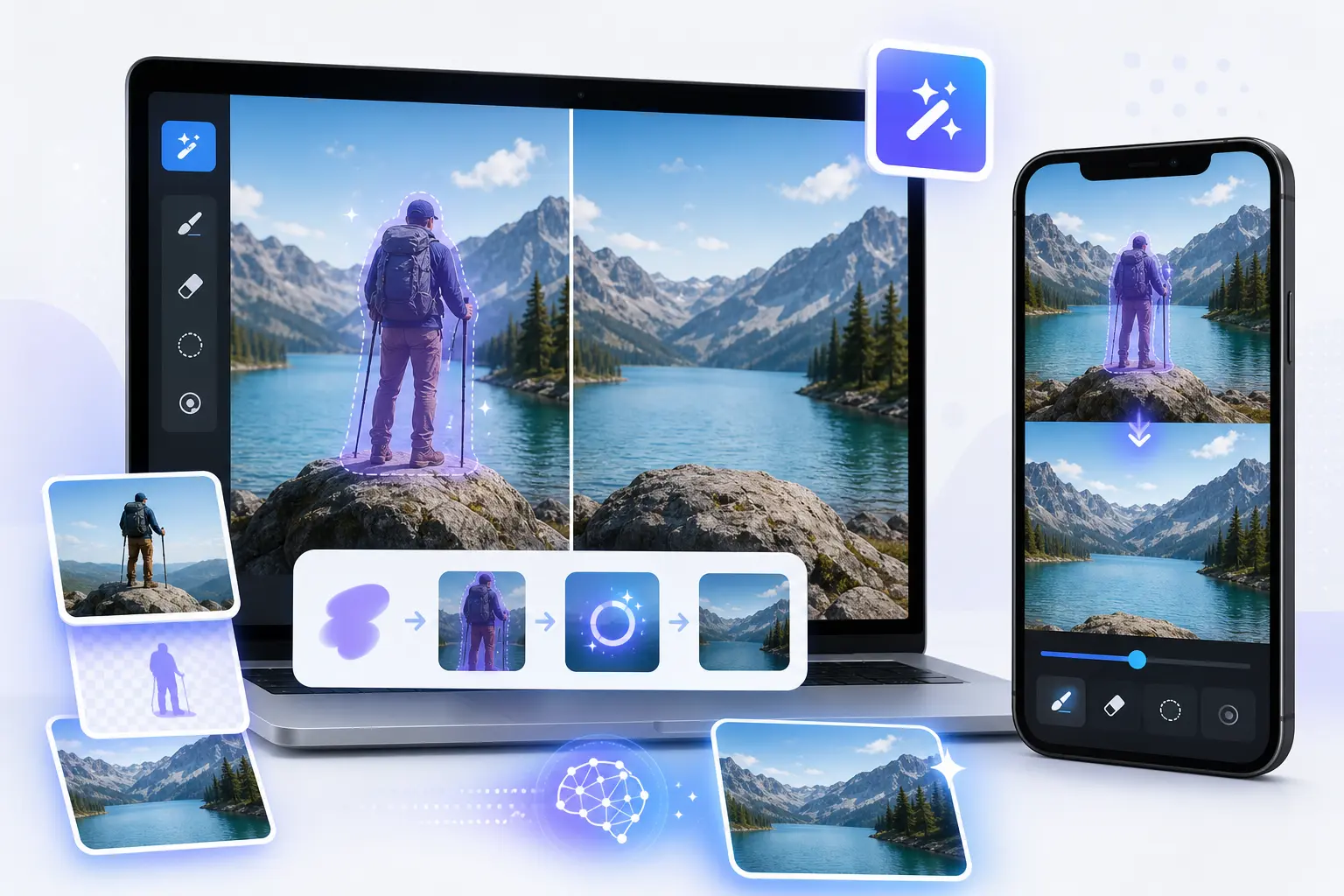
If you are searching for a way to remove object from photos online free, the fastest answer is this: browser tools can help with simple one-off edits, but mobile apps usually give you more control when the photo matters. This guide walks through the easiest options on iPhone, Android, built-in phone tools, and a specialist app called TouchRetouch.
You do not need to learn complex desktop software to clean up a travel shot, erase a photobomber, or get rid of a distracting sign. The goal here is practical comparison, so you can choose the right method for your photo instead of wasting time testing tools that are not built for the job.
What this guide covers before you start editing
Who this tutorial is for
This article is for everyday mobile users comparing several ways to clean up photos: built-in phone tools, an object remover from image website, AI editors, Photoshop-style workflows, and dedicated mobile apps. It is designed as the main overview page for broad search intent, while narrower tutorials go deeper into platform-specific steps.
If you want a more focused walkthrough, see this guide on remove objects from photos on iPhone and Android. Readers looking for related cleanup tasks can also explore how to remove glare from glasses in photos or add a realistic shadow to an image.
What kinds of distractions you can remove
The methods in this guide cover common distractions such as unwanted objects, people, text, wires, fences, signs, trash cans, stop lights, shadows, blemishes, and other small visual interruptions. Typical examples include a tourist in the background of a landmark photo, a power line across a skyline, or a trash bin near the edge of a property shot.
Results depend on scene complexity. A plain wall or clear sky is usually easier to repair than grass, brick, patterned fabric, or crowded backgrounds, where manual refinement may be needed after the first pass.
Important limitation: TouchRetouch is mobile-only and photo-only
TouchRetouch is developed by ADVA Soft GmbH and is a specialist mobile photo-editing app for iOS and Android. It is built for photo cleanup and retouching on phones and tablets, not as an online editor and not as a standalone desktop Photoshop replacement.
TouchRetouch edits photos only, not video. It is also important to know that while the app includes strong automatic tools, heavily textured areas sometimes need manual cleanup with Clone Stamp for the most natural result.
When free online tools are enough and when a dedicated app works better
Best use cases for browser-based object removers
An online object remover from photo tool is often enough when you need a quick edit on a simple image. Good examples include removing a small spot from a plain background, erasing a minor distraction near the edge of a photo, or testing an idea before deciding whether the image is worth a more careful retouch.
Browser-based tools also make sense if you do not want to install anything. For a one-time cleanup on a laptop or phone browser, they can be convenient, especially when the object is small and the background is smooth.
Where online free tools usually struggle
Free web tools often become less reliable when the object overlaps hair, textured walls, tree branches, water, or repeating patterns. Edges can look soft, repeated textures can appear obvious, and exports may be inconsistent depending on the service you use.
There are also practical tradeoffs. Many online editors have upload limits, fewer repair tools, weaker precision, and privacy concerns because your image has to be sent to a remote service. If you edit regularly, those limits become noticeable very quickly.
Built-in phone cleanup vs a specialist object remover app
Built-in phone editing tools are usually the first thing people try. They can help with simple cleanup, especially if cropping solves the problem or the distraction sits near the border of the frame. That works well for a corner sign, a stray edge element, or a little extra space around the subject.
A dedicated app is usually better when you want to remove wires, fences, people in group photos, or repeated distractions across multiple images. It also helps when the automatic result needs a small manual correction instead of starting over from scratch.
That is where TouchRetouch stands out as a specialist option. It combines Remove Objects, Erase AI, Person Removal, Line Removal, Mesh Removal, Lasso, Restore, and Clone Stamp in one mobile workflow for iPhone and Android.
| Method | Best for | Main tradeoff |
|---|---|---|
| Online free tool | Quick one-off edits, small objects, simple backgrounds | Less precision, upload limits, privacy concerns |
| Built-in phone tools | Basic cleanup, cropping, edge distractions | Limited control for central objects or detailed repairs |
| Dedicated mobile app | Regular retouching, people, wires, fences, text, manual refinement | Requires app install; some AI features need subscription |
Many people start with a search for a free browser tool, then switch to a dedicated app when they want more control on iPhone or Android. If you edit often, the extra precision is usually the difference between an acceptable result and one you actually want to keep.
How to remove unwanted elements with TouchRetouch on iPhone and Android
Step 1: Open your photo and choose the right tool
If you want a practical remove object from photos app workflow, start by opening your image in TouchRetouch on iPhone or Android. For most everyday cleanup, the best place to begin is Remove Objects, which is the core feature for removing almost any unwanted object from a photo.
Choose your selection method based on the shape of the distraction. Use the Brush for irregular items like litter, blemishes, or shadows. Use Lasso when the object has a cleaner outline, such as text on a wall, a sign, or a simple product label.
Step 2: Use Remove Objects for everyday distractions
- Open the image in TouchRetouch.
- Select Remove Objects.
- Mark the unwanted area with the Brush or Lasso.
- Adjust brush size for tighter control around edges.
- Apply the removal and review the repaired area.
This workflow works well for common distractions such as a person in the distance, a parked scooter in a street photo, or text printed on a sign. The app uses AI edge-aware removal designed to help the edited area blend naturally with the surrounding scene.
Precision matters here. If the object sits close to hair, clothing edges, or architectural lines, use a smaller brush and select only the area you truly want removed. Smaller, cleaner selections usually produce better results than painting a large rough shape over the whole region.
Step 3: Refine the selection with Brush, Lasso, and Restore
The Brush is best for uneven shapes like leaves, stains, or shadows. The Lasso works better for defined outlines, including text, stickers, and rectangular objects. Switching between the two gives you more control than relying on one selection style for every image.
If your initial selection was too broad, use Restore to bring back parts of the original area. This is especially useful when the app removed a little too much around a sleeve edge, a building line, or a textured surface like stone or gravel.
For difficult backgrounds, do not try to solve everything in one pass. Remove the main distraction first, then zoom in and make a second, smaller correction around any remaining artifact. That approach is often cleaner than forcing one large edit.
Step 4: Export your edited image
Once the result looks right, export the image. TouchRetouch preserves original photo quality and EXIF data on export, which is useful if you want to keep image details intact for sharing, archiving, or later organization.
Download TouchRetouch for free on iOS and Android and start removing unwanted objects today. Get it on the App Store or Google Play.
Best TouchRetouch tools for people, wires, fences, text, and tricky areas
Erase AI for background distractions and photobombers
If you want an ai photo object remover for common travel and street scenes, Erase AI is one of the most useful tools in TouchRetouch. It is designed to automatically detect and select people in the background, remove them, fill the gaps, and keep the main subject unchanged.
It also helps with distractions such as signs, trash cans, stop lights, shadows, and similar background clutter. A practical example is a landmark photo where a passerby stands behind your subject, or a street portrait with a bright sign pulling attention away from the person in front.
Person Removal for group photos
Person Removal is built for group photos where you want to remove one or more people without rebuilding the whole image manually. The tool detects all people in the frame, lets you choose which individuals to remove, and adjusts the remaining composition naturally.
This is useful for family photos, school pictures, and casual group shots where one person blinked, stepped into the frame, or simply should not be in the final image. It is a more targeted workflow than generic object cleanup because it is designed around people specifically.
Line Removal for cables and power lines
Line Removal is the specialist tool for cables, wires, and similar linear distractions. You tap or mark part of the line, and the app finds the full line automatically, which is especially helpful in skyline shots, beach scenes with utility lines, or city photos with overhead cables.
For curved segments or more complicated shapes, there is a manual retouch mode with control points. That extra control is useful when the line bends across the frame or passes near a roof edge, tree branch, or sign.
Mesh Removal for fences and screens
Mesh Removal is designed for fences, nets, and screens in front of the subject. The process is simple: choose the tool and tap Go. This is particularly helpful for zoo photos, stadium shots, and images taken through a wire fence where the foreground mesh blocks the view.
Because fences often cover large parts of the frame, a dedicated tool is easier than trying to paint every line manually. It gives mobile users a more direct way to clean up these scenes without a desktop workflow.
Clone Stamp for manual cleanup after automatic removal
Clone Stamp is the manual repair tool for areas where automatic removal needs refinement. It lets you copy texture from one part of the image to another, which is especially useful on brick walls, grass, patterned floors, water, or crowded urban scenes.
For example, if you remove text from a painted wall and the surface still looks slightly uneven, Clone Stamp can rebuild the texture more naturally. The same applies after removing a sign from a street photo or cleaning up a fence pattern near the edge of a subject.
Premium AI features require a paid subscription and to check the App Store or Google Play for current pricing, which varies by region. For users who want regular mobile cleanup, TouchRetouch brings these tools together in one workflow instead of forcing you to jump between several apps.
iPhone options without an app: what works on iOS 17 and recent models
How to edit photos on iPhone to remove objects with built-in tools
People looking to remove object from photo iphone without app free usually start with the tools already on the phone. In practice, built-in iPhone editing is most useful for cropping away edge distractions, adjusting framing, or making a simple cleanup decision before using a dedicated editor.
If the unwanted item is near the border, cropping may solve the problem immediately. That can work well for a corner sign, a partial trash can, or a small object entering the frame from one side.
What to expect on iPhone 12, iPhone 13, iPhone 14, and iPhone 15
Whether you are trying to remove something from a photo on iPhone 12, figuring out how to erase something from a photo in iPhone 13, or comparing a remove object from photo iPhone 15 workflow, the same rule applies: built-in options are limited for precise object removal in the middle of the frame.
That is also true for searches around how to remove a person from a photo on iPhone iOS 17. Recent iPhones are powerful devices, but no-app methods are still best treated as basic first attempts rather than full object-removal solutions.
When iPhone free methods are enough
No-app methods are enough when the distraction is small, close to the edge, and easy to crop out without hurting the composition. They can also be fine when you only need a quick social post and the background is not detailed.
If the object is central, if you need repeated cleanup across many photos, or if the background includes texture like grass, brick, or hair, a specialist app is usually the better choice. That is where a mobile retouch workflow becomes more practical than trying to force a built-in tool to do a job it was not designed for.
Why some edits still need a dedicated remover
Built-in tools generally fall short on text, people, wires, and fences. Those edits require more precise selection and better repair options, especially when the removed area crosses important details in the scene.
For users comparing no-app methods with TouchRetouch, the difference is control. TouchRetouch gives you dedicated removal tools instead of relying mainly on crop-and-adjust workarounds.
Photoshop AI alternatives for mobile users
What people usually mean by Photoshop-style object removal
When people search for how to remove object from photoshop ai, they often want the result rather than the full desktop workflow. In many cases, the real goal is simple: remove a person, erase a sign, clean up a skyline, or fix a distracting background element without learning layers and advanced desktop tools.
How TouchRetouch compares for everyday mobile editing
TouchRetouch is a simpler mobile-first option for photo cleanup on iPhone and Android. Instead of acting like a broad desktop editor, it focuses on the tasks many users actually need on a phone: object removal, line cleanup, fence removal, person removal, and manual touch-up with Clone Stamp.
That makes it a strong fit for everyday editing on the go. If you are cleaning up travel photos on a train, fixing a family picture before sharing, or removing text from a quick product image, a specialist mobile workflow is often easier than a desktop-style process.
When desktop software still makes sense
Desktop software still makes sense for advanced layer-based compositing, highly detailed commercial retouching, or projects that depend on a larger screen and a more complex editing environment. TouchRetouch is not a standalone desktop app and not a replacement for advanced layer-based desktop workflows.
If you specifically want a deeper comparison with Photoshop methods, read the more focused tutorial on removing objects from photos on iPhone and Android as a starting point for mobile cleanup, then compare that workflow with your preferred desktop process.
Troubleshooting: how to get cleaner results on complex photos
Why edits look obvious on textured backgrounds
Object removal from image ai works best when the background is more uniform. On detailed scenes like grass, brick, patterned walls, water, or crowds, the repaired area can look more obvious because there is less simple texture for the app to rebuild cleanly.
How to combine automatic tools with Clone Stamp
The best fix is often a two-step approach. First, use the automatic removal tool to clear the main distraction. Then use Clone Stamp to rebuild texture in the repaired area, especially if you notice repeated patterns or a soft patch where detail should continue.
Smaller selections also help. Use a tighter Brush, switch to Lasso for cleaner outlines, and use Restore if the first pass removed too much around the subject or background edge.
Tips for removing text, shadows, and small details
For text removal, select tightly around the letters instead of grabbing a large block of surrounding texture. For shadows and thin distractions, try Erase AI when the object is obvious, then refine manually if any edge remains visible.
Small details often look better after two careful passes than one heavy edit. That is normal, and it reflects the scene rather than a problem with the app.
What to do if the first pass removes too much
If the first pass takes away part of the subject or too much background, use Restore to bring back the missing area and try again with a smaller selection. In-app tutorials can also help you learn which tool fits each type of distraction.
Download TouchRetouch and choose the right workflow for your photos
Who should use built-in tools, online tools, or TouchRetouch
For quick one-off edits, online free tools can be enough. Built-in phone tools may also work for very simple cleanup, especially when cropping solves the problem. For regular mobile retouching, more precise removals, and tricky distractions like wires, fences, text, or people, TouchRetouch: Remove Objects is the better fit.
Download links and platform availability
TouchRetouch is available as a mobile app on iOS and Android. It also works on Apple Silicon Mac as app compatibility, but there is no standalone desktop version.
Final recommendation for everyday photo cleanup
TouchRetouch is free to download; premium AI features require a paid subscription. Check the App Store or Google Play for current pricing, which varies by region. Remove unwanted objects from your photos — try TouchRetouch free. Download it on the App Store or Google Play.
Frequently Asked Questions
Can I remove an object from a photo on iPhone without an app?
Yes, but only in limited situations. Built-in iPhone tools are usually enough when cropping can remove a small distraction near the edge, but they are less effective for central objects, people, wires, or detailed backgrounds.
What is the best app to remove unwanted objects from photos on iPhone and Android?
A strong choice is TouchRetouch if your main goal is photo cleanup on mobile. It is developed by ADVA Soft GmbH for iOS and Android and includes dedicated tools for objects, people, lines, meshes, and manual refinement with Clone Stamp.
Can TouchRetouch remove people, wires, fences, and text from photos?
Yes, it is designed for those tasks. You can use Person Removal for group photos, Line Removal for wires and cables, Mesh Removal for fences, and Remove Objects with Brush or Lasso for text and general distractions.
Is TouchRetouch free to use?
TouchRetouch is free to download; premium AI features require a paid subscription. Check the App Store or Google Play for current pricing, which varies by region. That means you can install the app first, then review the current store details for your region.
What should I use instead of Photoshop AI for quick mobile photo cleanup?
Use a specialist mobile app if you want fast cleanup on a phone rather than a full desktop workflow. TouchRetouch is a practical option for removing distractions from photos on iPhone and Android, while desktop software still makes more sense for advanced layer-based editing.
If your goal is simple cleanup, the best method depends on the photo. Browser tools are fine for quick edits, built-in phone tools help with basic cropping, and a dedicated app is better when you need precision, repeatability, and stronger repair options.
For anyone comparing ways to remove object from photos online free, the most practical long-term choice for mobile editing is often TouchRetouch. It keeps the workflow simple, stays focused on photo cleanup, and gives you dedicated tools for the kinds of distractions people actually want to remove every day.
FAQ
Can I remove objects from photos online for free?
Yes, you can remove objects from photos online for free with browser-based tools, especially for quick one-off edits.
What is the best way to remove objects from photos on iPhone?
The best way to remove objects from photos on iPhone is usually a dedicated object removal app because it gives you more control and cleaner results than basic built-in editing.
Do online object removers work as well as mobile apps?
Online object removers work well for simple backgrounds, but mobile apps often perform better when you need precise edits or more natural-looking repairs.
Can AI photo object remover tools delete people from pictures?
Yes, many AI photo object remover tools can delete people from pictures, although the final quality depends on the background complexity and image detail.
Is Photoshop AI the only option for object removal?
No, Photoshop AI is not the only option for object removal because there are free online tools and mobile apps that can handle many common photo cleanup tasks.





