
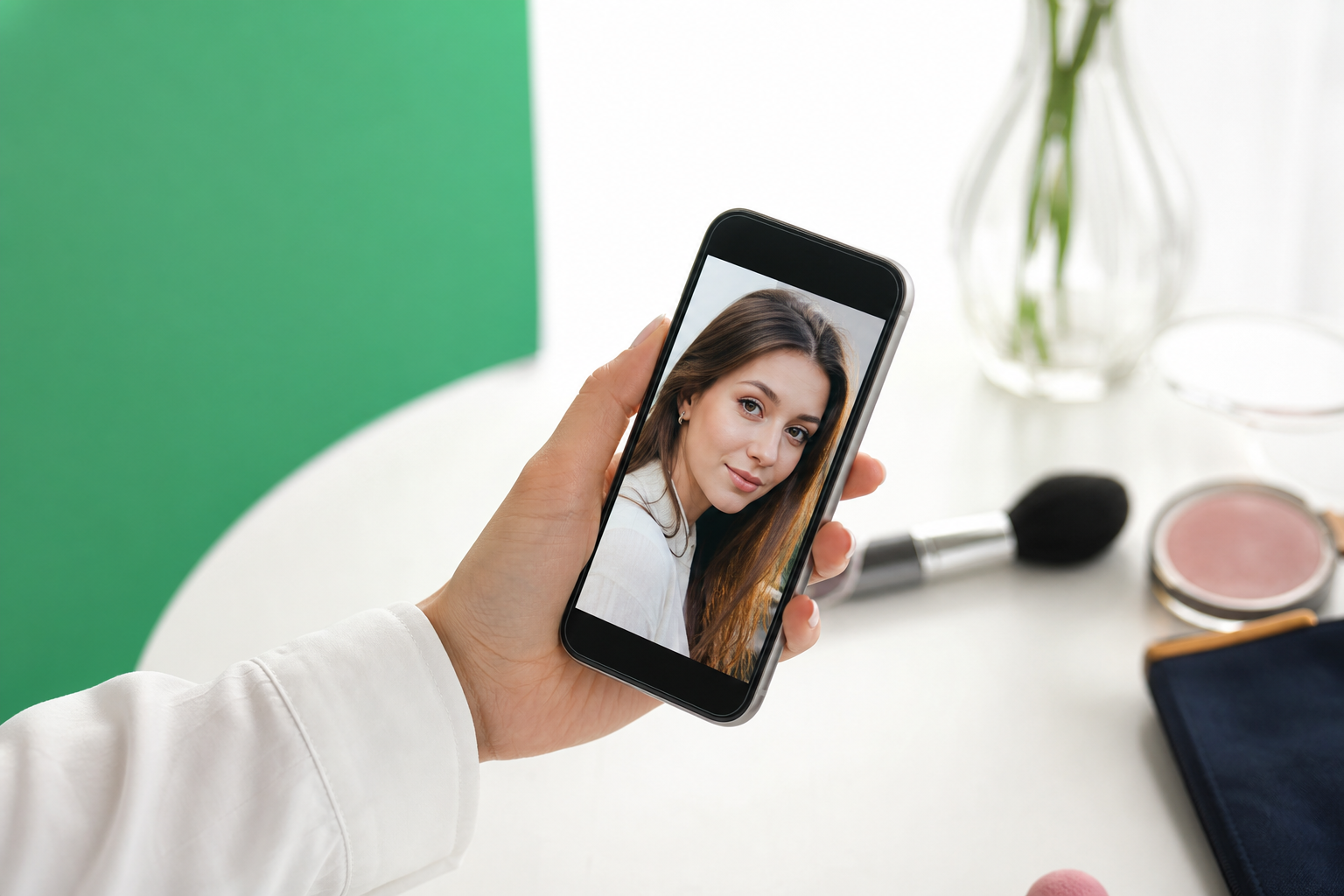
A few careful edits can help Retouch Makeup in selfies and portraits without changing the features that make the photo feel like you. The goal is simple: clean up temporary distractions, polish small details, and keep your expression, skin character, and natural proportions intact.
That approach works especially well on mobile, where a portrait often needs only a few small fixes. A stray hair across the cheek, a tiny mascara flake, lint on a collar, or a temporary blemish can pull attention away from the moment. Remove those distractions, and the image usually looks more like how it felt in real life.
TouchRetouch is a mobile photo-editing app developed by ADVA Soft GmbH in Berlin, Germany, designed for object removal and natural portrait cleanup on iOS and Android. It includes tools for removing unwanted objects, people, lines, meshes, and blemishes, plus Natural FaceRetouch for subtle finishing edits. It also preserves original photo quality and EXIF data on export, which is useful when you want to keep image details intact after editing.
Before getting into technique, it helps to understand what “natural” editing really means and how to decide what belongs in the photo and what does not.
What natural portrait cleanup really means
Why subtle edits often look better than heavy filters
Natural face editing is about reducing visual noise, not creating a different face. In portraits, small distractions often stand out more than they would in person because a still image freezes every detail. A light cleanup can make the photo feel more polished while still looking honest.
Heavy filters often flatten skin texture, over-brighten features, or blur edges around the nose, lips, and hairline. That can make a selfie look less believable, especially on close-up phone portraits where viewers can easily notice overediting. Subtle corrections usually age better and keep the image more personal.
What to clean up without changing your facial features
A good rule is to remove temporary distractions rather than permanent traits. That includes a spot that appeared that day, a hair crossing the eye, lint on a jacket, a lipstick smudge visible in the photo, or a sign in the background near your shoulder. These edits support the portrait without changing who is in it.
By contrast, reshaping a jawline, changing eye size, or altering nose structure moves away from cleanup and into transformation. This guide does not focus on that kind of editing. Instead, it treats portrait retouch as a way to reflect the moment more clearly.
A good rule: remove distractions, not personality
When you Retouch Makeup naturally, the best result is often the one nobody notices. If a viewer sees your eyes, expression, and overall mood first, the edit is doing its job. If they notice the editing itself, it usually needs to be reduced.
TouchRetouch is built for this kind of light-touch cleanup. Its Remove Objects tools help with blemishes, flyaway hairs, lint, and small background clutter, while Natural FaceRetouch offers subtle finishing adjustments. Results still depend on photo resolution and scene complexity, and textured areas such as curls, patterned fabric, or detailed skin may need manual work with Clone Stamp.
If you want a broader overview of object removal first, this guide on how to remove objects from photos on iPhone and Android is a useful companion. For cleaner portraits, though, the editing order matters just as much as the tools.
Start with simple cleanup before any beauty edits
Remove small distractions with Remove Objects
Start with general photo cleanup before touching skin or facial details. Once lint, flyaway hairs, smudges, and tiny background distractions are gone, the portrait already looks calmer and more polished. That makes it easier to decide whether any further retouch is even needed.
Remove Objects is the best first step for small distractions such as a strand of hair crossing the cheek, a tiny spot on the forehead, lint on a dark sweater, or a smudge on the wall behind you. In more uniform areas, the app’s edge-aware removal is designed to blend the selected area naturally with nearby pixels.
For example, if one hair lies across the eyebrow and upper cheek, mark only the visible strand rather than a wide patch of skin. If there is a small blemish near the temple, select just the spot and a minimal edge around it. Smaller selections usually produce cleaner blends.
When to use Brush, Lasso, and Restore
The Brush tool works best for quick, narrow marks. Use it for mascara flakes, tiny skin spots, lint fibers, or a thin hair crossing the forehead. Because portraits often include delicate edges around eyebrows, lips, and the hairline, adjustable brush settings help you stay precise.
The Lasso tool is helpful when the shape is more defined and you want tighter control over the selection. A curved lipstick smudge near the corner of the mouth or a larger patch of lint on clothing can be easier to outline with Lasso than with a brush stroke.
Precision matters around facial features. A smaller brush is usually better near eyelashes, the lip line, nostrils, and curls at the hairline, while a slightly larger brush can work on clothing or a soft, plain background. If the app removes too much, Restore lets you bring back parts of the original area without starting over.
That makes a big difference in portraits. If a selection clips the edge of an eyebrow or softens the outline of the lip too much, Restore can return the original detail exactly where you need it. It is one of the easiest ways to keep a cleanup natural instead of overdone.
How Clone Stamp helps refine tricky areas
Automatic removal works best on smoother surfaces, but portraits often include texture. Skin has pores and tonal variation, clothing has seams and weave, and backgrounds may include leaves, brick, or patterned wallpaper. In those cases, Clone Stamp helps refine the result by copying texture from a nearby clean area.
Say you remove a hair crossing the cheek and the blend looks slightly soft. With Clone Stamp, you can sample nearby skin texture and paint gently over the patch so it matches the surrounding area better. The same method works for patterned shirts, curls near the neckline, or a textured wall behind the subject.
Another common example is a tiny spot on the forehead near the hairline. Remove Objects can clear the spot, then Clone Stamp can restore a little natural texture if the area looks too even. On clothing, it can fix a small repeated patch after removing lint or a crease distraction.
If you are learning the toolset, this Remove Objects tool guide explains the core workflow in more detail. You can also pick up extra photo cleaner tips for tidier images when you want to improve overall image clarity before moving into portrait-specific edits.
Once the general distractions are gone, you are in a much better position to Retouch Makeup lightly. At that stage, the portrait usually needs less editing than you first expected.
Retouch Makeup with a light hand for polished selfies
Clean up temporary spots without erasing skin texture
To Retouch Makeup naturally, think of it as cleanup rather than transformation. If a temporary spot, a small smudge, or a visible flake distracts from the portrait, remove it. If a detail is part of your normal skin texture or expression, leave it alone.
That distinction keeps a selfie believable. A small blemish that appeared that morning is different from the shape of your smile lines or the texture of your skin. Removing the temporary detail can help the photo match how you felt, while preserving the permanent features that make the portrait look real.
Use Remove Objects for tiny spots and keep the selection tight. If the area starts to look too smooth, undo and make a smaller mark, or refine with Clone Stamp using nearby skin texture. The aim is a cleaner image, not a plastic finish.
Tidy flyaways and makeup smudges around the face
Small grooming details often matter more than broad edits. A few flyaway hairs near the forehead, cheek, or neckline can pull the eye away from your expression, especially in close-up portraits. Mark only the visible strands, then check the result at normal size before deciding whether to remove more.
You can also clean up visible makeup distractions such as a slight eyeliner smudge, a lipstick edge that reads uneven in the photo, or a tiny mascara flake under the eye. TouchRetouch does not offer dedicated makeup brushes or cosmetic tools, but its object removal features are well suited to this kind of detail cleanup.
When editing around lashes, brows, or lip edges, zoom in for accuracy. Then zoom back out often. A correction that looks perfect at 300% magnification can look too sharp or too smooth in the full portrait.
Keep the result believable and balanced
A practical rule helps here: if the edit is noticeable at normal viewing size, reduce it or undo it. Natural portrait retouch should support the image quietly. The viewer should notice the person, not the cleanup.
This is especially true when you Retouch Makeup on front-camera selfies, where lighting can exaggerate shine, texture, and tiny smudges. A couple of careful removals often do more than a long chain of edits. In many cases, one cleaned-up blemish, one removed hair, and one refined lip edge are enough.
If you want to improve the overall image before any face work, these ways to enhance photo quality on your phone can help you start from a stronger original. Better light and sharper source images always make subtle edits easier to blend.
Remove blemish on iPhone photo without overediting
An iPhone workflow for quick portrait touch-ups
If your goal is to Remove blemish on iPhone photo while keeping the portrait natural, use a simple order: open the image in TouchRetouch, start with Remove Objects, use Restore if needed, and finish with Clone Stamp only where texture needs extra help. This keeps the workflow focused and avoids unnecessary edits.
TouchRetouch is available for iPhone and iPad on iOS 14.0 or later. That makes it a practical option when you want to clean up a selfie directly on your phone instead of moving the image to another device.
- Open your portrait in TouchRetouch.
- Use Remove Objects with Brush or Lasso to mark a temporary blemish, mascara flake, or stray hair.
- Apply the removal and inspect the area at normal viewing size.
- If part of the edge looks off, use Restore to bring back the original detail.
- Use Clone Stamp on textured skin, patterned clothing, or detailed backgrounds if the automatic blend needs refinement.
This workflow also works well when you want to Remove blemish on iPhone photo and clean up a few other distractions in the same pass. For example, you can clear a small spot on the chin, remove one hair crossing the cheek, and tidy lint on the collar before moving on.
How to clean skin, hair, and background distractions in one pass
Portrait cleanup is not only about the face. A selfie can look much stronger when you also remove small distractions near the shoulders or in the background, such as a sign, litter, a passerby in the distance, or clutter along a wall. These details often compete with the subject more than people expect.
For background people and larger distractions, Erase AI can be especially helpful. It is designed to detect and remove people in the background while identifying the main subject so the portrait stays unchanged. It can also remove distractions such as street signs, trash cans, stop lights, and shadows when they pull attention away from the image.
That means you can Remove blemish on iPhone photo and improve the overall composition in one editing session. A cleaner shoulder line, a tidier wall behind you, and the removal of one distant passerby can make a portrait feel more intentional without changing your face at all.
Download TouchRetouch for free on iOS and Android and start removing unwanted objects today.
What to do if the area looks too smooth or repeated
The most common issue after object removal is repeated or overly smooth texture. If that happens, make a smaller selection and try again. Broad selections often pull in too much surrounding detail, especially on cheeks, under-eye areas, and textured foreheads.
If the repeated pattern remains, use Clone Stamp to sample from a nearby clean area with similar light and texture. For skin, choose a source area close to the edit so tone and pore detail match. For hair or clothing, sample from the same strand direction or fabric pattern whenever possible.
Also remember that some AI-powered features require an internet connection, and premium AI features require an active subscription. TouchRetouch is a mobile photo editor, so results depend on the original image quality and scene complexity rather than on heavy desktop-style reconstruction.
Refine portraits with Natural FaceRetouch
When skin smoothing helps a photo look more even
After cleanup, Natural FaceRetouch is the finishing step. This is where you make small adjustments that support the portrait rather than rebuild it. Used lightly, it can help a selfie look more even and rested while preserving the person’s natural features.
The available adjustments include smooth skin, brighten eyes, enhance smile, reduce wrinkles on the face and neck, even skin tone, and add eye highlighting. There is also neck retouching support, which can help the overall portrait look more polished when the neck is visible in the frame.
Skin smoothing works best when it reduces unevenness without removing all texture. If the forehead, cheeks, or chin look slightly harsh because of lighting or camera sharpening, a light pass can soften that effect. The best stopping point is usually before the skin starts to look airbrushed.
Subtle ways to brighten eyes and enhance a smile
Brightening the eyes can add freshness to a portrait, especially in indoor light or shade. Keep it gentle. The eyes should look clearer and more awake, not artificially white or glowing.
Smile enhancement works the same way. It is there to refine the portrait’s expression, not to change identity. A small adjustment can make a smile read more clearly in the photo while still looking like the same person you captured.
If you want to explore these tools in more detail, the natural face retouch tools for portraits page gives a focused overview of what FaceRetouch is designed to do. The key idea is consistency: one small adjustment at a time, with frequent comparison to the original.
How to reduce wrinkles and even skin tone naturally
Wrinkle reduction is most effective when it softens rather than erases. Expression lines around the eyes, mouth, and neck are part of a real face. A natural edit lowers their visual intensity without flattening them completely.
Even skin tone can also help a portrait feel calmer, especially when uneven lighting creates redness or patchiness. Again, less is more. If you Retouch Makeup and then add only a touch of skin tone balancing and wrinkle softening, the final image usually feels polished without looking edited.
Throughout this stage, compare with the original often. Natural FaceRetouch is designed to preserve beauty and facial features, not to create a dramatic makeover. That makes it a strong final step after object removal, not a substitute for careful cleanup.
Best practices for realistic results on iPhone and Android
Edit in the right order for cleaner portraits
The cleanest workflow is simple: remove distractions first, refine with Clone Stamp if needed, then apply Natural FaceRetouch lightly. That order prevents you from smoothing or brightening areas that still contain visible clutter. It also helps you judge whether a portrait needs any face adjustments at all.
Start from the highest-quality original photo you have. Results depend on image resolution and scene complexity, so a sharp source image with decent light gives the app more detail to work with. A low-resolution screenshot or heavily compressed social upload leaves less texture for natural blending.
Common mistakes that make selfies look overdone
The most common mistake is selecting too large an area. Whether you are removing a blemish, a hair, or a small background object, broad selections often create soft patches or repeated texture. Smaller, more precise edits usually look better.
Another mistake is smoothing skin too much or editing every tiny mark. Real skin has texture, tone variation, and expression lines. If you remove all of that, the portrait loses depth and starts to look artificial.
It also helps to check the full image after zoomed-in work. An edit that looks neat up close can stand out once you see the whole frame. If you use Blur, do it only for a clear creative or privacy reason, not as a shortcut for portrait cleanup.
A short note for Android users
The same natural approach applies on Android. TouchRetouch is also available on Google Play, and the workflow remains the same on phones and tablets: remove distractions, refine details, then use face tools sparingly.
TouchRetouch is free to download; premium AI features require a paid subscription. Check the App Store or Google Play for current pricing, which varies by region. Also keep in mind that TouchRetouch is a photo editing app only and does not support video editing.
When you want a portrait to feel polished but still real, restraint is the advantage. A few careful edits usually outperform a long chain of aggressive ones, especially when your goal is to Retouch Makeup without losing authenticity.
Frequently Asked Questions
How can I retouch a selfie without making it look fake?
Start by removing temporary distractions instead of changing facial structure. Clean up a blemish, a stray hair, lint, or a small smudge first, then use Natural FaceRetouch lightly if the portrait still needs a finishing touch. Check the image at normal size often so the result stays believable.
What is the best way to remove a temporary blemish from an iPhone photo?
The best way to remove a temporary blemish from an iPhone photo is to use a small, precise selection in Remove Objects. If the area looks too smooth afterward, undo the edit, make a smaller selection, or refine it with Clone Stamp using nearby skin texture. TouchRetouch supports iPhone and iPad on iOS 14.0 or later.
Can TouchRetouch remove stray hairs and small background distractions in portraits?
Yes, TouchRetouch is designed to remove stray hairs, blemishes, lint, and small background distractions from photos. Remove Objects works well for small details, while Erase AI can help with people in the background and larger distractions such as signs or trash cans. More textured areas may need Clone Stamp refinement.
What does Natural FaceRetouch do in TouchRetouch?
Natural FaceRetouch provides subtle portrait adjustments such as skin smoothing, eye brightening, smile enhancement, wrinkle reduction on the face and neck, skin tone evening, and eye highlighting. It is designed to preserve natural beauty and facial features rather than create an over-edited effect.
Is TouchRetouch available on both iPhone and Android?
Yes, TouchRetouch is available on both iPhone and Android. It supports iPhone and iPad on iOS 14.0 or later, and it is also available through Google Play for Android devices.
Natural portrait editing works best when you treat it as cleanup, not transformation. Remove the details that distract from the moment, keep your real features intact, and use finishing tools with a light hand. That is the easiest way to make a selfie or portrait look polished without losing personality.
If you want to Retouch Makeup and clean up portraits on your phone, TouchRetouch gives you a focused set of tools for object removal and subtle face refinement. Clean up your photos with TouchRetouch — download now, with links to iOS and Android.
FAQ
How can I retouch makeup on mobile photos without making the face look fake?
Use small, selective edits to soften temporary blemishes, reduce shine, and refine makeup details while preserving natural skin texture and facial features.
What should I fix first when editing a selfie or portrait?
Start with temporary distractions such as smudged eyeliner, uneven lipstick edges, stray marks, or a blemish before making broader adjustments to tone or color.
Can I remove blemish on iPhone photo edits and still keep the image natural?
Yes, you can remove a blemish on an iPhone photo naturally by targeting only the small area that needs correction and avoiding heavy smoothing across the whole face.
Should I smooth skin when I retouch makeup?
Skin smoothing should be used very lightly, because too much smoothing removes texture and can make makeup and skin look unrealistic.
What makes makeup retouching look natural in mobile photos?
Natural-looking makeup retouching comes from subtle corrections, balanced color, preserved texture, and stopping as soon as the photo looks polished rather than edited.





