
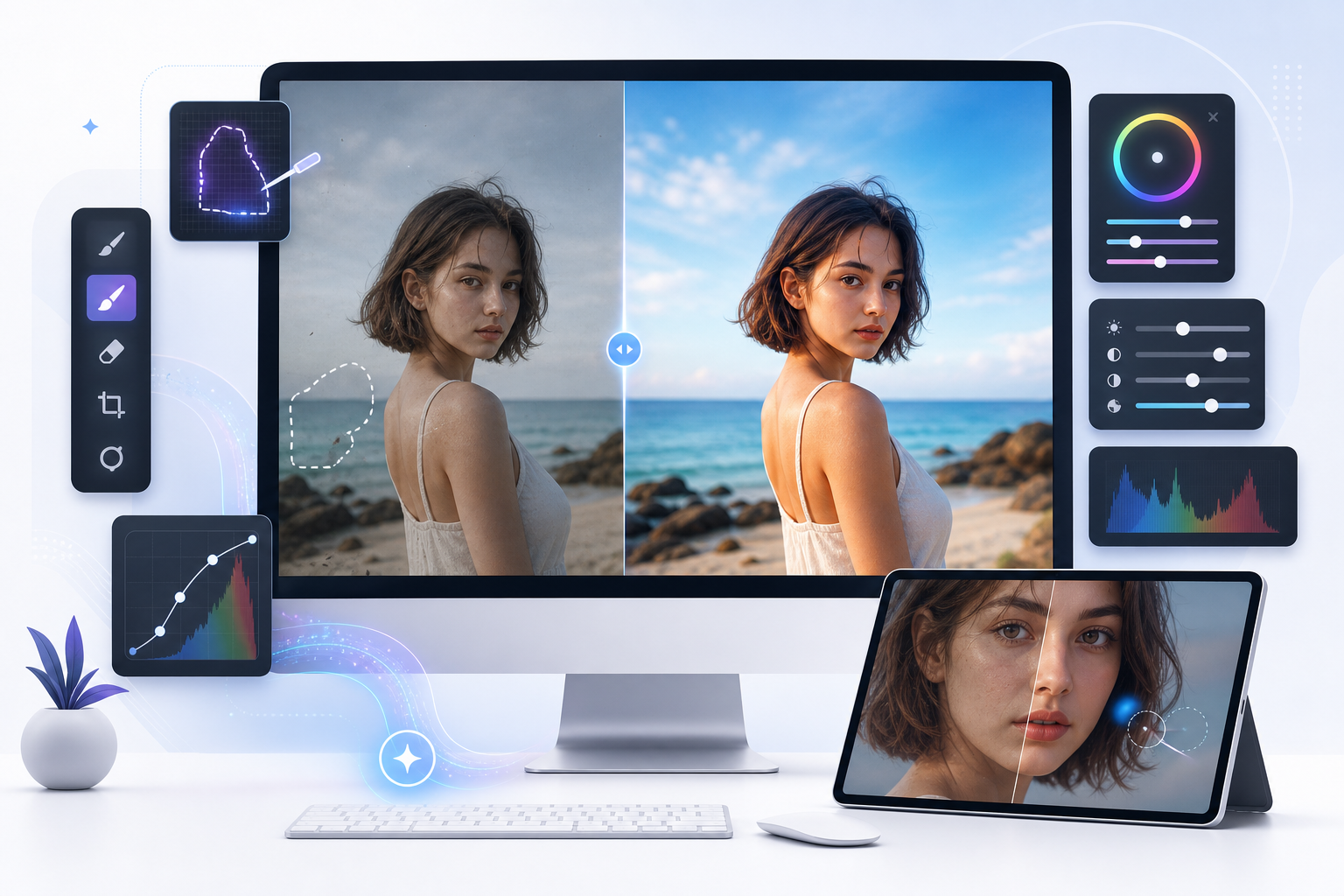
If you have ever searched for Retouch online, you were probably looking for a quick way to clean up a photo without learning complicated editing software. In practice, retouching usually means removing distractions, improving small details, or refining one part of an image so the whole photo looks cleaner and more polished.
That can include deleting a photobomber from a travel shot, softening a temporary skin blemish in a portrait, replacing a messy background in a profile image, or blurring part of a scene for focus or privacy. The key is that retouching is usually selective. It improves what is already there instead of rebuilding the image from scratch.
This guide explains what retouch means today, how browser-based tools compare with mobile apps, and which workflow makes sense for common editing goals. It also shows where TouchRetouch fits: a mobile photo-editing app developed by ADVA Soft GmbH in Berlin, Germany for iOS and Android, designed specifically for photo cleanup and object removal.
What “retouch” means in modern photo editing
From darkroom correction to mobile photo cleanup
Traditionally, retouching referred to small corrections made to a photograph after it was taken. In the film era, that could mean darkroom adjustments or careful manual fixes. Today, the same idea applies on phones and tablets, but the tools are faster, more precise, and often assisted by AI.
Modern retouching is broader than a strict dictionary definition. It can include removing unwanted objects, cleaning up skin details, replacing a background, reducing visual clutter, or making subtle portrait improvements that keep the original image recognizable.
Why re touch usually means small, targeted improvements
When people type re touch into a search bar, they usually do not mean a complete redesign. They mean small, targeted changes: erase a wire from the sky, remove a trash can from the edge of a street photo, or tidy up a portrait without changing the person’s natural features.
That is the main difference between retouching and heavy manipulation. Retouching focuses on polish. The scene still looks like the same photo, just cleaner and more intentional. A family photo still feels like the same moment; a travel shot still shows the same place, only without the distraction in the background.
What people expect when they search for editing help today
Search behavior has changed the meaning of the term. Many users now expect retouch tools to handle object removal, blemish cleanup, background edits, and selective blur in one simple workflow. Some edits are fully manual, some are AI-assisted, and many use a mix of both depending on the image.
For example, removing a stop sign from a wide street photo may work well with AI-assisted selection, while repairing a textured wall after removal may need a manual tool for refinement. That mix of automation and control is what people usually want when they look for practical photo cleanup help.
Retouch online vs mobile apps: what changes in practice
When a browser editor makes sense
Many people searching for Retouch online want a browser-based editor because it feels immediate. There is no install, it works on a shared computer, and it can be useful for a one-off task such as a quick background swap, a basic crop, or a simple cleanup before posting an image.
Online tools are often enough when the edit is light and the photo is not especially important. If you need to remove a small distraction from a product shot on a borrowed laptop or create a fast profile image with a plain background, a browser tool can be convenient.
When a dedicated app gives you more control
A dedicated mobile app is usually the better fit when cleanup is something you do regularly. Editing directly from your phone gallery is simpler for everyday use, especially for travel photos, family pictures, social posts, and portraits that need more precise selection.
Touch-based controls also help with accuracy. Brushing over a wire, circling a photobomber with a Lasso, or restoring a small area after an automatic removal is often easier on a phone or tablet than in a generic browser editor. That matters when the goal is controlled cleanup instead of a rough first pass.
Why device-based editing is often better for cleanup work
Cleanup work depends on precision. Removing a fence from the foreground, selecting a person in a group photo, or refining a textured area after object removal usually requires tools built for those exact tasks. A general browser editor may offer broad editing features, but a specialized app often gives you a more focused workflow.
TouchRetouch is not a browser-based online editor. It is a mobile photo-editing app for iOS and Android developed by ADVA Soft GmbH in Berlin, Germany. It is designed for photo editing only, and it does not support video editing. Some AI-powered features also require an internet connection, which is useful to know before you start editing on the go.
If your main goal is repeatable cleanup on everyday photos, a mobile-first tool is often more practical than a generic browser option. For readers comparing approaches, the how to remove objects from photos on iPhone and Android guide shows the kind of edits that are especially well suited to a phone workflow.
The main types of photo retouching people actually use
General cleanup and distraction removal
Most photo retouching starts with simple cleanup. That means removing small distractions, balancing where the eye goes, and making the image feel less busy without changing the scene too much. A cup on a table, a random shadow on the pavement, or a sign at the edge of the frame can all pull attention away from the subject.
This is where many people first encounter Retouch AI tools. They want the app to identify what looks out of place and help remove it quickly, while still giving them enough control to decide what stays and what goes.
Object removal for people, signs, wires, and clutter
Object removal is a more specific workflow. Instead of improving the photo generally, you are deleting something unwanted: a photobomber in a landmark shot, a trash can near a building entrance, power lines across the sky, or a fence between the camera and the subject.
Different distractions call for different tools. Wires and power lines are linear, so they benefit from line-specific removal. Fences and mesh in the foreground are a different problem because they cover large parts of the image. A person in the background needs a tool that can remove the figure and fill the empty space naturally based on the surrounding scene.
Blemish cleanup and natural portrait refinement
Portrait retouching usually works best when it stays subtle. Blemish cleanup often means removing temporary distractions such as a small mark or uneven detail while keeping skin texture and facial features natural. The goal is not to make someone look different. The goal is to keep attention on the expression, eyes, and overall portrait.
Subtle portrait enhancement can also include smoothing skin lightly, brightening eyes, enhancing a smile, reducing wrinkles on the face and neck, and evening skin tone. Good portrait retouching should still look like the same person, not a filtered version with an over-edited finish.
For a related example, glare on glasses is another portrait distraction that often needs selective correction rather than a full image makeover. This guide to remove glasses glare from a photo shows how targeted cleanup fits into a broader retouch workflow.
Background replacement and selective blur
Background editing is another common category. Sometimes the subject is fine, but the setting is messy, distracting, or not suitable for the final use. In that case, background removal and replacement can create a cleaner result for profile pictures, product images, or casual portraits.
Blur is related, but it solves a different problem. Instead of replacing the background, it softens selected areas for depth, privacy, or focus. That can help when you want the subject to stand out while still keeping the original scene visible. In short, these are connected workflows, but they are not the same, and a specialized tool often handles each one better than a one-size-fits-all editor.
How TouchRetouch helps clean up photos on mobile
Remove Objects for precise photo cleanup
TouchRetouch is a photo retouching app from ADVA Soft that focuses on removing unwanted objects and distractions from photos on mobile devices. If you want the full overview, the TouchRetouch app page explains the app’s main tools and platform details in one place.
The core feature is Remove Objects. You can mark an unwanted element with the Brush tool or outline it with the Lasso, then let the app remove it while blending the surrounding area. Adjustable brush settings help with precision, and Restore lets you bring back parts of the original if you selected too much. The removal process is edge-aware, which helps the cleanup look more natural.
Erase AI, Person Removal, Line Removal, and Mesh Removal
Erase AI is designed for common distractions that appear in everyday photos. It can detect background people and other unwanted elements such as street signs, trash cans, stop lights, and shadows, while identifying the main subject so the app leaves that part unchanged. This makes it useful for travel shots, outdoor portraits, and busy city scenes.
Person Removal is especially useful for group photos or crowded backgrounds. The app can detect all people in the image, letting you remove selected individuals while filling the empty space and adjusting the composition naturally depending on scene complexity. A family photo at a landmark or a beach shot with extra people in the background are typical examples.
Line Removal is built for wires, power lines, and other linear distractions. Mark part of the line and the app can detect the full line automatically. For curved segments, manual control points give you more control. Mesh Removal handles fences and foreground mesh with a dedicated two-step process, which is useful when shooting through barriers at parks, sports venues, or viewpoints.
Natural FaceRetouch, Backgrounds, Smart Scenes, Blur, and Clone Stamp
Natural FaceRetouch focuses on subtle portrait enhancement. It can smooth skin, brighten eyes, enhance a smile, reduce wrinkles on the face and neck, even skin tone, and add eye highlighting while preserving natural facial features. That makes it better suited to everyday portraits and social photos than heavy beauty effects.
Backgrounds can remove the original background automatically and replace it with a built-in preset or a custom image. It also supports background blur, which is useful when you want a cleaner profile photo or a product image with less visual noise. For another practical edit, this guide on how to add shadow to an image shows how presentation details can improve a final photo.
Smart Scenes is an AI-powered transformation feature that changes the look of an existing photo. It can alter hairstyles, backgrounds, and the overall scene appearance using AI filters. It does not generate images from text prompts; it transforms the photo you already have.
Blur applies selective blur to chosen areas for focus, privacy, or creative effect. Clone Stamp is the manual repair tool for detailed corrections when automatic removal needs refinement, especially on textured surfaces such as brick, grass, patterned fabric, or uneven pavement.
Who the app is best suited for
This photo retouching app is a strong fit for mobile photographers, travelers, parents, social media creators, and anyone who wants cleaner photos without a desktop workflow. It is available on iOS and Android, with Mac access only through Apple Silicon compatibility listed in the product details.
TouchRetouch preserves original photo quality and EXIF data on export, includes in-app tutorials, and uses a clean interface that is approachable for everyday users. It is still important to match expectations to the tool: results depend on photo resolution and scene complexity, and heavily textured backgrounds may need Clone Stamp refinement after automatic removal.
Remove unwanted objects from your photos — try TouchRetouch free on iOS or get it on Google Play for Android.
How to choose the right retouch workflow for your photo
Best option for travel photos and photobombers
Travel and street photos usually benefit most from object removal tools. If the problem is a photobomber, a sign, a trash can, a shadow, a wire, or a fence, start with the tool that matches the distraction. People, lines, and mesh are different editing problems, so using the right workflow usually gives cleaner results.
This is where AI photo cleanup is especially helpful. AI-assisted detection can speed up selection, but the final result still depends on the background behind the removed object. A plain sky is easier to repair than a detailed crowd or patterned wall.
Best option for portraits and social posts
For portraits, the best workflow is usually a combination of blemish cleanup and Natural FaceRetouch. Remove temporary distractions first, then make light adjustments such as soft skin smoothing, brighter eyes, or a more even skin tone. That keeps the portrait natural and avoids the flat, over-processed look people often dislike.
If the issue is not the face but the setting, use background replacement or selective blur instead. A casual selfie taken in a cluttered room can look much cleaner with a simple background change or a blurred backdrop that keeps attention on the subject.
Best option for product shots and simple background changes
Product photos, profile images, and marketplace listings often need a cleaner presentation rather than heavy retouching. In those cases, background removal and replacement can make the subject stand out more clearly. A plain preset or custom image can help create a more focused final result.
What to expect from AI-assisted cleanup
AI photo cleanup simplifies repetitive tasks and can make selection easier, especially for background people and common distractions. But AI is not magic. Complex edges, dense textures, and low-resolution images may still need manual refinement with Clone Stamp after the automatic pass.
That is one reason a dedicated mobile app often beats a generic browser editor for repeat use. If you edit everyday photos often, a specialized workflow gives you more control, more consistency, and tools designed for the exact cleanup task in front of you.
Where to get TouchRetouch and what to know before downloading
Official download options for iPhone and Android
If you want to explore the app before installing it, the TouchRetouch app page gives a clear overview of its tools and supported platforms. For downloads, use only the official store listings.
Download TouchRetouch for free on iOS and start removing unwanted objects today. You can also get TouchRetouch on Google Play for Android.
Pricing and subscription note
TouchRetouch is free to download; premium AI features require a paid subscription. Check the App Store or Google Play for current pricing, which varies by region. Family Sharing is supported on iOS.
TouchRetouch was also selected by Apple as an Editors’ Choice app. As of the time of writing, it has an approximate 4.7-star average across the App Store and Google Play, but current ratings should always be verified before publication.
A simple next step if you want cleaner photos
If your goal is better-looking everyday photos, start with the workflow that matches the problem: object removal for distractions, FaceRetouch for subtle portraits, or Backgrounds for cleaner presentation. Using the official App Store or Google Play listing is the safest way to download the app and check current pricing details.
Frequently Asked Questions
What does retouch mean in photo editing?
Retouching means improving a photo by cleaning up distractions, correcting small imperfections, or refining selected areas. It usually keeps the original image recognizable and focuses on polish rather than dramatic manipulation.
Can I retouch photos online without downloading an app?
Yes, you can retouch photos online with browser-based editors for simple one-off tasks. They are often useful for basic cleanup or background changes, but dedicated mobile apps usually offer more control for precise object removal and repeat editing.
What is the difference between object removal and general photo retouching?
Object removal is a specific type of retouching focused on deleting unwanted elements such as people, wires, signs, or clutter. General retouching is broader and can include small cleanup, blemish correction, selective blur, portrait refinement, or background edits.
Is TouchRetouch an online editor or a mobile app?
TouchRetouch is a mobile app, not an online browser editor. It is available for iOS and Android, with Mac access only through Apple Silicon compatibility listed in the product details.
Can TouchRetouch edit videos?
No, TouchRetouch does not edit videos. It is designed for photo editing only.
Retouching is easiest when you match the tool to the task. If you want to remove distractions, clean up portraits, or improve backgrounds on everyday photos, a specialized mobile workflow is usually more practical than a generic browser editor.
For anyone searching for Retouch online, the most useful takeaway is simple: decide whether you need quick access or better control. If cleaner mobile photos are the goal, TouchRetouch gives you dedicated tools for object removal, portrait refinement, background edits, and selective cleanup on iOS and Android.
FAQ
What does retouch online mean?
Retouch online means editing and improving a photo in a web-based tool, usually to remove distractions, fix small flaws, or enhance the overall look without installing advanced software.
What kinds of edits can online retouch tools do?
Online retouch tools can remove blemishes and objects, smooth skin, adjust lighting and color, crop images, and make quick corrections for portraits, products, and everyday photos.
How does Retouch AI help with photo editing?
Retouch AI speeds up editing by automatically detecting common issues and applying corrections such as object removal, skin cleanup, and background improvements with minimal manual work.
Is online retouching good enough for professional results?
Online retouching is often good enough for fast, clean results, but high-end commercial images may still need more precise manual editing by a professional retoucher.
When should I use a simple re touch edit instead of full photo editing?
A simple re touch edit is best when the photo is already strong and only needs small fixes like removing a distraction, softening minor imperfections, or improving clarity.





