
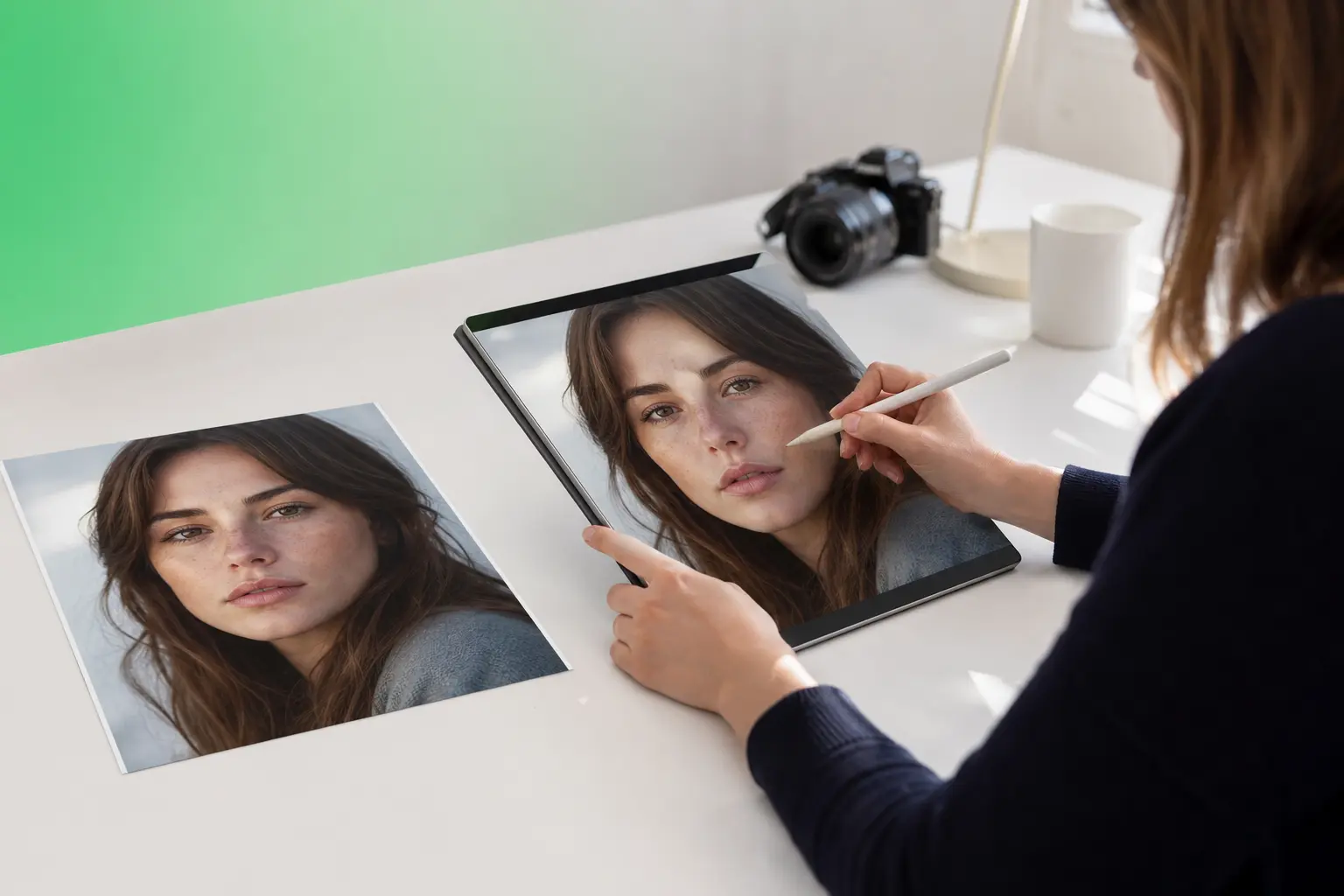
If you searched for a Snapchat filter remover from photo, you probably want a practical way to improve a saved social-media image without starting over. TouchRetouch helps clean up filtered photos honestly: it removes distracting elements, retouches details naturally, and improves the final image without pretending to reverse every baked-in effect.
That matters because many Snapchat and TikTok edits are permanently merged into the picture once you save or post it. Instead of promising a magical reset button, TouchRetouch focuses on what people actually need most: cleaner selfies, less clutter, fewer overlays, and more natural-looking results on iPhone and Android.
What TouchRetouch can actually do for filtered photos
A transparent answer for Snapchat and TikTok photo edits
People looking for a Snapchat filter remover from photo usually want to fix a saved image fast. TouchRetouch is a realistic option for that job because it is built for photo cleanup and retouching, not for claiming that every social-media effect can be perfectly undone after it has already changed the pixels.
In practical terms, the app is excellent for removing stickers, captions, text overlays, doodles, timestamps, extra people, wires, fences, and small background distractions. If a selfie has a sticker in the corner or a travel shot has text covering the sky, those are the kinds of edits TouchRetouch is designed to handle well.
Photo editing only, not video editing
TouchRetouch is designed for photo editing only and does not edit videos. If your goal is to clean up a saved still image from Snapchat or remove TikTok filter from photo content that exists as a single picture, this app fits that use case. It does not support video cleanup or video filter removal.
When cleanup works better than trying to undo a filter
Many social filters permanently alter skin texture, color grading, lighting, blur, or facial proportions. Once those changes are baked into the image, no app can always restore the exact original look. Results also depend on resolution and scene complexity, especially when the edited area covers detailed hair, fabric, or patterned backgrounds.
That is why cleanup often works better than reversal. For many users, a cleaner photo with removed distractions and subtle retouching is more useful than chasing a perfect pre-filter version that no longer exists.
Overlay removal vs permanent filter effects
What counts as an overlay in a saved image
Some edits sit on top of the photo rather than changing the whole image underneath. These overlays include text, stickers, emojis, timestamps, drawn lines, and decorative graphics. In TouchRetouch, those can often be selected with Remove Objects using the Brush tool or Lasso, then refined with Restore if you need more precision around edges.
What cannot always be restored exactly
Permanent effects are different. If you want to remove TikTok filter from photo files that already have skin smoothing, face-shape changes, beauty effects, dramatic color shifts, or artificial lighting merged into the pixels, exact restoration is not always possible. TouchRetouch does not claim to perfectly reverse every Snapchat or TikTok filter effect.
How to decide which editing approach to use
A simple rule helps. If the problem is an added object or graphic, use object removal. If the portrait looks too processed, use natural face retouch for subtle portrait editing. If the background feels distracting or artificial, background replacement is often the better fix.
This honest approach is why the app makes sense for commercial-intent searches. Instead of vague promises, it gives you a clear path based on what is actually in the saved image.
Best ways to improve a social-media photo with TouchRetouch
Remove stickers, captions, and random distractions
Remove Objects is the core feature and the starting point for most filtered-photo cleanup. Brush over a sticker covering part of a selfie, circle a caption with Lasso, or remove a timestamp from a sunset shot. If the selection catches too much, Restore helps refine the area before removal.
This is where a photo cleanup app becomes more useful than a generic “filter remover” label. A saved social image often needs practical fixes: erase text across a beach photo, remove a doodle from a portrait, or clean up a random object near the edge of the frame.
Clean up photobombers, clutter, wires, and fences
For busy scenes, Erase AI helps remove background people and common distractions while keeping the main subject unchanged where possible. It can also target things like street signs, trash cans, stop lights, and shadows that pull attention away from the photo.
If one person needs to go from a group image, Person Removal is made for that specific job. For outdoor photos, Line Removal helps remove overhead wires or cables, while Mesh Removal is useful when a fence or netting sits in front of the subject.
When automatic cleanup needs extra polish on brick walls, patterned clothing, or detailed foliage, Clone Stamp gives you manual control. That combination makes TouchRetouch a strong choice when you need the best object removal app for realistic mobile editing.
Refresh the scene with a new background
Sometimes the issue is not the filter itself but the environment behind the subject. Backgrounds can automatically remove the original background and replace it with a built-in preset or a custom image. That is useful when the saved social-media background looks messy, dated, or visually crowded.
Background blur is also available when you want the subject to stand out more clearly. If you came looking for a Snapchat filter remover from photo, replacing a distracting backdrop can deliver a more natural result than trying to undo every color or lighting effect in the original post.
Refine portraits with Natural FaceRetouch
Natural FaceRetouch is designed for subtle portrait improvement, not artificial transformation. You can smooth skin, brighten eyes, enhance a smile, reduce wrinkles, and even skin tone while preserving natural facial features. That makes it a better fit when a saved selfie looks overprocessed and you want it to feel more like a real photo again.
For readers exploring ways to remove objects with a swipe tutorial or remove objects from photos on iPhone and Android, portrait cleanup often works best as a mix of object removal and subtle face refinement.
Why users choose this instead of a generic filter remover tool
Built for cleanup, not empty promises
Many search results promise a one-click filter reversal, but saved social-media photos rarely work that way. TouchRetouch stands out by focusing on realistic cleanup: remove distractions, refine portraits, and improve composition instead of overpromising a full reset of baked-in edits.
Specialized tools for common social-photo problems
This editor is a specialist in retouching and object removal rather than a broad app trying to do everything. Its toolkit includes Remove Objects, Erase AI, Person Removal, Line Removal, Mesh Removal, Backgrounds, Natural FaceRetouch, Clone Stamp, Blur, and Smart Scenes for transforming existing photos into different looks.
TouchRetouch was selected by Apple as an Editors’ Choice app. It also has an approximate 4.7-star average across the App Store and Google Play as of the time of writing, though current ratings should be verified before publishing. Another practical advantage: original photo quality and EXIF data are preserved on export.
Mobile-first editing on iPhone and Android
TouchRetouch is available on iOS and Android mobile devices, with no standalone desktop version. That mobile-first focus is a big reason people choose it as a best object removal app for everyday cleanup on a phone or tablet.
If you want more ideas for distraction-free editing, this photo cleaner guide for distraction-free images and this page about add a person to a photo for composition changes show how flexible composition editing can be.
Download TouchRetouch and start cleaning up your photos
Who this app is best for
TouchRetouch fits social media creators, casual mobile photographers, travelers, families, and anyone who wants cleaner portraits or simpler scenes from a phone. It is especially useful when you want to remove unwanted objects from your photos instead of chasing a perfect reversal of every social effect.
Pricing and subscription transparency
TouchRetouch is free to download; premium AI features require a paid subscription. Check the App Store or Google Play for current pricing, which varies by region. Some AI-powered features also require an internet connection.
Simple next step on iOS or Android
Use it to improve filtered photos realistically: remove overlays, erase distractions, refresh backgrounds, and refine portraits naturally. Download TouchRetouch for free on iOS and Android and start removing unwanted objects today.
Frequently Asked Questions
Can TouchRetouch remove a Snapchat filter from a saved photo?
Yes, but only in a realistic sense. TouchRetouch can remove overlays such as stickers, text, doodles, and distractions from a saved image, but it does not promise to perfectly reverse permanent filter effects that are already baked into the pixels.
How do I remove TikTok text or stickers from a photo?
Use Remove Objects with the Brush tool or Lasso to select the text or sticker, then remove it from the image. Restore helps refine the selection if the overlay sits close to hair, clothing, or other detailed edges.
Can TouchRetouch reverse beauty filters or face-shape effects?
No, not exactly. If a beauty filter changed skin texture, lighting, or facial proportions in the saved file, those changes cannot always be restored to the original look. Natural FaceRetouch can still help make the portrait look more subtle and natural.
Does TouchRetouch work on videos or only photos?
TouchRetouch works only on photos. It does not support video editing or video filter removal.
Is TouchRetouch available for both iPhone and Android?
Yes. TouchRetouch is available for iOS and Android, so you can edit photos on iPhone, iPad, and Android mobile devices.
If you need a realistic Snapchat filter remover from photo workflow, the smartest approach is usually cleanup, not reversal. Remove overlays, erase clutter, refine the portrait, and replace a distracting background when needed.
TouchRetouch keeps that process simple on mobile while staying honest about what saved social-media photos can and cannot reveal. Get TouchRetouch on the App Store or Google Play and start cleaning up your photos.
FAQ
Can you remove a Snapchat filter from a saved photo?
Yes, you can reduce or clean up visible Snapchat filter elements in a saved photo by editing over added effects and restoring a more natural look.
What is the best way to make a filtered photo look realistic again?
The best approach is to remove distracting overlay elements, smooth obvious filter artifacts carefully, and preserve natural skin texture and background details.
Can TouchRetouch help remove social media filter effects?
Yes, TouchRetouch can help clean up saved photos by removing unwanted filter details, distractions, and small artificial elements for a more realistic result.
Can you also remove TikTok filter from photo files?
Yes, similar editing methods can help remove TikTok filter from photo files by reducing visible enhancements and correcting unnatural details.





