
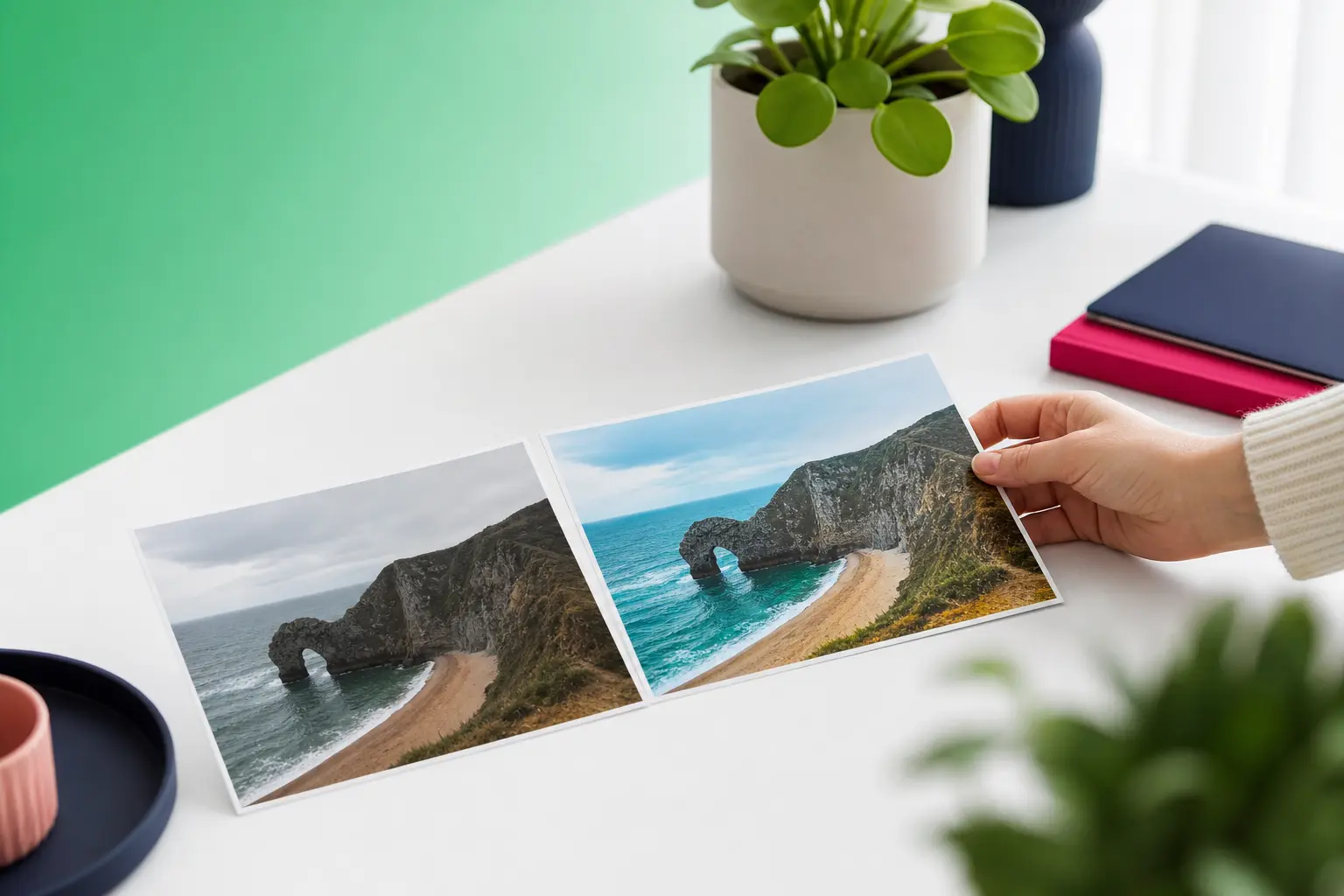
If you searched for tap edit ai, you are probably looking for a simple way to improve a photo you already have, not a complicated editor or an image generator. This guide explains what people usually mean by one-tap AI photo editing and how TouchRetouch helps with practical mobile cleanup and retouching.
Many users start with broad discovery intent. They want an easier way to remove clutter, refresh a portrait, swap a background, or change the overall mood of a picture without learning layers, masks, or prompt writing. In most cases, the goal is not to build an image from scratch. It is to make an existing photo look cleaner, more polished, or better suited to sharing.
TouchRetouch is a mobile photo-editing app developed by ADVA Soft GmbH in Berlin, Germany. It focuses on AI-powered object removal and photo retouching for iOS and Android, with a clean interface and in-app tutorials that make the tools approachable for everyday users. Another practical advantage is that exports preserve original photo quality and EXIF data, which matters if you want to keep image details intact after editing.
What people usually mean by one-tap AI photo editing
Why this search is broad and exploratory
Searches around one-tap editing are usually less about a specific feature name and more about a desired outcome. People want fast improvement with minimal effort, especially on a phone, where a simple tap-based workflow feels more realistic than a full desktop-style edit.
That broad intent often covers several different needs at once. Someone may want to erase a photobomber from a travel shot, soften a busy portrait background, or try a new scene style for a social post. The common thread is ease: fewer steps, clear tools, and visible results from an existing image.
The most common tap-to-improve photo goals
There are four goals behind this kind of search. First, many people want to remove distractions from photo scenes, such as background people, signs, wires, or random clutter. Second, some want to change the look of a scene without manual color work or advanced controls.
Third, portrait users often want subtle face enhancement that keeps a natural appearance. Fourth, many want quick background replacement for profile pictures, family photos, or casual content creation. These are all editing tasks, not image generation tasks.
What a simple mobile workflow should feel like
A good mobile workflow should feel direct. Open a photo, choose the tool that matches the problem, tap or brush over the area, and export when the result looks right. That is the appeal of one-tap AI photo editing: less setup, less technical friction, and more focus on the picture itself.
TouchRetouch is built around that idea on iPhone, iPad, and Android devices. It keeps the interface clean, includes in-app tutorials for easy learning, and is designed for people who want practical photo cleanup on the go rather than a technical deep dive into editing theory.
How TouchRetouch fits the tap edit ai idea
A simple way to improve an existing photo
TouchRetouch fits the tap edit ai idea by helping users improve a photo they already like in just a few steps. Instead of asking you to build an image from a text prompt, it gives you focused tools for cleanup, retouching, background changes, and scene restyling on mobile.
That makes it a strong match for people who want practical results without layers or prompt writing. If you want a broader overview of AI photo editing tools for existing images, that companion page adds more context, while this article stays focused on tap-based workflows.
What TouchRetouch does well on mobile
The app is especially useful when your goal is to remove unwanted objects, erase background people, clean up portrait details, blur selected areas, or replace a background. It also includes Smart Scenes for one-tap visual transformations, so you can restyle an existing image without building a complex edit from scratch.
Because the tools are task-based, the workflow feels approachable for casual users. You start with a photo from your phone or tablet, choose the feature that matches your goal, and make targeted improvements rather than navigating a full desktop-style workspace.
What it does not do
TouchRetouch does not generate images from text prompts. It also does not edit video; it is exclusively a photo editing app. If your goal is AI image generation or video retouching, this app is not designed for that use case.
There are a few practical limits to know before you start. Some AI-powered features require an internet connection, and premium AI features such as Erase AI, Blur, Backgrounds, Smart Scenes, Natural FaceRetouch, and Person Removal require an active subscription. The benefit is clarity: you can start with a real photo, clean it up, or restyle it quickly from your phone.
Tap to remove distractions from a photo
Use Erase AI for background people and everyday clutter
If your main goal is to remove distractions from photo scenes, Erase AI is the easiest place to start. It is designed to detect and select people in the background automatically, remove them, fill the gaps, and identify the main subject so that person stays unchanged.
This is especially useful in travel and family photography. Imagine a great vacation shot with strangers behind you near a landmark, or a family picture with a photobomber at the edge of the frame. Erase AI is built for that kind of cleanup, and it can also help remove street signs, trash cans, stop lights, shadows, and similar visual clutter.
Automatic removal tends to work best when the background is more uniform, such as sky, pavement, grass, or a simple wall. In busier scenes with heavy texture, repeating patterns, or overlapping details, the result may need a little manual refinement afterward.
When Remove Objects gives you more control
For more precise edits, use Remove Objects. This core tool lets you mark unwanted elements with the Brush tool or the Lasso, then remove them while the app rebuilds the area with AI edge-aware removal designed to keep the result looking natural.
- Open your photo in TouchRetouch.
- Select Remove Objects.
- Use the Brush for irregular shapes like litter, blemishes, or small signs.
- Use the Lasso when you want to circle a clearly defined object.
- Adjust brush settings for tighter control around edges.
- Use Restore if you want to bring back part of the original selection and refine the edit.
This workflow is useful when the automatic option selects too much or when you want to target a specific item. A common example is a travel photo with a bench, bag, or parked scooter pulling attention away from the subject. Another is a family shot where you want to remove one distracting object but keep the rest of the scene untouched.
If you want a deeper walkthrough, see how to remove objects from photos on iPhone and Android. For broader cleanup ideas, the photo cleaner guide for distraction-free images is also useful.
Extra cleanup tools for lines, meshes, and fine repairs
Some distractions need a more specialized tool. Line Removal is made for wires and power lines, so you can tap or mark part of a line and let the app find the full line automatically. If the line curves, manual retouch mode adds control points for better precision.
Mesh Removal is designed for fences and foreground mesh. That is handy for zoo photos, sports shots taken behind netting, or travel pictures captured through barriers. The process is simple: choose the tool, tap Go, and let the app detect and remove the mesh automatically.
For final touch-ups, Clone Stamp gives you manual control. You can copy texture from one area to another to repair small imperfections after object removal, especially in textured surfaces like brick, foliage, patterned fabric, or detailed architecture. In short, if your idea of tap edit ai is “make this photo cleaner without a full editing course,” this is where TouchRetouch is strongest.
Change the scene look with one tap
How Smart Scenes transforms an existing image
Not every edit is about removing something. Sometimes you like the photo but want a fresh version of it. Smart Scenes is TouchRetouch’s AI photo transformation tool, built to change the look of an existing image with a single tap using AI filters.
It can transform the overall scene appearance, including hairstyles, backgrounds, and the visual style of the image. That makes it useful when you want to explore alternate looks from one original photo instead of manually adjusting many settings one by one.
When to use it instead of manual editing
Smart Scenes makes sense when your goal is speed and exploration. For example, you might want to refresh a portrait setting for a social post, try a different mood for a lifestyle shot, or create several visually distinct versions of the same image for casual sharing.
It also suits users who do not want to learn advanced editing steps. There is no prompt writing involved, and it does not generate a brand-new image from scratch. It transforms the photo you already have, which keeps the workflow simple and focused.
What to expect from AI scene changes
Results depend on the starting photo and scene complexity. A clear portrait or well-defined subject usually gives the AI more to work with than a crowded, low-resolution image. The best way to think about Smart Scenes is as a creative shortcut, not a replacement for every manual adjustment.
For a broader look at related features, explore AI photo editing tools for existing images. In the context of tap-based editing, Smart Scenes is the feature that turns one original image into multiple style directions with minimal effort.
Clean up portraits and replace backgrounds fast
Natural FaceRetouch for subtle portrait enhancement
Portrait users often want a cleaner, more polished photo without losing what makes the person look like themselves. Natural FaceRetouch is designed for that kind of portrait photo cleanup, with subtle tools that smooth skin, brighten eyes, enhance smile, reduce wrinkles on the face and neck, even skin tone, and add eye highlighting.
The emphasis is natural-looking improvement. The feature is built to preserve facial features rather than create a plastic or over-edited result, which makes it a good fit for profile photos, family portraits, and casual social images where you want a refined look that still feels real.
Backgrounds for quick background replacement
Backgrounds handles automatic background removal and replacement. You can remove the original background and swap it with one of the built-in photo presets or use your own custom image, depending on the look you want.
This is useful when the subject looks great but the setting feels distracting or mismatched. A casual portrait can become more suitable for a profile image, a family photo can look cleaner for sharing, and a product shot can gain a more controlled backdrop without a desktop workflow.
The same feature also supports background blur. That gives you a depth-of-field style effect, which can help the subject stand out more clearly and create a softer, more polished visual impression.
A simple workflow for profile, family, and social photos
A practical portrait workflow often starts with the face, then moves to the setting. You might first use Natural FaceRetouch for subtle skin smoothing and eye brightening, then use Backgrounds to replace a busy room or blur the surroundings for a cleaner composition.
- Open the portrait on your phone or tablet.
- Apply Natural FaceRetouch for subtle facial enhancement.
- Use Backgrounds to remove and replace the backdrop or add blur.
- Export the final image with original photo quality and EXIF data preserved.
This approach works well for profile pictures, family photos, and everyday social content. If you want more general tips, read how to enhance photo quality on your phone. For a finishing touch after background work, add shadow to an image for a polished final look can help you think through the final presentation.
One practical note: TouchRetouch is mobile-only on iOS and Android. There is no standalone desktop version, so the experience is built around editing directly on a smartphone or tablet.
Who this kind of mobile editing is best for
Good fit for casual creators and everyday photo cleanup
This kind of mobile editing is a strong fit for casual photographers, social media creators, travellers, families, and real estate users who want cleaner photos without a complex workflow. It is also useful for anyone who regularly notices photobombers, wires, signs, clutter, or busy backgrounds after taking a picture.
When TouchRetouch is the right tool
TouchRetouch is best for people who want to improve photos they already have rather than create images from text prompts. It is photo editing only, not video, and results depend on photo resolution and scene complexity. Some AI features need internet access, and premium AI tools require a subscription.
Download options and final takeaway
TouchRetouch is free to download; premium AI features require a paid subscription. Check the App Store or Google Play for current pricing, which varies by region. It is available for iOS and Android, making it easy to edit on the devices most people already use for taking photos.
Try TouchRetouch — remove distractions from your photos in seconds. Download for iPhone or Android and see how tap-based AI photo cleanup fits your everyday editing.
Frequently Asked Questions
What does tap edit ai usually mean for photo editing?
It usually means people want a simple, tap-based way to improve a photo they already have. In practice, that often includes removing distractions, changing the scene style, cleaning up a portrait, or replacing a background without advanced editing steps.
Can TouchRetouch remove people from the background with one tap?
Yes, TouchRetouch includes Erase AI, which is designed to detect and remove people in the background automatically while leaving the main subject unchanged. Results depend on the scene, and more complex backgrounds may need extra refinement with other tools.
Does TouchRetouch generate images from text prompts?
No, TouchRetouch does not generate images from text prompts. It works with existing photos and helps you remove objects, retouch portraits, replace backgrounds, blur areas, and transform scene appearance with AI-powered tools.
Can I replace a photo background in TouchRetouch?
Yes, the Backgrounds feature supports automatic background removal and replacement. You can use built-in photo presets, choose a custom image, or apply background blur for a softer depth-of-field effect.
Does TouchRetouch edit videos or only photos?
TouchRetouch edits only photos. It does not support video editing, so it is best suited to mobile users who want fast cleanup and retouching for still images.
For most people, tap-based editing is not about AI buzzwords. It is about taking a photo you already like and making it cleaner, calmer, or more polished with less effort. That is where TouchRetouch stands out: focused mobile tools for object removal, portrait retouching, background replacement, and scene transformation.
If your idea of tap edit ai is simple photo improvement on the go, TouchRetouch is a practical match. Clean up your photos with TouchRetouch — download now for iOS or Android.
FAQ
What does tap edit ai usually mean?
Tap edit ai usually refers to a simple one-tap photo editor that automatically improves a photo you already have.
Is tap edit ai the same as an AI image generator?
No, tap edit ai usually means enhancing an existing photo rather than creating a brand-new image from a prompt.
What features do people want from one-tap photo editing?
People usually want quick automatic fixes for lighting, color, sharpness, and overall clarity without needing manual editing skills.
Who is tap edit ai best for?
Tap edit ai is best for people who want faster photo improvements for everyday pictures, social posts, or personal memories.
How do you choose a good one-tap photo editor?
Choose a one-tap photo editor that is easy to use, produces natural-looking results, and lets you improve photos quickly without a steep learning curve.





