
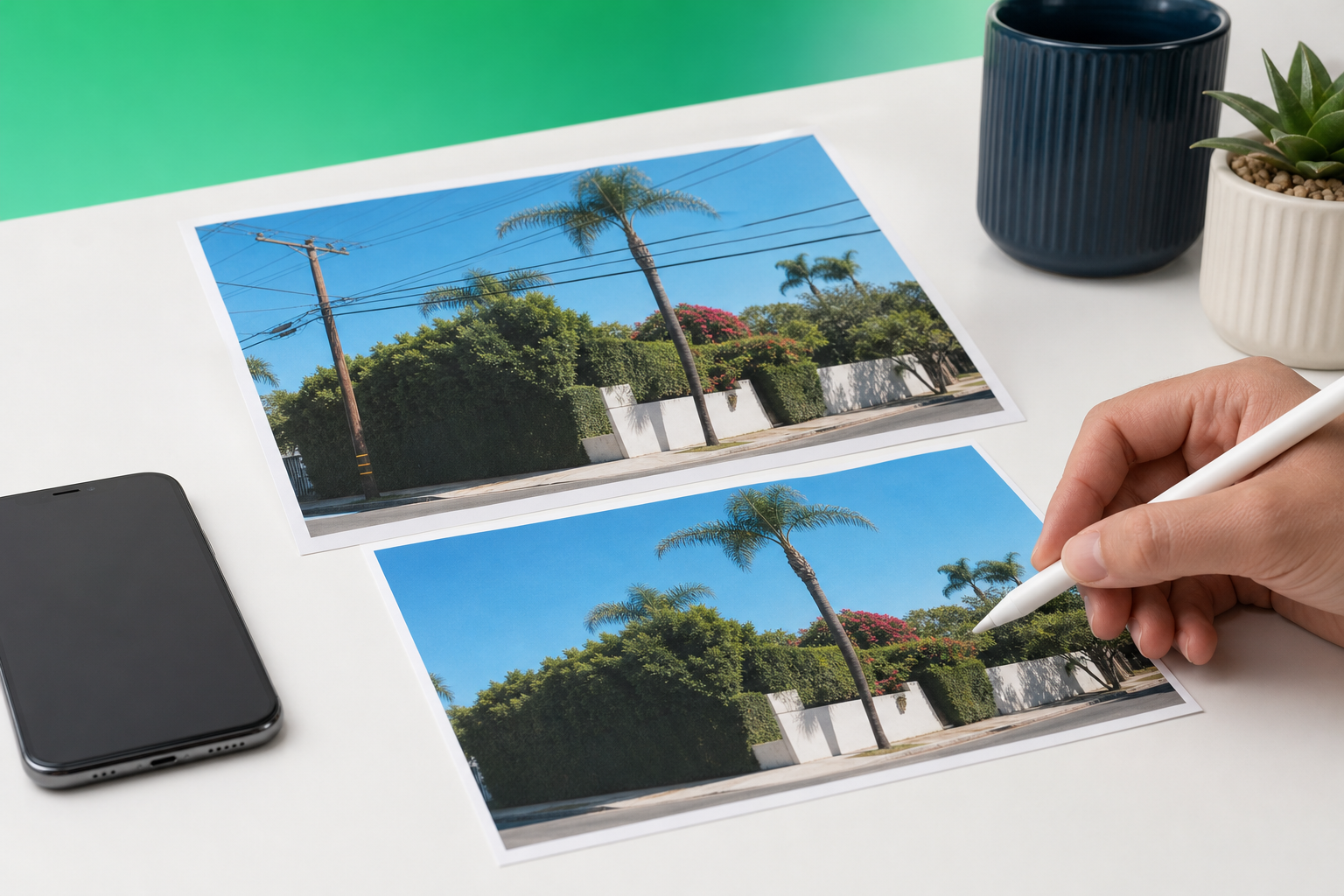
If wires or utility cables cut across an otherwise great shot, you can remove power lines from a photo on iPhone without moving the image to a desktop. A dedicated mobile workflow works especially well for thin lines that run through skies, rooftops, trees, and street scenes.
TouchRetouch is a photo-editing app from ADVA Soft GmbH, based in Berlin, Germany, built for object removal and cleanup on mobile devices. For wire cleanup, it includes a dedicated Line Removal tool that is designed for long, narrow distractions that general brush tools often handle less cleanly.
What works best for removing wires on iPhone photos
Why thin cables are harder than larger distractions
Power lines, utility cables, and overhead wires often ruin strong landscape, travel, street, and property photos because they slice across the frame in a way your eye notices immediately. They are small, but they pull attention away from a sunset, a skyline, a house exterior, or a clean architectural composition.
They are also harder to erase than bigger objects. A person, sign, or trash can usually covers one compact area, while a wire can stretch across half the image and cross several textures at once, such as blue sky, leaves, roof shingles, poles, and brick.
When a mobile line-removal tool makes sense
This is where a specialist app to remove power lines from photos makes more sense than relying only on a broad brush-based cleanup tool. TouchRetouch includes a dedicated Line Removal feature, so you do not have to paint over the entire cable manually from end to end.
Instead, you can tap or mark part of the wire and let the app detect the full line automatically. That saves effort on straight utility wires and overhead cables that run across open sky, roads, beaches, or simple building backgrounds.
What kind of photo backgrounds are easiest to clean up
The easiest edits are usually lines crossing uniform areas like clear sky, soft clouds, plain walls, or water. In those scenes, the repaired area blends more naturally because the app has simpler surrounding texture to work with.
More complex scenes need more care. If a cable runs through layered tree branches, patterned rooftops, or dense city details, the first pass may leave small artifacts that need manual refinement with Clone Stamp. For curved or sagging wires, manual retouch mode adds control points so you can guide the path more precisely.
TouchRetouch is available for iPhone, iPad, and Android, with Mac access through Apple Silicon compatibility, though this guide focuses on iPhone use. If you also want broader cleanup tips, see how to remove objects from photos on mobile with a similar mobile-first approach.
Before you start: app access, pricing, and photo prep
Where to get TouchRetouch on iPhone
Start by installing TouchRetouch from the App Store on your iPhone. Android users can get the same app on Google Play, so the workflow is not limited to Apple devices even though this tutorial is centered on iPhone editing.
TouchRetouch is free to download; premium AI features require a paid subscription. Check the App Store or Google Play for current pricing, which varies by region. That matters if you want to remove power lines from a photo for free: downloading the app is free, but not every AI-powered feature is included without a subscription.
What free download means in practice
This article is about photo cleanup, not video editing. TouchRetouch is a photo editor only, so it is designed for still images from your iPhone camera roll, travel shots, real estate photos, and similar pictures where a wire or cable needs to disappear.
If you want to clean up a single image quickly on your phone, the app-based workflow is often simpler than uploading a file to a browser editor. iPhone users can Download TouchRetouch for free on iOS and start removing unwanted objects today.
How to choose the best image for cleaner results
Use the highest-quality version of the photo you have. Resolution and scene detail affect how natural the repaired area looks, especially when the wire crosses fine textures like leaves, roof edges, railings, or brick patterns.
Before editing, zoom in and inspect the places where the cable intersects important contours. Pay special attention to tree branches, rooflines, utility poles, windows, and building corners, because those transition points are where cleanup errors are easiest to spot.
TouchRetouch also has a practical export advantage: it preserves original photo quality and EXIF data on export. If you often remove something from a photo on iPhone, that makes it easier to keep your edited image organized without sacrificing metadata.
Step-by-step: remove power lines from an iPhone photo with TouchRetouch
1) Import the image and zoom into the cable area
Open TouchRetouch and import the image from your iPhone photo library. Once the photo is loaded, pinch to zoom into the part of the frame where the wire is most visible so you can inspect its full path and see where it crosses important details.
At this stage, do not start with the whole image at once. It is easier to work section by section, especially if the line runs from one side of the frame to the other or passes behind branches and roof edges.
2) Select the Line Removal tool
Choose the Line Removal tool from the editing options. This tool is specifically designed for wires, power lines, and other long, narrow distractions, which makes it more direct than trying to cover the entire cable with a general object-removal brush.
If you want AI to remove power lines from a photo on your phone, this is the key feature to use first. It is built for the exact shape of the problem: thin, extended lines that often cut across multiple parts of the scene.
3) Tap or mark a small section and let the app detect the full wire
Mark a short portion of the wire rather than tracing every inch of it. TouchRetouch can detect the full line automatically, which is especially useful for straight overhead cables against sky, open water, plain walls, or uncluttered facades.
After the app processes the selection, inspect the result closely. In a simple sky scene, the line often disappears cleanly in one pass; in a busier street or garden photo, the app may remove most of it while leaving a few spots that need a second correction.
For example, if a cable runs across a beach sunset, one short selection near the center is often enough for the app to identify the entire line. If the same cable crosses a rooftop and a tree canopy, expect the sky portion to clean up more easily than the sections over textured detail.
4) Use manual retouch mode for curved or broken segments
Not every wire is perfectly straight. Some utility lines sag between poles, curve slightly, or disappear behind branches and reappear in separate sections. In those cases, switch to manual retouch mode and use control points to guide the path more accurately.
This is the best approach when the automatic pass misses a bend or treats two nearby cables as one shape. By placing control points along the curve, you tell the app exactly which segment should be removed and avoid affecting nearby edges.
A practical example is a neighborhood street shot where a cable dips between two poles above a house. Another common case is a mountain overlook where several lines overlap against trees and clouds. Manual control helps isolate each segment instead of forcing one broad selection across the whole frame.
5) Refine difficult spots with Clone Stamp
If the removed wire passed over leaves, textured walls, layered architecture, or repeating roof tiles, use Clone Stamp to repair the few places where the background looks soft or uneven. Clone Stamp lets you copy nearby texture into the edited area for more precise blending.
Work with small source areas that match the surrounding detail. If you are fixing a line that crossed a brick wall, sample from adjacent bricks with similar lighting. If the line crossed a tree canopy, copy from nearby leaves in the same focus plane rather than from a different branch cluster.
Automatic removal works best on uniform backgrounds, while detailed scenes often need a short manual pass to look natural.
If you want more general cleanup ideas beyond wires, you can also clean up photos with an AI retouch app using the same mobile editing mindset.
6) Export the cleaned photo
Before saving, review the image at two levels: zoomed in and full screen. Zoomed-in review helps you catch tiny leftover fragments, while full-screen review shows whether the edit blends naturally into the overall composition.
Once the result looks clean, export the photo. TouchRetouch preserves original photo quality and EXIF data on export, so your edited image keeps its metadata and remains suitable for sharing, posting, or storing in your library.
This mobile-first workflow can be a convenient alternative to transferring files to a desktop editor for a simple cable cleanup. If your goal is to remove power lines from iPhone photos quickly and directly on your device, the dedicated line tool keeps the process focused.
Simple backgrounds may clean up in a single pass, while busy scenes can need another pass plus Clone Stamp refinement. That is normal for detailed areas.
Troubleshooting common wire-removal problems
The line crosses trees or detailed foliage
When a cable runs through leaves or branches, make shorter selections instead of trying to remove the entire line in one go. Review each section after it disappears so you can catch smudged foliage early and fix only the affected area.
Tree canopies are difficult because the background changes every few pixels. In that situation, remove one segment, inspect the branch edges, then use Clone Stamp to rebuild any spots that look too smooth compared with the surrounding leaves.
The cable is curved, sagging, or split into sections
Use manual retouch mode with control points when the wire is not straight. That gives you more control over sagging utility lines, curved tram wires, or broken sections that disappear behind poles and reappear near rooftops.
Automatic detection is strongest on clear, continuous lines. If the cable changes direction or is interrupted by a tree trunk or building edge, guide the path manually instead of forcing one long automatic selection.
The cleanup looks soft or slightly uneven
Soft patches usually appear where the removed line crossed a textured surface such as shingles, brick, stone, or dense foliage. The fix is to sample nearby texture with Clone Stamp and blend the repaired area in small strokes rather than one large patch.
This is also where anyone comparing Photoshop with mobile cleanup should set expectations correctly. A phone workflow is excellent for fast, focused retouching, but highly layered scenes still benefit from careful manual refinement.
Part of the wire remains after the first pass
If a fragment remains, select only the leftover section and run the removal again. Avoid painting a much larger area than necessary, because over-editing can make edges around poles, branches, and rooflines look less natural.
Check transitions closely after each pass. The most noticeable edits tend to happen where the line touched a rooftop edge, crossed a utility pole, or cut through a branch tip, so those are the first places to inspect before exporting.
Free, online, Lightroom, and Photoshop alternatives
When an online editor may be enough
If you only need a one-off cleanup, a browser tool can be convenient. That is why some people look for ways to remove power lines from a photo online instead of installing an app.
Still, editing directly on iPhone is often simpler when the photo already lives in your camera roll. You skip file uploads, browser zoom limitations, and the extra step of moving the edited image back into your photo library.
When Lightroom is a better fit for a desktop photo workflow
Lightroom fits better when you are already doing broader desktop work such as exposure correction, color grading, lens adjustments, or catalog-based image organization. In that kind of workflow, cable cleanup is just one part of a larger editing session.
If you are wondering whether to remove power lines in Lightroom, it can make sense when you are already committed to that desktop environment. TouchRetouch is not a replacement for Lightroom; it is a specialist mobile editor focused on removing unwanted elements with a simpler phone-friendly workflow.
When Photoshop makes sense for advanced manual cleanup
Photoshop is useful for advanced retouching, layered edits, and very manual repairs in complex scenes. If a line crosses many overlapping details, a desktop workflow gives pixel-level control.
That said, not every image needs a desktop editor. For straightforward utility wires, travel shots, and property photos, a dedicated mobile line-removal tool is often the faster and more direct option on iPhone.
Why a dedicated mobile tool is often simpler on iPhone
TouchRetouch focuses specifically on object and line cleanup rather than trying to be an all-purpose desktop replacement. That focus matters when you want to open a photo, remove the distraction, refine a few spots, and save the result without switching devices.
TouchRetouch is free to download; premium AI features require a paid subscription. Check the App Store or Google Play for current pricing, which varies by region. If you are weighing mobile against browser-based tools or desktop apps, that gives you a clear starting point without overstating what is included.
The app is also available on Android for readers who use both platforms. Android users can Get TouchRetouch on Google Play to clean up photos on Android as well.
For a broader look at browser tools and tradeoffs, you can also compare options for removing objects from photos online free. And if you want a wider overview of mobile editing, it helps to learn more about AI photo editing on mobile.
Best results, export tips, and next steps
How to review your edit before saving
Inspect the repaired area at multiple zoom levels before exporting. Close-up review helps you spot repeating textures, softened details, or tiny wire fragments, while full-screen review shows whether the image still feels natural as a whole.
What to do if the first cleanup is not enough
If the first pass is not perfect, make a smaller second pass instead of aggressively removing a large area all at once. A natural-looking result matters more than erasing every trace in one attempt, especially when the cable crossed trees, roof edges, or patterned surfaces.
TouchRetouch also preserves original photo quality and EXIF data on export, so your finished image keeps both visual quality and metadata after cleanup.
Download options for iPhone and Android
TouchRetouch is a strong fit for iPhone users who want a dedicated way to remove wires, utility cables, and similar linear distractions from photos. It is also available on Android, so the same cleanup approach works across both major mobile platforms.
If you want to remove power lines from iPhone shots without switching to a desktop editor, TouchRetouch keeps the process focused and practical. Download TouchRetouch for free on iOS and start removing unwanted objects today.
Frequently Asked Questions
Can I remove power lines from an iPhone photo without using a desktop editor?
Yes. TouchRetouch lets you edit directly on iPhone using its dedicated Line Removal tool, and you can refine difficult areas with Clone Stamp if needed. That makes it a practical mobile workflow for still photos without moving the file to a desktop app.
Is TouchRetouch free to use for wire removal?
TouchRetouch is free to download; premium AI features require a paid subscription. Check the App Store or Google Play for current pricing, which varies by region. That means you should review the current store listing for the exact plan details available in your location.
What should I do if the wire crosses trees or a detailed background?
Use shorter selections and review each section after removal. If the repaired area looks soft or uneven, switch to Clone Stamp and copy nearby texture from matching leaves, branches, or surface detail to refine the result.
Should I use Lightroom or Photoshop instead for cable removal?
Use Lightroom if cable cleanup is part of a larger desktop workflow that includes color and catalog management. Use Photoshop when you need advanced layered retouching in a very complex scene. For direct iPhone cleanup, TouchRetouch is often simpler because it is focused specifically on removing unwanted lines and objects.
Does TouchRetouch work only on iPhone?
No. TouchRetouch is available on iPhone, iPad, and Android, with Mac access through Apple Silicon compatibility. This guide focuses on iPhone, but the app is not limited to one mobile platform.
Removing overhead wires does not have to mean rebuilding a photo in desktop software. With a dedicated line-removal workflow, you can clean up travel shots, street scenes, landscapes, and property images right from your phone, then refine any difficult areas with Clone Stamp when the background is more detailed.
If you want a practical way to remove power lines from iPhone photos while keeping the process mobile and straightforward, TouchRetouch is built for that job. Download TouchRetouch for free on iOS and start removing unwanted objects today, or get it on Google Play if you edit on Android.





